User guide
Connect to MCP servers your organization has approved.
Find available servers
- Log in to Mintive
- Click MCP store in the sidebar
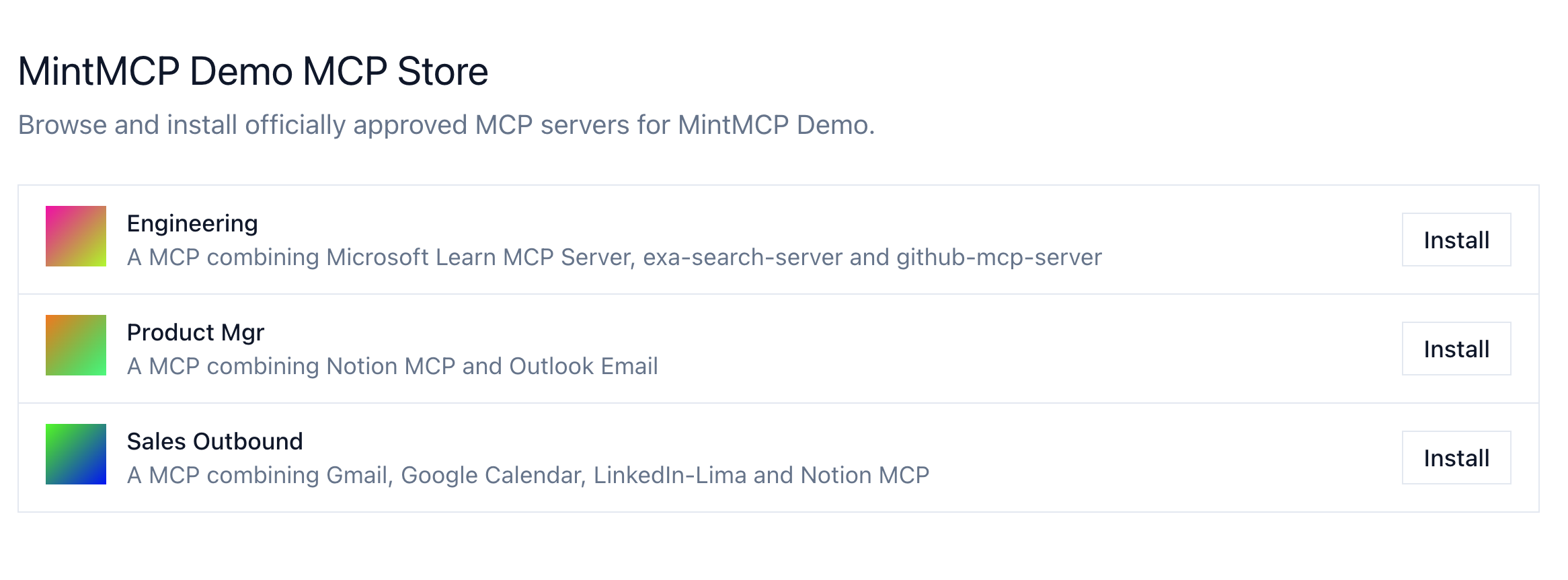
The store shows MCP servers your administrator has approved. Each entry displays:
- Server name and description
- Which connectors are included
- An Install button to get connection instructions
Installing an MCP server
Click Install on any MCP server to see setup instructions for your AI client.
Claude, ChatGPT, and Microsoft 365 Copilot
If your administrator already added the server for your organization, open your app's connector settings, find it, and click Connect. Otherwise:
- Copy the MCP server URL from the install dialog
- Paste it into your app's connector settings: see Claude, ChatGPT, or Microsoft 365 Copilot
- Sign in when prompted
Coding agents and other MCP clients
Add the MCP server URL to the client's MCP configuration, then authenticate when prompted. See AI client integrations for Claude Code, Cursor, and other clients.
Authentication
First-time connection
When you first connect to an MCP server:
- Your AI client initiates the connection
- Mintive prompts you to sign in (using your organization's SSO if configured)
- Mintive validates your permissions
- You can start using the tools
This happens once per MCP server. Your credentials are cached for future sessions.
Per-user authentication
Some MCP connectors require you to authenticate with the underlying service. For example, a Salesforce or Google Drive connector might ask you to sign in with your own account.
When this happens:
- Your AI agent calls a tool that needs your credentials
- The client displays an authentication link
- Click the link and authorize access to the service
- Mintive stores your authorization for future requests
Troubleshooting
Can't see any MCP servers
- Verify you're logged into Mintive with your work account
- Check that you're in the correct organization (see bottom-left of sidebar)
- Contact your administrator to request access
Authentication fails
- Make sure you're using your organization credentials
- If using SSO, ensure your SSO session is active
- Clear your browser cache and try again
Tools not working
- Check if the connector requires per-user authentication
- Verify the underlying service (Salesforce, Slack, etc.) is accessible
- Contact your administrator if the issue persists
Next steps
- Ask your administrator about MCP servers available for your role
- Core concepts — How MCP servers work