Restrict a Virtual MCP to an approved OAuth client
Limit interactive access to a Virtual MCP (VMCP) to a single OAuth client that you register, so members can only connect through the MCP client your organization approved. Once the restriction is on, the gateway rejects OAuth tokens issued to any other client, even when the user signing in is a valid member with access to the server.
When to use this
- Your security team approves specific AI clients (for example, Claude) and wants to block connections from unapproved ones
- You need to stop members from adding a sensitive Virtual MCP to an arbitrary MCP client
- You connect a custom app or a Custom GPT that authenticates with a fixed client ID and secret
How it works
Turning on Require registered OAuth client creates one OAuth client for the Virtual MCP and makes it the only client the server accepts, so members connect through that approved client as usual while any other client fails to connect. Turning the restriction on also disconnects other clients that are already connected.
The restriction controls which client can connect, not which user. Each member still signs in with their own identity through your SSO, and the Virtual MCP's access policy still decides who can use it, so a member needs both the approved client and access to the server.
Prerequisites
- Can Edit access to the Virtual MCP
- A Virtual MCP offered to members. Agent Virtual MCPs don't have this setting; they authenticate with bearer keys or M2M tokens instead
Turn on the restriction
- Go to Manage MCPs and open the Virtual MCP
- Open the Installation tab
- Under Restrict access to a specific OAuth client, turn on Require registered OAuth client
Mintive registers an OAuth client for the Virtual MCP and shows its Client ID and Client secret. The first time you turn it on, the client's Redirect URIs list is pre-filled with the callbacks for Claude and for Cursor's web app and Cloud Agents:
https://claude.ai/api/mcp/auth_callback
https://www.cursor.com/agents/mcp/oauth/callback
Allow your approved client's callback URL
The OAuth flow only completes for clients whose callback URL is on the Redirect URIs list, so the list is where you choose which client to approve.
- Under Redirect URIs, enter the callback URL of the client you're approving (for example,
https://app.example.com/oauth/callback) - Click Add
- Delete any callback you don't want to allow by clicking the trash icon next to it
The list always keeps at least one URI, so add the new callback before removing the last old one.
Connect the approved client
Give the client the Virtual MCP's URL from the Installation tab plus the Client ID and Client secret from the Restrict access to a specific OAuth client section. Where you enter them depends on the client:
-
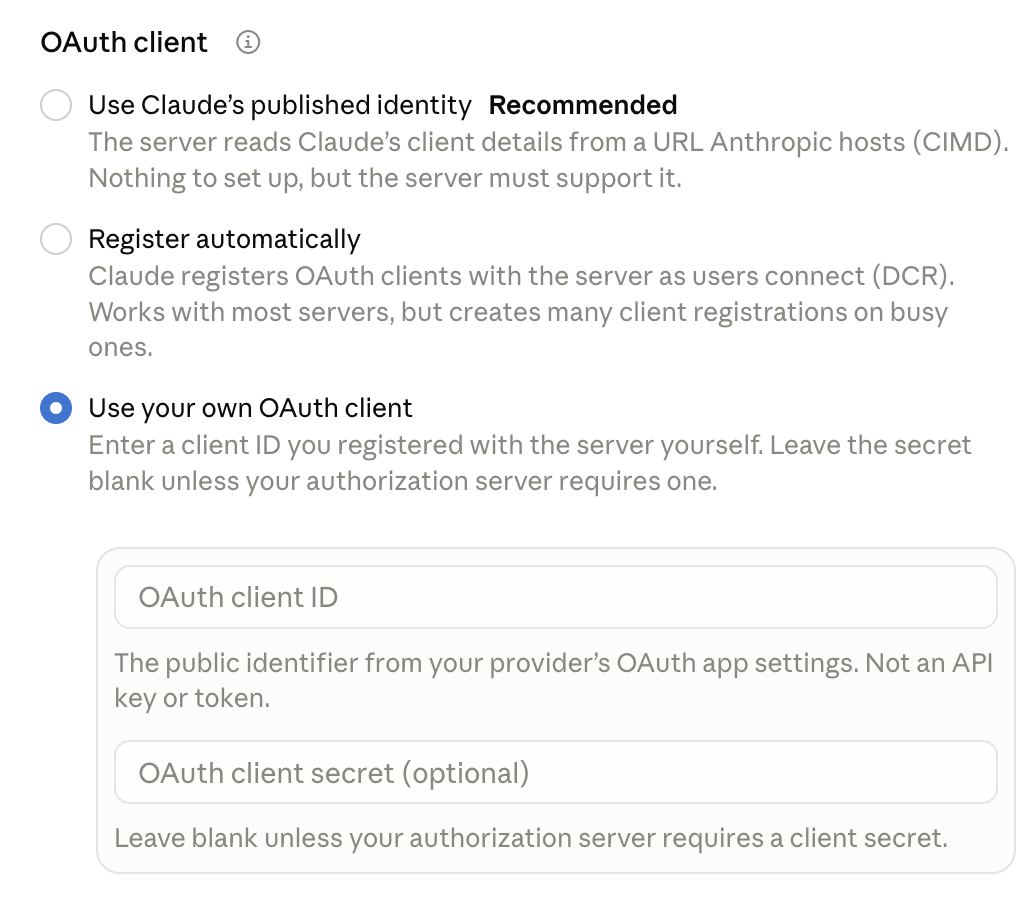
Claude: when adding a custom connector, under OAuth client choose Use your own OAuth client, then enter the OAuth client ID and OAuth client secret. Claude marks the secret as optional, but the Virtual MCP's client requires it. Claude's other OAuth client options connect as a different client, so the Virtual MCP rejects them while the restriction is on.
-
Other MCP clients: enter the client ID and secret in the client's OAuth settings
-
Custom GPTs: follow ChatGPT Custom GPTs, which uses this same client. Its Replace Callback URL step replaces the whole redirect URI list, so add back any other callbacks you still need
Each member then completes the normal OAuth sign-in from the approved client.
Turn off the restriction
Turn off Require registered OAuth client on the Installation tab. The Virtual MCP accepts other MCP clients again, and Mintive keeps the registered client, its secret, and its redirect URIs, so turning the restriction back on later doesn't change the credentials your approved client uses.
What the restriction doesn't cover
The restriction applies to interactive OAuth access only. These credentials have their own validation path and keep working while it's on:
| Credential | Use |
|---|---|
| Bearer keys | CI jobs, scripts, and other callers that send a static key |
| M2M tokens | Agents that exchange client credentials for short-lived tokens |
| Workload identity tokens | Workloads that authenticate with their platform's OIDC token |
Related guides
- Virtual MCP administration: manage access, tools, and settings for a Virtual MCP
- Authentication models: how members, agents, and connectors authenticate
- Bearer keys: authenticate CI jobs and agents without OAuth
- ChatGPT Custom GPTs: connect a Custom GPT with OAuth or an API key