Connect Microsoft 365 Copilot to Mintive
Build a Copilot Studio agent that connects to MCP servers managed by Mintive (formerly MintMCP), then publish it to Microsoft Teams and Microsoft 365 Copilot. One person builds and publishes the agent, and everyone else finds it in Teams or Microsoft 365 Copilot and signs in with Mintive the first time they use it.
Prerequisites
- A Microsoft 365 account with access to Copilot Studio
- A Mintive account with access to at least one MCP server
Get your MCP URL
- Go to MCP store in Mintive
- Click the MCP server you want to connect
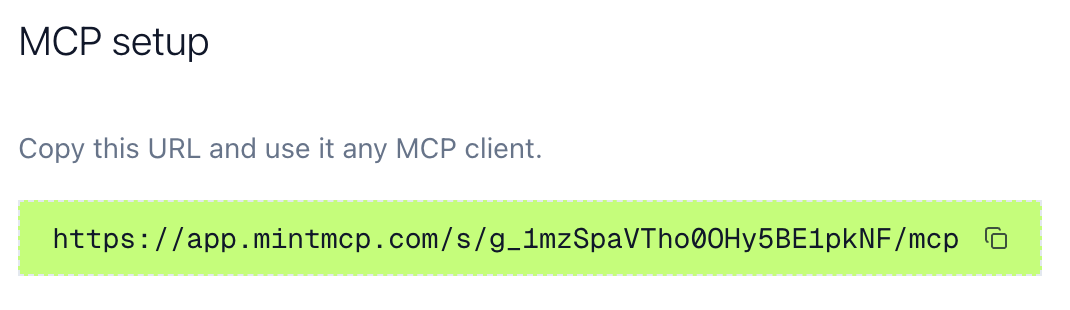
- Go to the MCP Client Setup tab
- Copy the MCP URL. It ends in
/mcp
Open Copilot Studio
- Go to copilotstudio.microsoft.com or open the Copilot Studio desktop app
- Open the Agents tab and click New agent
If the new agent opens, skip ahead to Create the agent.
Enable Copilot Studio (if you can't create an agent)
When Copilot Studio won't let you create an agent, the account is usually missing a license or an environment that supports agents:
- Assign a Copilot Studio license. In the Microsoft 365 admin center, go to Billing > Licenses > Microsoft Copilot Studio and assign a license to the person building the agent
- Create an environment for agents. In the Power Platform admin center, go to Environments > New. Set the type to Developer and Dataverse to Yes, then wait until the environment shows Ready
- Switch to the new environment. In Copilot Studio, click the environment name at the bottom left and select the environment you created
Create the agent
- Go to Agents > New agent
- Name the agent, and use its instructions to describe what the Mintive tools are for (for example, "Use the Mintive tools to look up accounts and open opportunities in Salesforce")
- Go to Settings > Generative AI and set orchestration to Generative, since Copilot Studio only calls MCP tools from agents that use generative orchestration
Add Mintive as an MCP tool
- Go to Tools > Add a tool > New tool > Model Context Protocol
- Configure:
- Server name: A descriptive name (e.g., "Mintive Salesforce")
- Server description: What the tools cover. The agent reads this to decide when to call the server
- Server URL: Paste your MCP URL from Mintive
- Authentication: OAuth 2.0, with type Dynamic discovery
- Click Create
- Under Connection, select Create new connection and sign in with your Mintive account when redirected
- Click Add
Dynamic discovery registers Copilot Studio with Mintive automatically, so there's no client ID or secret to copy. Because of that, it can't connect to a Virtual MCP that has Require registered OAuth client turned on.
Verify the connection
- In the agent's Test pane, ask something that needs a tool from the server
- Open MCP activity in Mintive and confirm the tool call appears
Publish to Teams and Microsoft 365 Copilot
- Click Publish
- Go to Channels and select Teams and Microsoft 365 Copilot
- Submit the agent for admin approval
Users see the agent in Teams and Microsoft 365 Copilot once a Microsoft 365 admin approves it.