Use skills with your vMCPs
Attach skills to a vMCP so every client connected to it gets your team's procedures right next to the tools those procedures use. This page covers why that pairing works, how to attach and pin skills, and how to turn skills on in Claude and Claude Code.
Connectors plus SOPs: why skills live on the vMCP
Most real work crosses systems. A demo follow-up pulls the account from Salesforce and the call notes from Gong, then ends as a Gmail draft. An incident touches Datadog, PagerDuty and Slack. A vMCP already bundles those connectors into one endpoint, whichever ecosystem each comes from (Google Workspace, Microsoft 365, Salesforce, Atlassian, or MCP servers you host on Mintive), so a client reaches all of them through one connection.
Connectors give the model tools, but they don't say how your team does the work: which system is the source of truth, what order to go in, what the result should look like, and what never to do. That's what a skill is for. It's your team's standard operating procedure (SOP), written once. Attach it to the same vMCP and the client gets both halves together:
| On the vMCP | What the client gets |
|---|---|
| Connectors | The tools to reach each system, across ecosystems, behind your SSO |
| Skills | The SOPs that say how your team works across those tools |
Each half is weaker alone. A vendor's skill only knows that vendor's product, and connectors without an SOP leave the model to guess your process. On one vMCP, everyone who can reach it gets the same tools and the same procedures, and the vMCP's access rules decide who gets both.
For example, a Sales Bundle vMCP with Salesforce, Gong and Gmail connectors can serve a follow-up-email skill that says where to find the account and call notes, how to write in your brand voice, and to save a draft instead of sending. A rep asks Claude for a demo follow-up, and Claude reads the skill, then uses the vMCP's tools to carry it out:
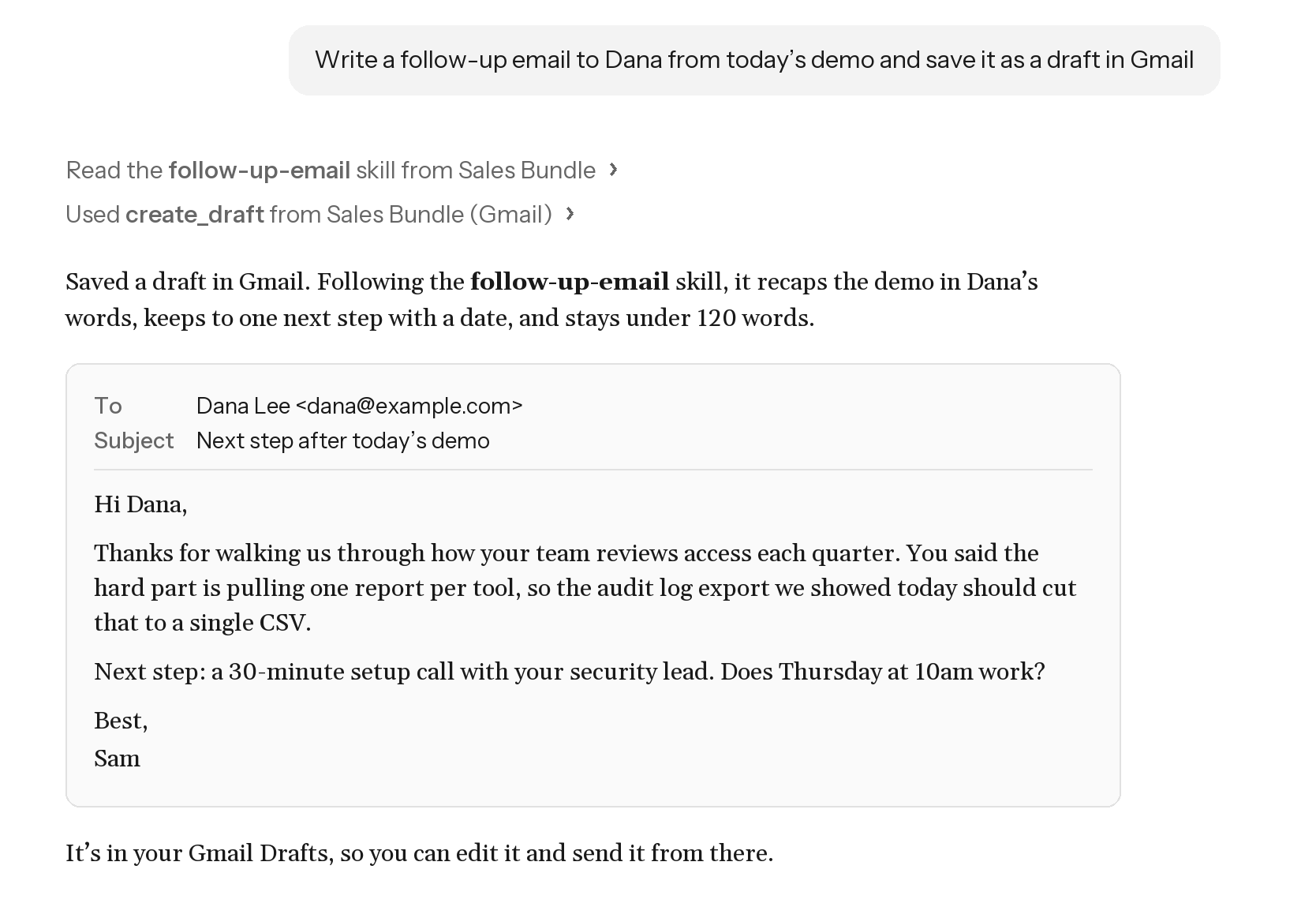
Good candidates for skills are the procedures people already explain to new hires: the code review checklist, the incident runbook, the deal desk steps, the brand voice guide.
Attach skills to a vMCP
A skill does nothing until it's attached. Attach it from either side:
- From the vMCP: open the vMCP's settings, go to the Resources tab, and click Attach skill on the Skills card.
- From the skill: open the skill in the library, go to the Attached to tab, click Attach, and pick vMCPs or Coworker Agents.
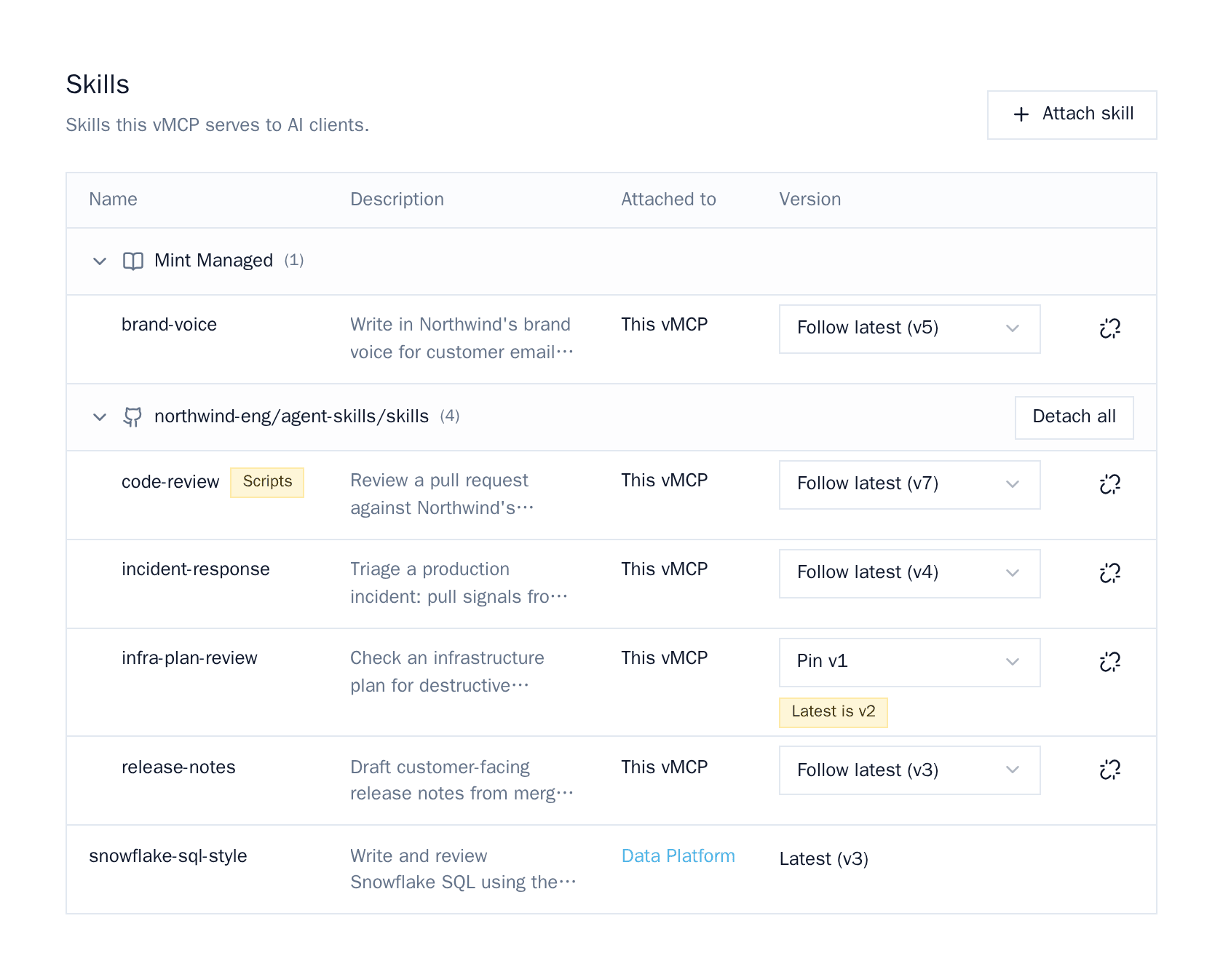
For each attachment, choose the version to serve:
| Version | Behavior |
|---|---|
| Follow latest | Future publishes update this vMCP automatically. |
| Pin vN | Stays on that version until you change it. The row shows which version is now latest. |
Use pinning to roll out a change gradually: let a test vMCP follow latest while production vMCPs stay pinned, then move the pin to the new version.
A vMCP also serves the skills attached to the vMCPs behind its connectors. Those skills are managed on the connector's vMCP.
To see everywhere a skill is served, open the skill's Attached to tab. A pinned attachment on an older version is marked Behind latest.
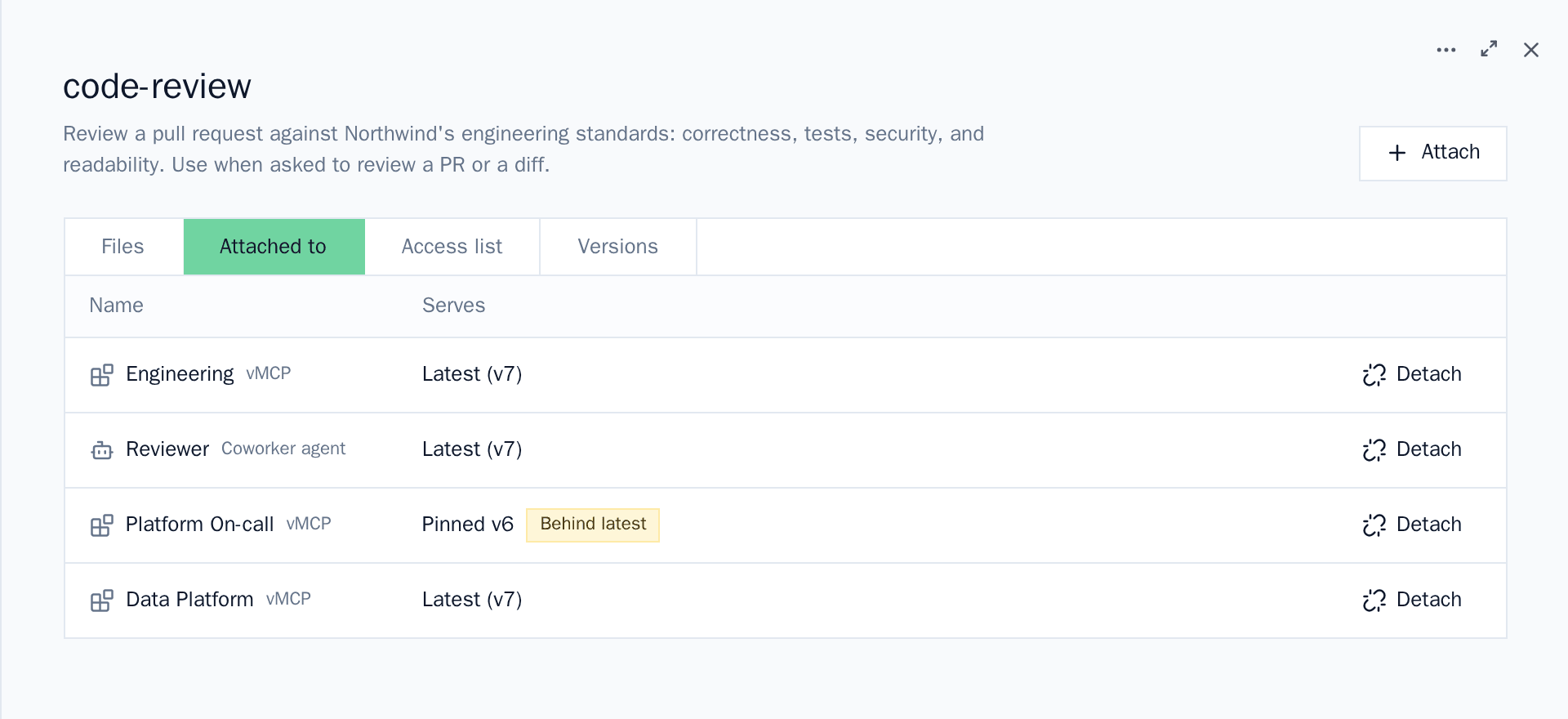
Detaching a skill stops that vMCP's clients from seeing it. The skill stays in the library.
Attach skills to a Coworker Agent
Coworker Agents receive skills through their own MCP connection, the same way any other client does. Open the agent's Resources tab and click Attach skill, or attach from the skill's Attached to tab and pick the agent under Coworker agents.
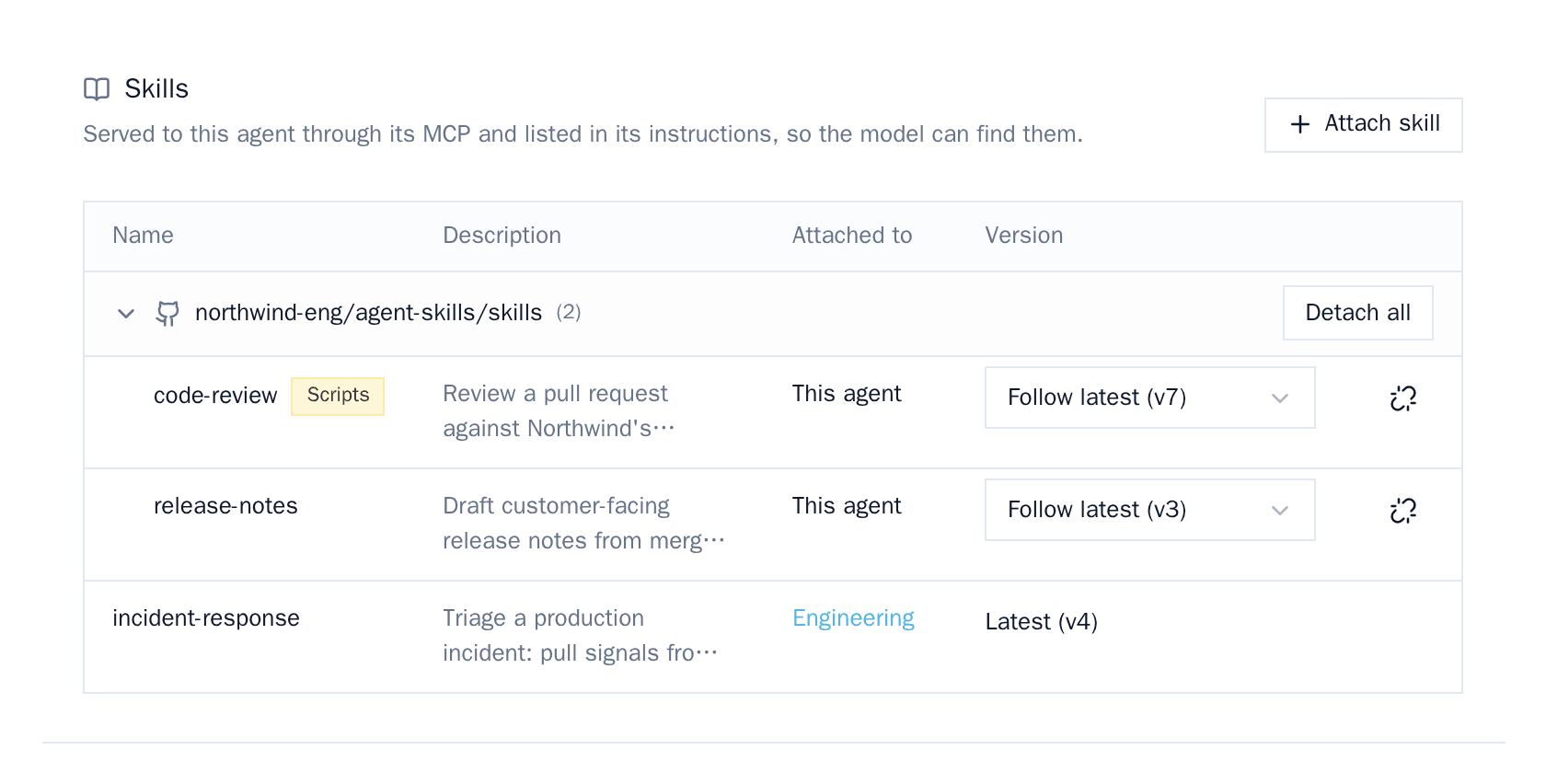
Skills attached to the vMCPs behind the agent's connectors reach it too.
These org-wide skills are separate from the skills an agent's repository defines in .claude/skills/ (see Configure a Coworker Agent). Use the Skills library when you want one skill shared across many agents and clients, versioned and managed in one place.
How clients receive skills over MCP
Skills are served as MCP resources, not tools, so attaching skills doesn't add tools to the vMCP.
- Each skill's files are resources under
skill://mintive/<skill-name>/, for exampleskill://mintive/code-review/SKILL.md. - The vMCP's server instructions list every attached skill with its description, so the model knows when to read one.
- Clients that implement the MCP Skills extension (
io.modelcontextprotocol/skills) can also list and fetch skills through it. - Every skill read appears in MCP Activity.
Skills are served exactly as published: Mintive doesn't change a skill's files in transit.
If a model doesn't pick up a skill on its own, ask it to read the skill by name.
Use skills in Claude
Claude loads skills from connectors through its Skills over MCP setting (beta), so once it's on, Claude picks up the skills attached to any vMCP you've added as a connector. The setting is off by default, and an Owner turns it on for the whole Claude organization:
- Add the vMCP as a connector in Claude (see Connect Claude web and desktop).
- In Claude, go to Organization settings > Connectors.
- Turn on Skills over MCP. Your organization's Skills setting must also be on.

Anthropic lists the setting as coming soon to Claude Enterprise. It also doesn't apply to MCP servers that members add directly in Claude Code; see Use skills in Claude Code for those.
Claude warns that turning this on raises prompt-injection risk, because a skill's content could lead Claude to run code or take other actions you didn't intend. Through a vMCP, Claude only receives the skills your organization published and attached, so you decide what that content is: read a skill's scripts before you attach it, pin versions on production vMCPs, disable a skill to pull it from every client at once, and review each read in MCP Activity.
To check that it works, start a new chat and ask for a task one of your skills covers. Claude should read the matching skill from the vMCP's connector before it calls any tools.
Use skills in Claude Code
Claude Code (v2.1.331 or later) loads skills from MCP servers in beta, including a vMCP added as a claude.ai connector or added directly with claude mcp add. Attached skills show up in the / menu as <server>:<skill>, such as mintive:code-review. Ask Claude for a matching task, or type the skill's name as a command.
- Pro, Max, and Ultra: skills are on.
- Team and Enterprise: skills are off until an admin turns them on. For a vMCP added as a connector, an Owner turns on Skills over MCP as described above. For a vMCP added directly, set
disableDirectMcpSkillstofalsein Claude Code managed settings.
Anthropic's Claude Code MCP docs list where skills over MCP aren't supported yet, such as claude -p, GitHub Actions, and the Agent SDK. In those setups, Claude can still read a skill as an MCP resource when you ask for it by name.
Next steps
- Skills overview: how skills fit, access, limits, and troubleshooting
- Add skills: write, upload, or add from the Catalog
- Sync and edit skills
- Core concepts: how vMCPs bundle connectors