Connect ChatGPT to Mintive
Connect ChatGPT to MCP servers managed by Mintive.
Prerequisites
- A ChatGPT Business, Enterprise, Edu, Plus, or Pro account
- A Mintive account with access to at least one MCP server
Roll out to a ChatGPT Business, Enterprise, or Edu workspace
In a workspace, an admin or owner sets up the connector once for everyone. Follow the steps below to create it, then publish it from Workspace settings so it appears for members with a Custom label. Each member connects with their own Mintive sign-in, so the gateway applies their access policies and logs their calls under their identity. See OpenAI's developer mode and MCP apps article for who can publish on each plan.
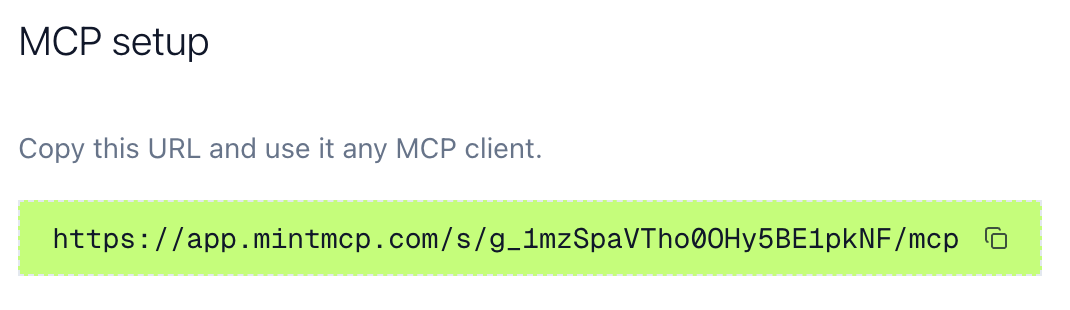
Get your MCP URL
- Go to MCP store in Mintive
- Click the MCP server you want to connect
- Go to the MCP Client Setup tab
- Copy the MCP URL
Enable developer mode
Developer mode is ChatGPT's setting for adding custom connectors. No coding is involved.
- In ChatGPT, click your account icon (bottom left) → Settings → Connectors
- Scroll to Advanced settings
- Enable Developer mode

Add the connector
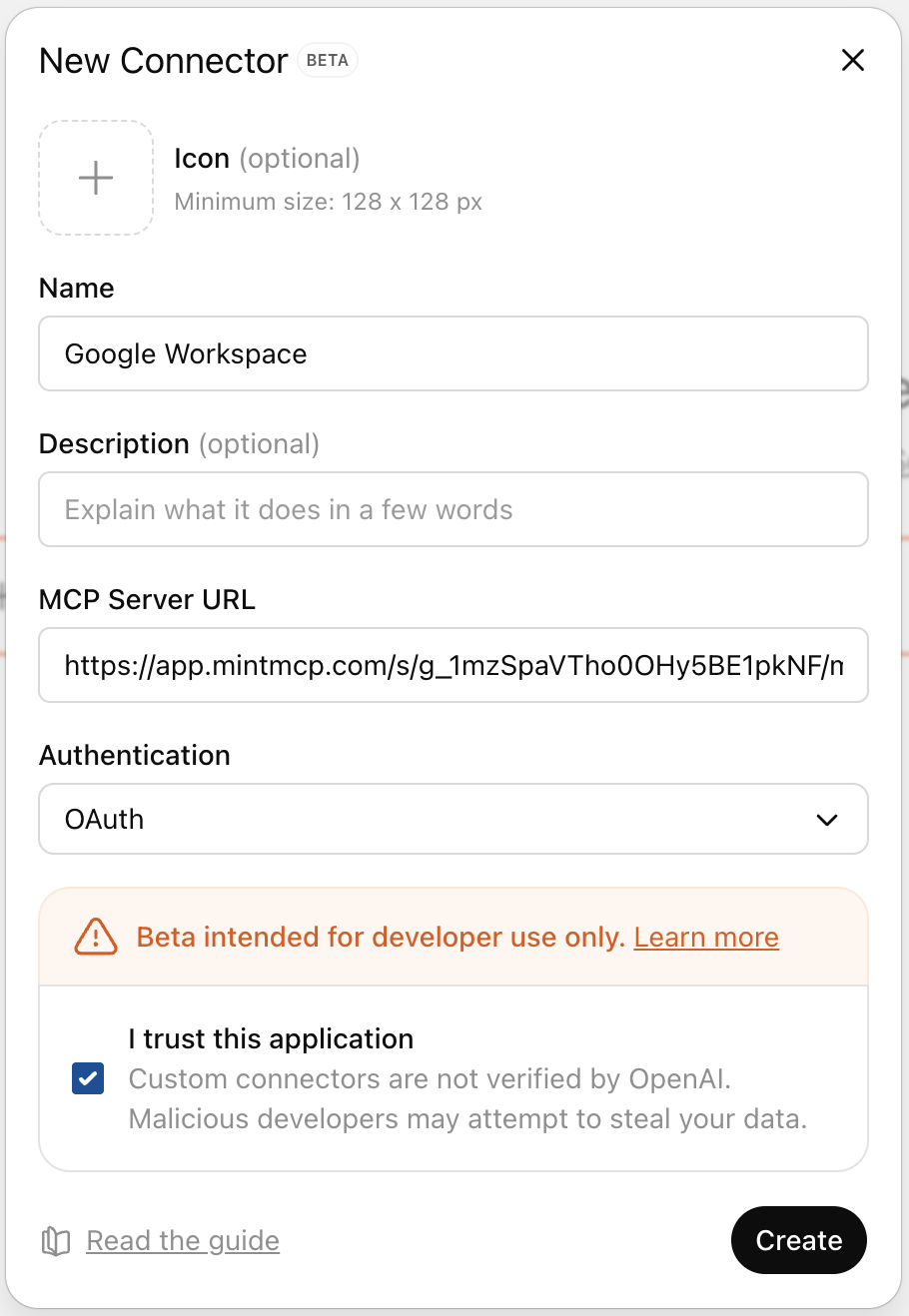
- Return to the Connectors page and click Create
- Configure:
- Name: A descriptive name (e.g., "Google Workspace")
- MCP URL: Paste your URL from Mintive
- Authentication: Leave as "OAuth"
- Check I trust this application
- Click Create
- Complete the Mintive authentication when prompted
Verify the connection
- Start a new chat
- Click + in the chat, go to Settings, enable Developer Mode
- Select your MCP server

- Ask ChatGPT to use a tool from the server