Mint Guard
Turn on built-in threat and data protection for every MCP gateway tool call. Mint Guard is a detection policy that Mintive maintains and updates centrally, so you get prompt-injection and sensitive-data screening without writing your own rules or middleware.
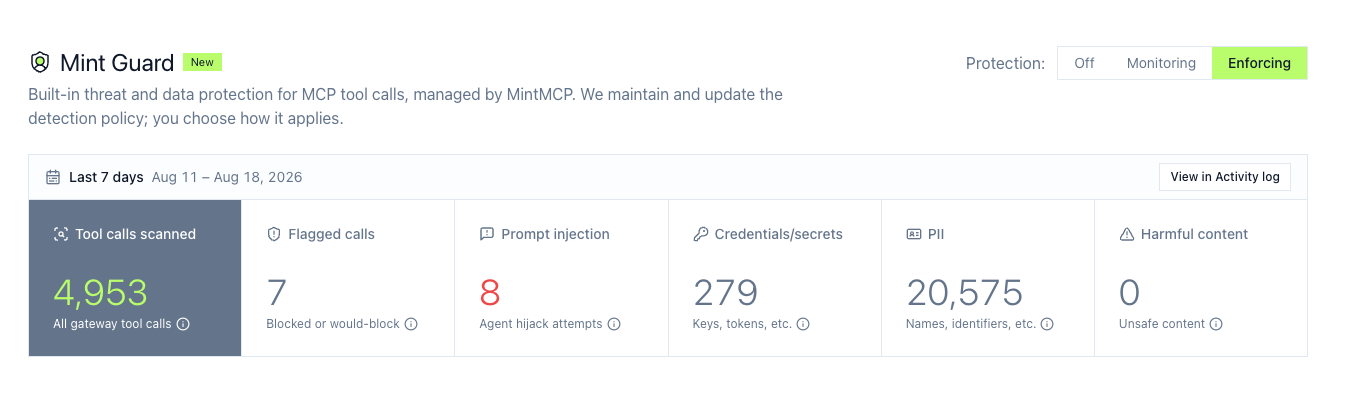
Access Mint Guard at app.mintmcp.com/guardrails/mint-guard. Mint Guard is available on the Enterprise plan.
Every MCP tool call through the gateway is screened on both sides: the tool arguments the agent sends and the tool result the connector returns.
How Mint Guard fits with rules and middleware
Rules, middleware, and Mint Guard coexist on the same tool traffic, and any of them can block a call. They solve different problems:
| Use | When |
|---|---|
| Mint Guard | You want strong prompt-injection and sensitive-data screening out of the box, maintained by Mintive, with one control and nothing to author. |
| Rules | You want to match specific tool names, argument patterns, or content with regex and pick an action. |
| Middleware | You want your own logic: call an external classifier, enforce a resource allowlist, or connect the DLP service your security team already runs. |
Mint Guard only blocks and logs; it never rewrites or redacts a call, so if you need a call to proceed with sensitive values masked, use middleware. All three run together: Mint Guard as the managed baseline, with Rules and middleware on top for per-server policy, per-category decisions, and masking.
What Mint Guard detects
| Category | What it detects | Action in Enforcing mode |
|---|---|---|
| Prompt injection | Instructions hidden in tool arguments or tool results that try to hijack the agent | Blocks at high confidence |
| Credentials & secrets | API keys, tokens, and passwords moving through tool calls | Logs only |
| PII | Personal data such as contact details and identifiers | Logs only |
| Harmful content | Unsafe or abusive content in tool arguments and results | Logs only |
Prompt injection blocks only at high confidence, so lower-confidence matches are recorded without stopping the call.
The Mint Guard page labels each category with what it does in your current mode: Off when Mint Guard is off, Logging in Monitoring (every category, because nothing is blocked yet), and Blocking at high confidence for prompt injection once you switch to Enforcing.
Choose how it applies
| Mode | Effect on tool calls |
|---|---|
| Off | Tool calls are not screened. |
| Monitoring | Every call is screened and detections are recorded, without changing any call. Detections the policy would block are recorded as would-block, so you can see the impact of enforcement before turning it on. |
| Enforcing | Calls with a detection the policy blocks are stopped and return an error to the calling agent. Every other detection is recorded only. |
Start in Monitoring to see what Mint Guard finds on your real traffic, work through the prompt-injection detections on the Review tab and the rest in MCP Activity, then move to Enforcing once you are confident in the impact.
This mode is the organization-wide default. To screen a specific connector differently, set a per-connector override.
What a blocked call looks like
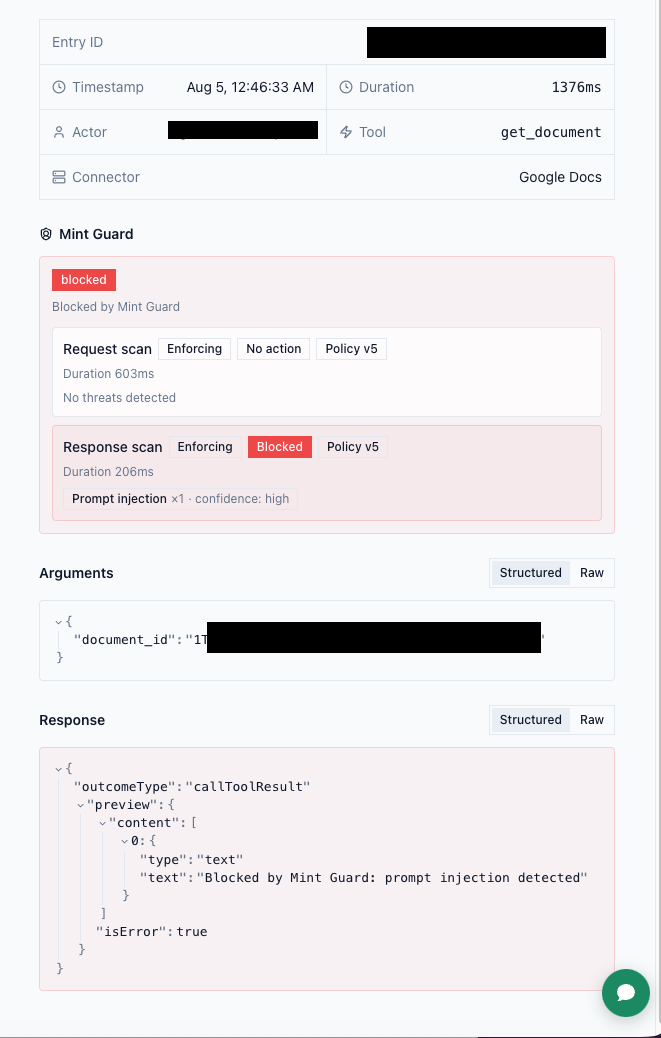
In Enforcing mode, a blocked call never reaches the upstream connector on the request side, and on the response side the upstream result is withheld from the agent. The calling agent receives a terse error naming the category that triggered the block, for example Blocked by Mint Guard: prompt injection detected. Blocked calls appear in MCP Activity with the blocking category.
Performance and large results
Mint Guard screens calls inline, bounded by a per-call timeout. If screening would exceed that timeout, the call is allowed through rather than delayed.
Very large tool results are scanned only in their leading portion, and when a result is too large to scan in full, Mint Guard flags the scan as incomplete in the response.
Review detections
Every scanned call records its Mint Guard result in MCP Activity. To see only flagged calls, use the Mint Guard hit filter under More filters. The Overview tab of the Mint Guard page summarizes tool calls scanned, calls flagged to block, and findings by category. It covers the last 7 days, and members who can review detections can pick a different range with the time filter.
Review prompt-injection detections
Mark each high-confidence prompt-injection detection as a false positive or as a real injection your team handled, so you can see what still needs a look. The queue lives on the Review tab of the Mint Guard page. The tab label shows how many calls are still open, for example Review · 120, and the prompt injection tile on Overview shows the same count.
The Review tab covers prompt injection at high confidence only, which is the band that blocks in Enforcing mode. Lower-confidence prompt injection and the credentials, PII, and harmful-content findings stay in MCP Activity.
- Open app.mintmcp.com/guardrails/mint-guard and select the Review tab.
- Pick a time range with the time filter: the last day, week, or month, or a custom range. Overview and Review share the same range, so the open count on Overview always matches the queue.
- Under To review, detections are grouped by connector and tool, largest group first. Each group shows its open calls, how many users made them, and when they were first and last seen.
- Expand a group to see its calls: time, user, phase (request or response scan), and outcome, either Blocked or Would block if the call ran in Monitoring. If you can view org-wide activity including content, each row also shows the payload. Select a call to open its full details without leaving the tab.
- Mark one call with Benign or Resolved, or the whole group with Mark all benign or Resolve all:
- Benign: a false positive, nothing malicious in the call.
- Resolved: a real injection that your team has dealt with.
- Optionally add a rationale (up to 1,000 characters), then confirm.
Reviewed calls move to Reviewed, which lists each call's verdict, reviewer, review time, and rationale. To put a call back in the queue, select Reopen. A call whose log entry has expired under your retention settings shows Call expired and can't be reopened, but its review is kept.
Reviewing is a record for your team, not a policy change:
- Enforcement doesn't change. A blocked call stays blocked, and marking a group benign doesn't stop Mint Guard from flagging future calls to the same tool. To stop screening a connector whose traffic keeps tripping detection, set a per-connector override.
- Each call keeps its first verdict. Marking a group skips calls that someone already reviewed.
- The To review queue only includes calls still inside your log retention window. Each view shows the newest 2,000 calls, so narrow the time range to reach older ones.
Every review and reopen is a signed entry in your organization's audit log and is included in SIEM export, with the reviewer, the verdict, the connector and tool, and the rationale.
Who can review
Admins can review. With a custom role, a member needs both:
- Guardrail management (
org:guardrails:manage), and - org-wide activity access: View org-wide activity metadata (
org:activity-metadata:view) or View org-wide activity including content (view-organization-logs).
Those members also get the time filter on Overview. A role with guardrail management but no org-wide activity access can still change the mode and overrides, but doesn't see the Review tab, because the queue names the users, connectors, and tools behind each call. Payloads in the queue need View org-wide activity including content.
What gets recorded
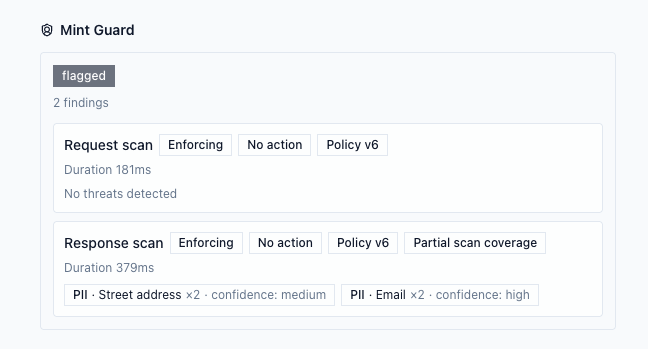
Mint Guard records the category, a confidence band, and for sensitive-data categories the kind of data matched (for example EMAIL_ADDRESS or PASSWORD). The matched value is never stored. These findings are retained even when full tool-call logging is turned off. Mint Guard works with zero data retention because it stores finding categories, never content.
Permissions
Changing the Mint Guard mode requires guardrails manage access (org:guardrails:manage). Members without it see the current state and the detection policy but cannot change the mode. Reviewing detections also needs org-wide activity access; see Who can review.
Set per-connector overrides
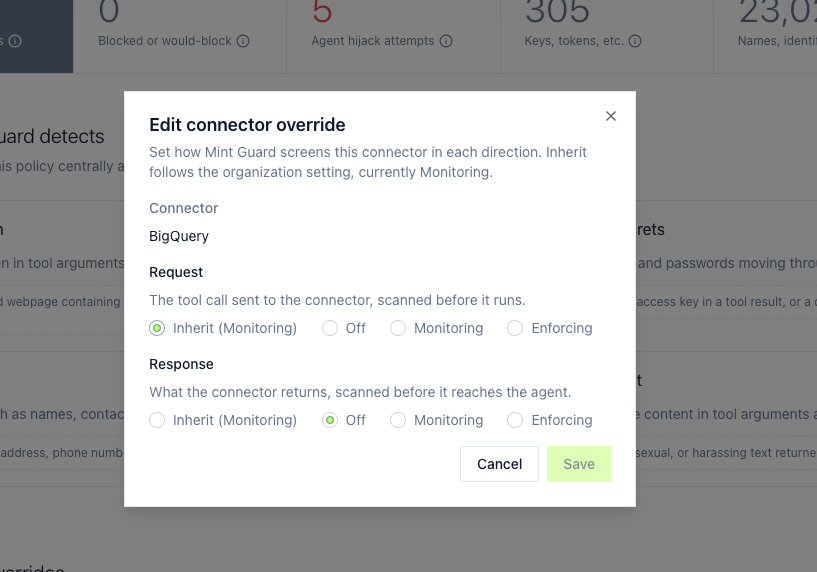
The mode you pick applies to every connector by default. Override it for a single connector when Mint Guard is too strict, or not strict enough, for that connector's traffic: a connector whose own boilerplate keeps tripping prompt-injection detection, or a CRM connector whose responses always carry PII you don't want screened.
Each connector is set separately for each scan direction:
- Request — the tool call the agent sends, screened before it runs.
- Response — what the connector returns, screened before it reaches the agent.
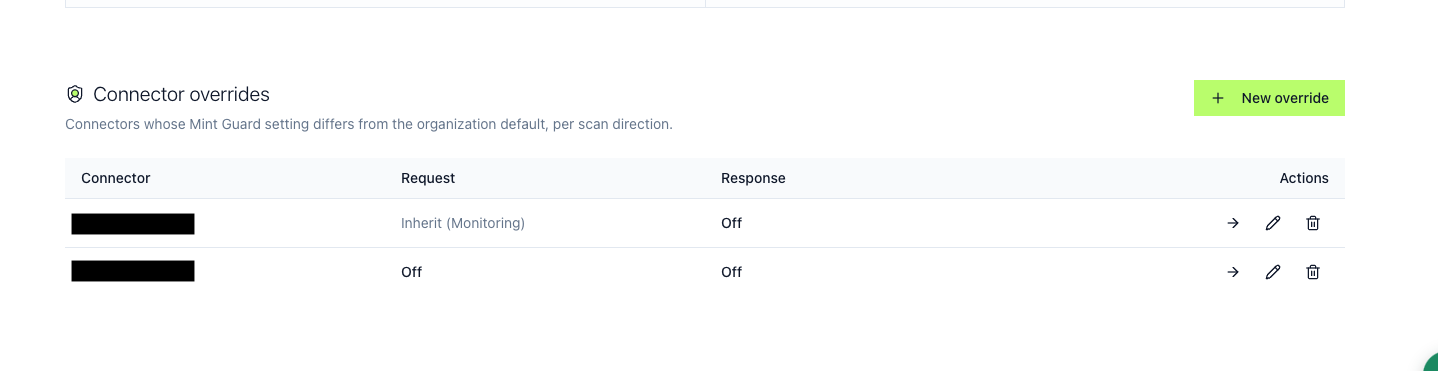
Set each direction to Inherit (follow the organization mode), Off, Monitoring, or Enforcing. A connector can be stricter than the organization default (Enforcing while the organization monitors) or looser (Off on one direction), so you can leave Request screening on while turning the Response direction off for a PII-heavy connector, or turn a connector off entirely by setting both directions to Off.
Overrides never turn screening on while Mint Guard is off for the organization, because the organization mode is the master switch.
Add or change an override
Overrides are managed on the Mint Guard page:
- Open app.mintmcp.com/guardrails/mint-guard and select the Overrides tab, which lists every connector whose setting differs from the organization default.
- Select New override, pick the connector, and set the Request and Response directions.
- Save. To return a connector to the organization default, set both directions back to Inherit, or remove the override.
Changing an override requires guardrails manage access (org:guardrails:manage); the setting is visible to anyone with guardrails view access.
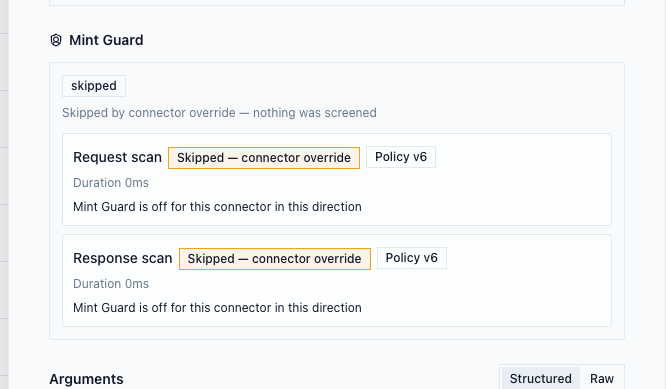
When a direction is set to Off, calls still appear in MCP Activity marked Skipped — connector override, so the audit trail shows the direction was intentionally not screened rather than showing nothing.
FAQ
Can I enable Mint Guard for only some MCP servers? Yes, by exception. Turn Mint Guard on for the organization, then override the connectors that should differ, including setting a connector to Off so it isn't screened at all. Overrides can't turn screening on while Mint Guard is off for the organization, since the organization mode is the master switch, so you set the organization default and carve out the exceptions. Any server you add later inherits the organization default until you give it an override.
Can I keep prompt-injection screening but turn off PII logging? Not per category. The mode (Off, Monitoring, or Enforcing) is the only category lever, so turning a direction off drops all screening in that direction, not just PII. You can, though, screen a connector in one direction only: for a connector whose responses always carry PII, set its Response direction to Off (or Monitoring) and leave Request screening on. Mint Guard records only the category, confidence band, and kind of data matched, never the PII value itself, so detections do not put your data in the logs. To handle a category differently, for example redact PII instead of logging it, use Rules or middleware.
Does Mint Guard mask or redact sensitive data? No. Mint Guard blocks (high-confidence prompt injection) and logs; it never rewrites a call. Masking a value so the call can still proceed is a middleware capability.
Availability
Works with zero data retention (ZDR): with content logging off, Mintive stores no prompts, responses, or tool-call content.
To enable Mint Guard for your organization, contact enterprise@mintmcp.com.