Add skills
Add skills to your organization's Skills library so you can attach them to your vMCPs and Coworker Agents. A new skill starts at version 1.
| Way to add | Use when | You get |
|---|---|---|
| Write a skill | You're writing down a procedure for the first time | An editable skill under Mint Managed |
| Upload a skill folder | You already have the skill as a folder | An editable skill under Mint Managed |
| Sync a GitHub repo | Your team keeps skills in version control | Skills that follow the repo |
| Add from the Catalog | A vendor or the community already publishes a skill for the task | A synced skill if it's hosted on GitHub, otherwise an editable copy |
You need the Create skills permission to add skills (see Who can do what). The Write skill, Upload skill, and Add repo buttons on the Library page only appear for people who have it.
Write a skill
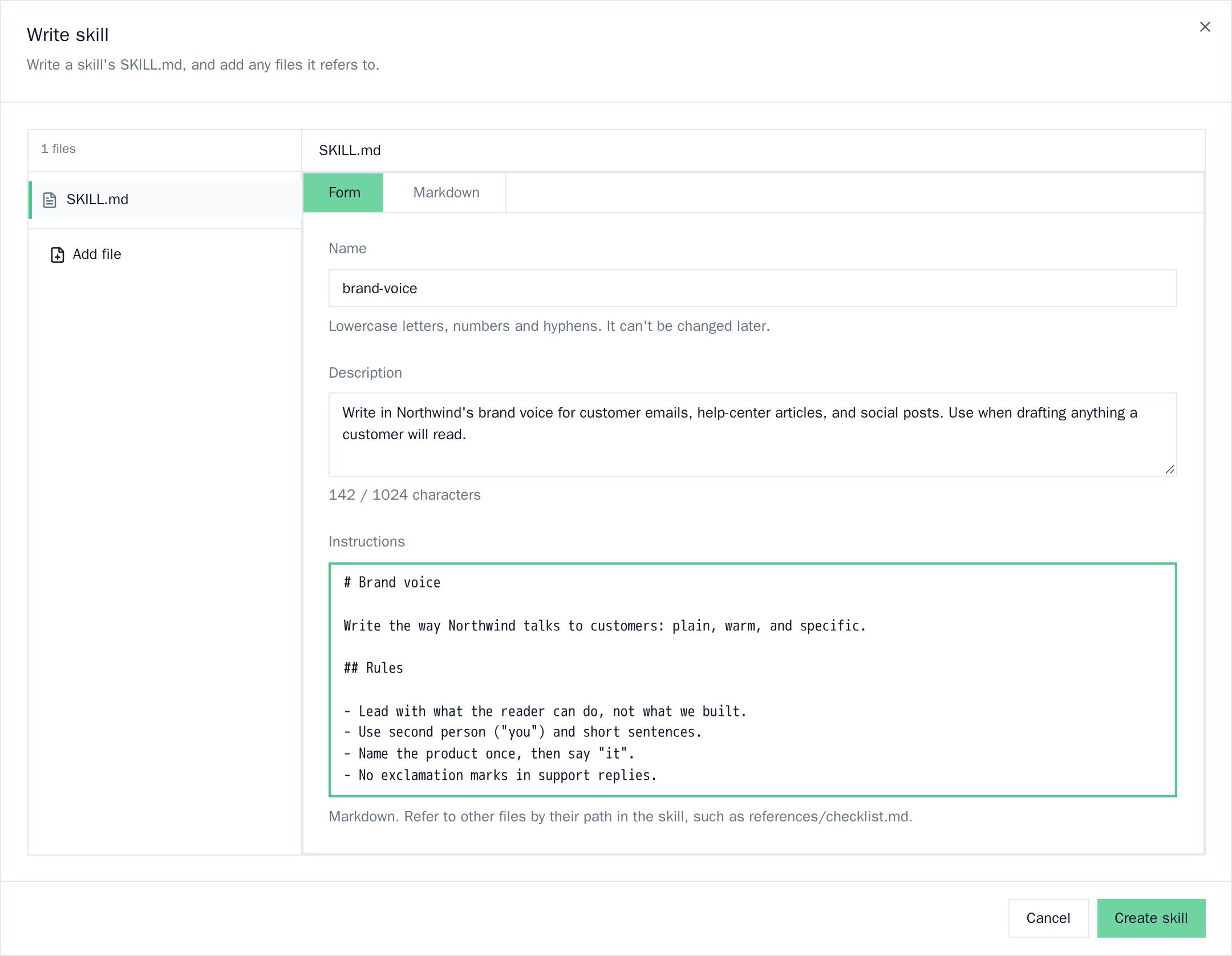
- In the Skills Library, click Write skill.
- Fill in the skill in the Form view, or switch to Markdown to edit the whole
SKILL.mddirectly:- Name: lowercase letters, numbers, and single hyphens, such as
brand-voice. The name can't be changed later. - Description: what the skill does and when to use it. Models read this to decide when to load the skill, so be specific about the trigger.
- Instructions: the body of
SKILL.md.
- Name: lowercase letters, numbers, and single hyphens, such as
- Optionally click Add file to add supporting files at paths inside the skill, such as
references/examples.md. - Click Create skill.
Upload a skill folder
Click Upload skill and choose the skill's folder (not a zip file). The folder must be named after the skill, and its SKILL.md frontmatter name must match the folder name:
sales-call-prep/
  SKILL.md       # name: sales-call-prep, plus a description
  references/    # optional supporting files
  scripts/       # optional code
Add from the Catalog
The Catalog page, under Skills in the Mintive sidebar, lists public skills from skills.sh, a third-party directory. That includes official skills that vendors publish for their own products, which work well attached to the same vMCP as that product's connector.
Mintive doesn't write or review these skills. They're listed once they pass skills.sh's Snyk, Socket and ZeroLeaks audits, but read a skill before you add it, because a skill can include scripts that a client runs on the user's machine.
- Open Skills → Catalog.
- Search skills.sh, or browse By repo, Popular, Trending, or Official (published by the product's maker).
- Click a skill to preview its files, starting with
SKILL.md, along with its install count and links to its audits. Skills already in your library are marked In library. - Click Add to library.
Skills hosted on GitHub are added as read-only skills that follow their repo, so click Sync now on the repo's group in the Library to pick up changes. Skills hosted elsewhere on skills.sh are added as an editable copy under Mint Managed, and later changes on skills.sh don't reach the copy. To adapt a public skill to how your team works, edit the Mint Managed copy, or for a skill hosted on GitHub, fork its repo and sync your fork.
After you add a skill
Adding a skill doesn't serve it anywhere yet. Attach it to a vMCP to make it available to clients, and pin the version if that vMCP is used in production.
Next steps
- Use skills with your vMCPs: attach skills and turn them on in Claude and Claude Code
- Sync and edit skills: repo sync, versions, rollback, and the kill switch