Sync and edit skills
Keep your skills in a GitHub repo and let Mintive follow it, or edit them in Mintive. Either way, every change publishes a new version you can pin, roll back, or switch off.
Sync skills from a GitHub repo
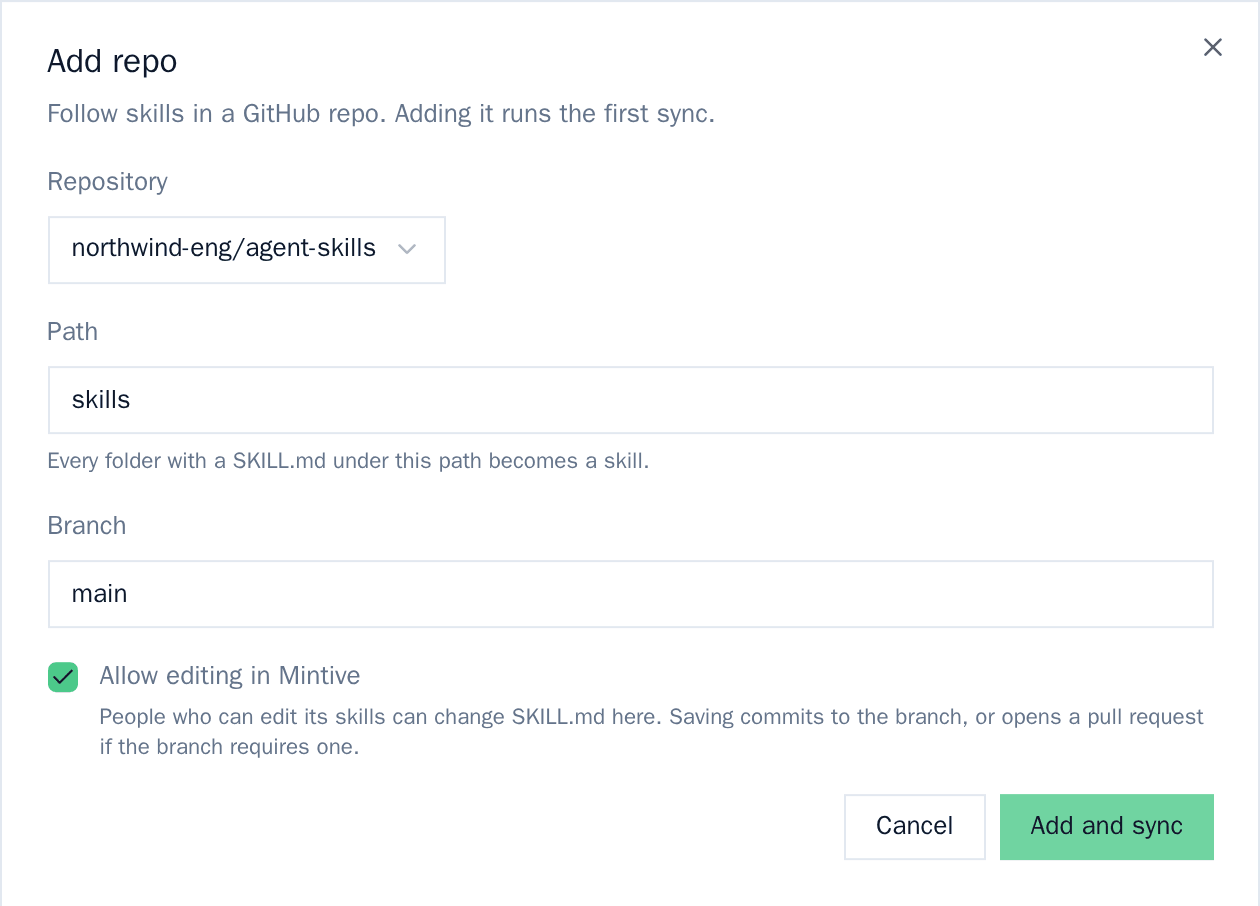
Every folder with a SKILL.md under the path you choose becomes a skill.
- In the Skills Library, click Add repo.
- Pick a Repository already connected to Mintive through your organization's GitHub App, or choose Connect another repo…. You need admin access to a repo on GitHub to connect it.
- Set the Path to the folder that holds your skills, such as
skills. Leave it empty to use the whole repo. - Set the Branch. It defaults to the repo's default branch.
- Optionally turn on Allow editing in Mintive (see Edit synced skills in Mintive).
- Click Add and sync.
After the first sync, sync is manual: click Sync now on the repo's group in the Library to pick up new commits. A sync that changes a skill publishes a new version of it.
If a skill's folder is removed from the repo, the next sync disables that skill and marks it Removed from repo. Restore the folder and sync again, or delete the skill.
Edit synced skills in Mintive
Synced skills are read-only in Mintive by default, so the repo stays the source of truth: change the skill in the repo, then sync. With Allow editing in Mintive on, people with Can Edit on a skill can also change its files in Mintive:
- Mintive's GitHub App makes the commit, so editors don't need write access to the repo on GitHub.
- If branch protection requires pull requests, Mintive opens a pull request instead. The skill updates once it merges and the repo is synced.
Edit a skill
Every save or upload publishes a new, numbered version, and published versions never change.
- On the Files tab, click Edit files to change the skill in place.
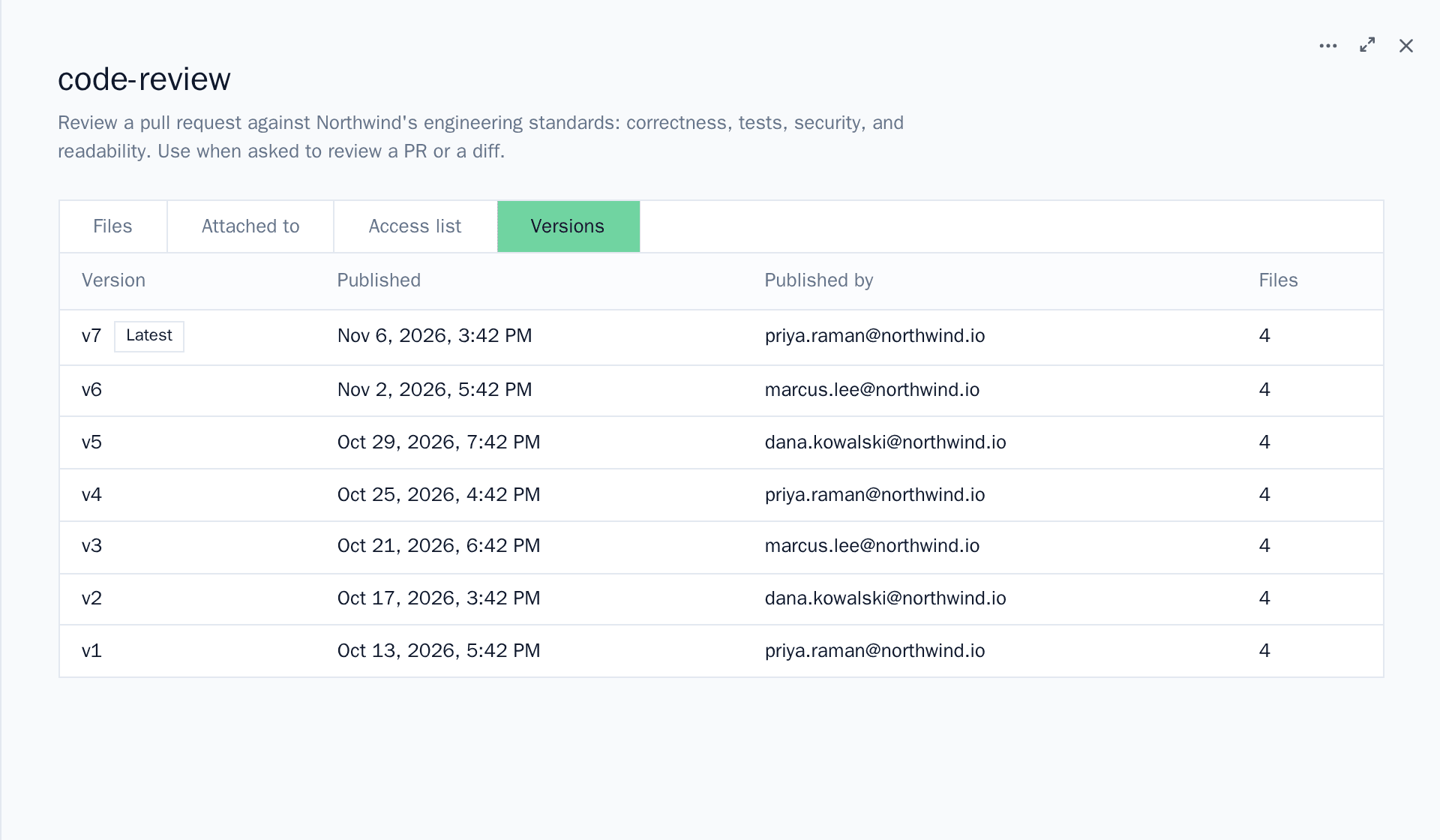
- On the Versions tab, click Upload new version to replace it from a folder.
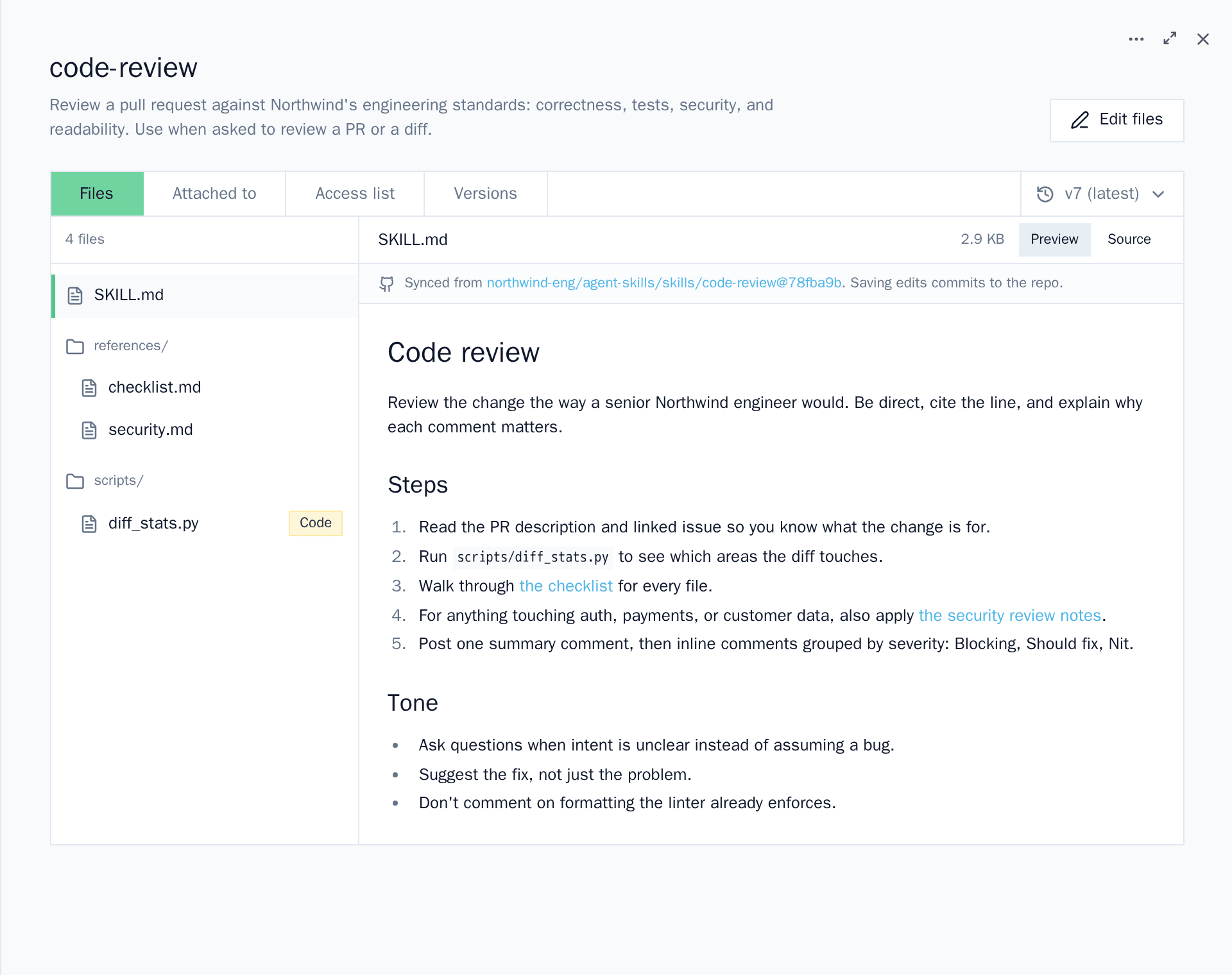
Files you don't change carry over to the new version. Attachments that follow the latest version switch to it immediately, while pinned attachments stay where they are (see Attach skills to a vMCP).
Roll back
On the Versions tab, Restore republishes an older version as the new latest version, so the history stays intact. Synced skills can't be restored in Mintive; revert the change in the repo and sync instead.
Disable or delete a skill
From the skill's More skill actions menu:
- Disable skill stops every attached vMCP from serving the skill, including pinned versions. Use it as a kill switch. Enable skill turns it back on.
- Delete skill removes every version, and attached vMCPs stop serving it. To delete a synced skill, first remove its folder from the repo and sync.
Next steps
- Add skills: write, upload, or add from the Catalog
- Use skills with your vMCPs: attach skills and pin versions
- Skills overview: who can edit, share, and manage skills