Connect Claude web and desktop to Mintive
Connect Claude (web or desktop) to MCP servers managed by Mintive. Both platforms use the same connector configuration.
Prerequisites
- A Claude account
- A Mintive account with access to at least one MCP server
Roll out to a Claude Team or Enterprise organization
On Team and Enterprise plans, an Owner adds the connector once for the whole organization, and members connect with their own account:
- Get your MCP URL from Mintive (see below)
- In Claude, go to Organization settings > Connectors
- Select Add, then Custom, and choose Web if asked for a connector type
- Paste the MCP URL and click Add
Members find the connector under Customize > Connectors with a Custom label and click Connect to sign in with Mintive. Each member authenticates individually, so the gateway applies their access policies and logs their calls under their identity. See Anthropic's custom connector guide for the full options.
On Free, Pro, or Max plans, add the connector to your own account with the steps below.
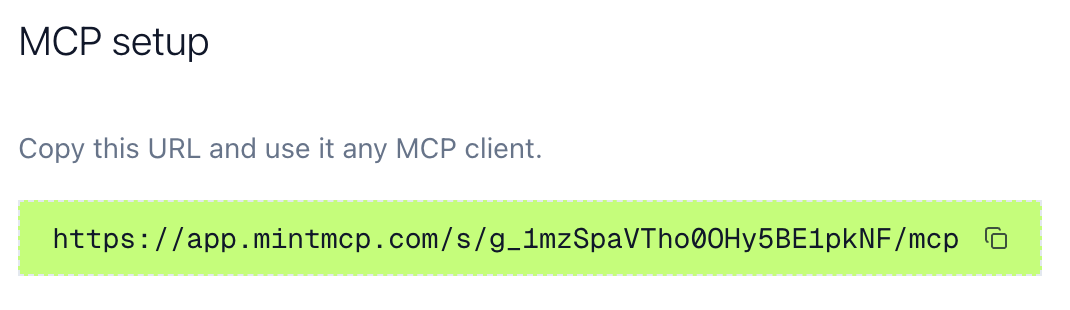
Get your MCP URL
- Go to MCP store in Mintive
- Click the MCP server you want to connect
- Go to the MCP Client Setup tab
- Copy the MCP URL
Add the connector in Claude
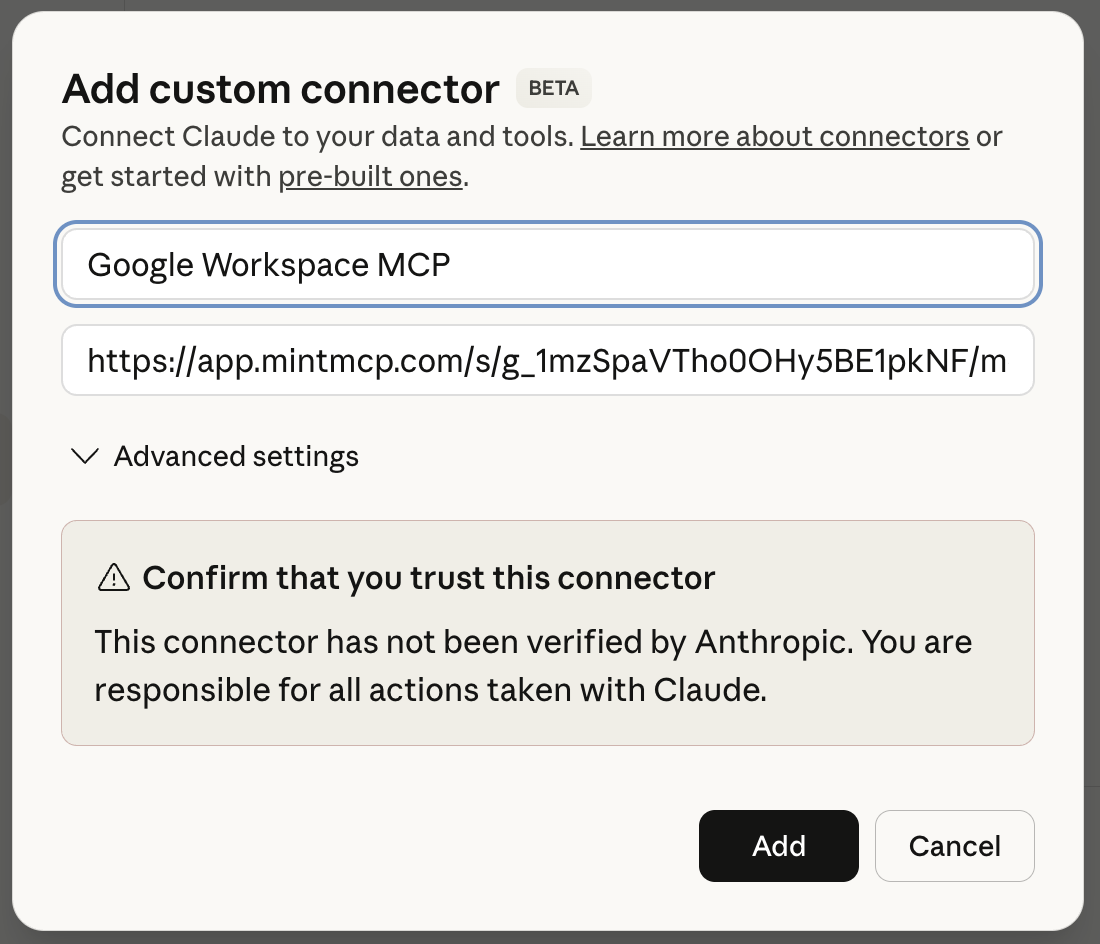
- Go to Settings > Connectors
- Click Add custom connector
- Name it and paste your MCP URL
- Click Add
Authenticate
- Find your connector in the Connectors page
- Click Connect
- Sign in with your Mintive account when redirected
- You'll return to Claude after authentication
Verify the connection
- Start a new chat
- Your MCP connector appears in the chat interface
- Ask Claude to use a tool from the server
- Approve when Claude requests permission