Host STDIO servers with OAuth
STDIO MCP servers are quick to build but hard to share—they run locally, expose no network endpoint, and have no access control. Mintive hosts them in secure containers with OAuth authentication, so you can share a stable URL with your team.
If your hosted connector also needs to call an OAuth-protected external service on behalf of users, see OAuth for hosted connectors.
Prerequisites
- Mintive admin account
- A working STDIO MCP server
Two options
Host via the web interface or the CLI. The Admin MCP can also drive the setup from any MCP client: an agent walks the deploy, configures environment variables, and checks startup status conversationally.
Via the web interface
Navigate to MCP store, click + Add an MCP to your registry, and select Deploy an open source or custom MCP. The drawer gives you two ways to deploy:
- Admin MCP (default): copy the starter prompt into your AI client, and the Admin MCP packages the server with its dependencies into a container image and deploys it. Your AI client's environment needs Docker.
- Container image: enter a published image that already includes the server, set Transport to Stdio, and enter the Command the image runs.
Hosted connectors run self-contained images, so nothing is installed with npx or uvx when the connector starts. See Add a hosted connector for both paths.
If the server requires configuration, add it under Environment variables:
- Global variables apply one value to all users in your organization.
- User-specific variables prompt each user to enter their own value the first time they access the server.
All environment variables stored are securely encrypted when hosted on Mintive.
Once created, Mintive launches the server in a secure container. You will be redirected to the connector page for your newly created MCP server.
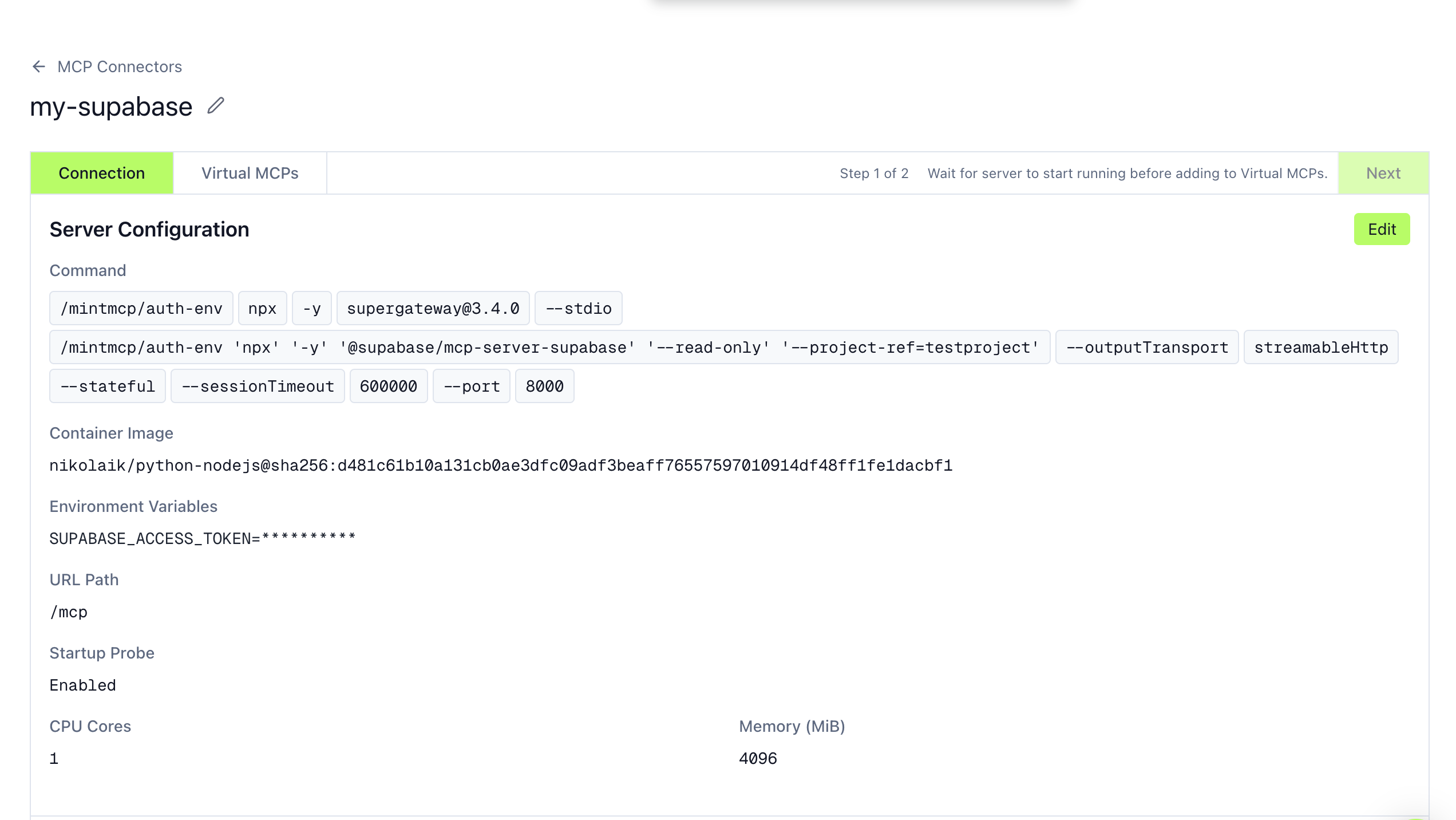
If you configured any user-specific variables, enter your values and click Save before the server starts:

If configured properly and runnable, your server will start up in less than one minute and you'll see an indication that your hosted server is running, with the list of tools it exposes and all server revisions listed.
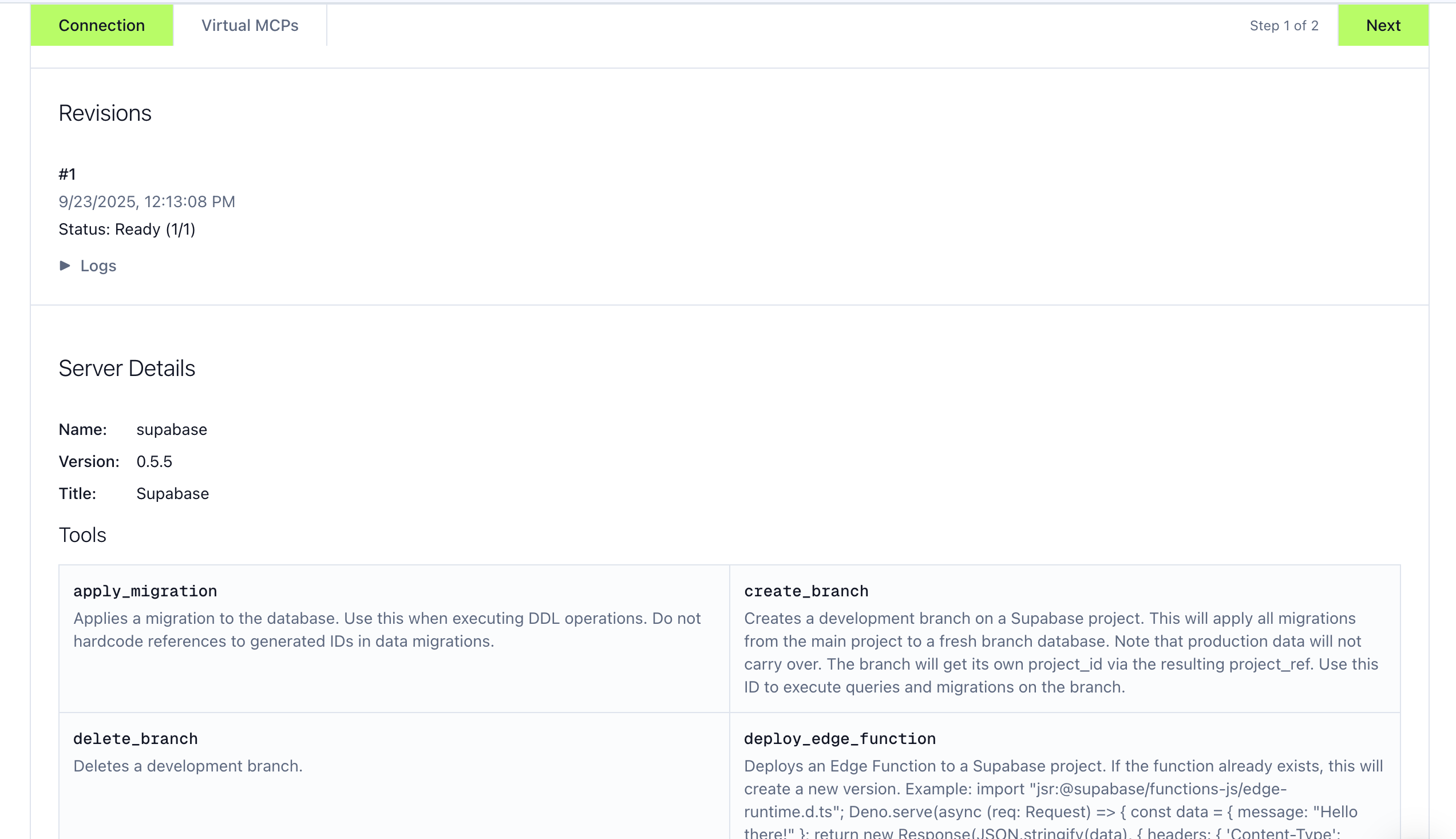
If your server fails to start up, inspect the logs for errors and configuration issues (e.g., missing arguments or environment variables).
Via the CLI
Use the Hosted Server CLI to deploy directly from your project directory:
npx @mintmcp/hosted-cli deploy -n "My Server"
See the CLI documentation for full setup instructions, including JavaScript, Python, and custom server deployments.
Video walkthrough: Enable OAuth for STDIO MCP Servers
Add to an MCP server
Once your hosted connector is running, add it to an MCP server so users can connect.
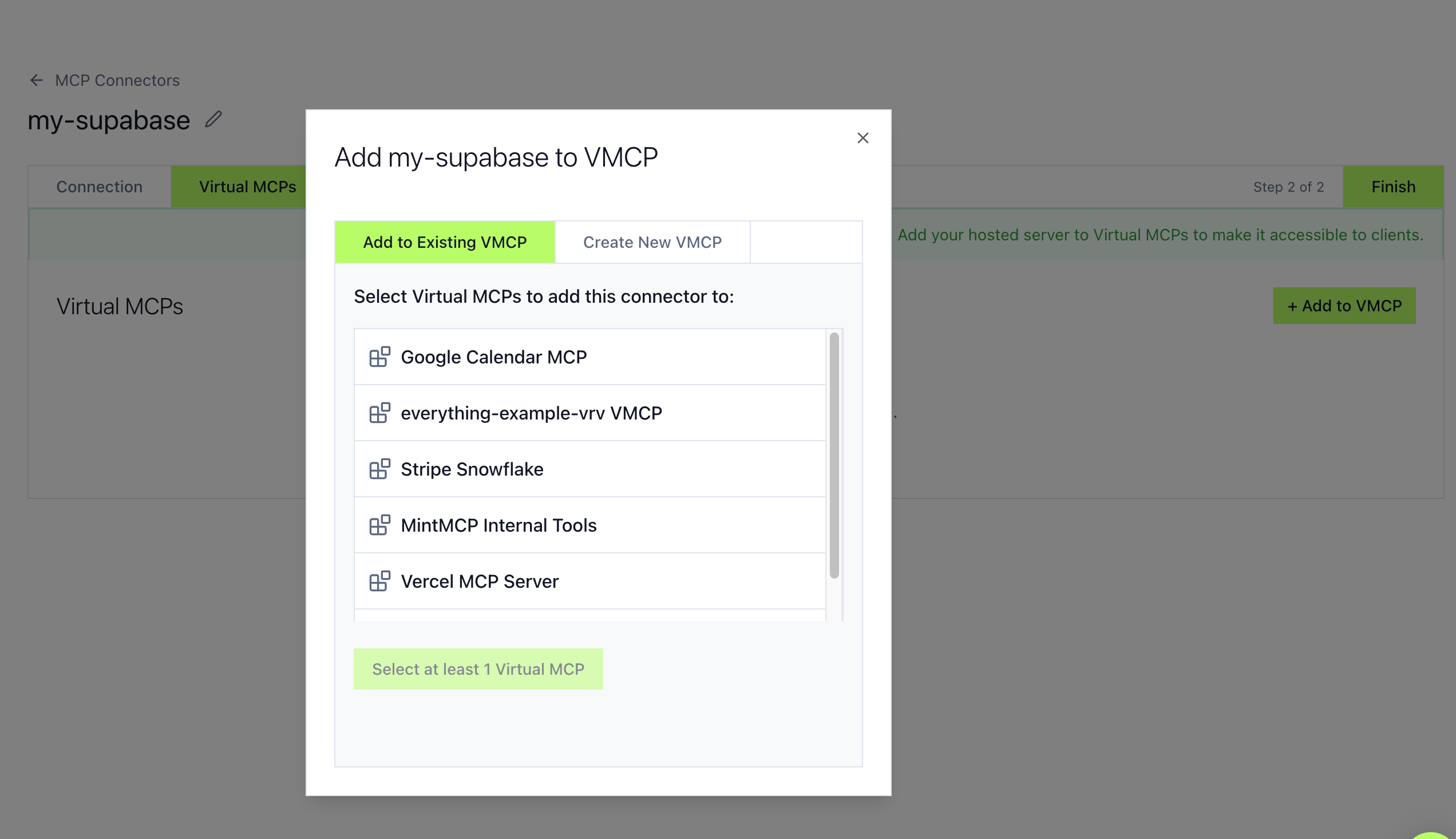
Share the MCP server URL with your team. See the User guide for connection instructions.
Next steps
- Tool customization — Control which tools are exposed
- Activity log — Audit all tool calls
- Add multiple connectors to create curated tool sets for different teams