Skills
Build a library of skills in Mintive (formerly MintMCP) and serve them to every AI client connected to a vMCP. A skill is a folder of instructions, plus any reference files or scripts it needs, in the open Agent Skills format: a SKILL.md with a YAML name and description, followed by markdown instructions.
Instead of every user copying skill folders onto their own machine, you publish a skill in one place, decide who can use it, attach it to the vMCPs and Coworker Agents that need it, and pin, roll back, or switch it off for every client at once.
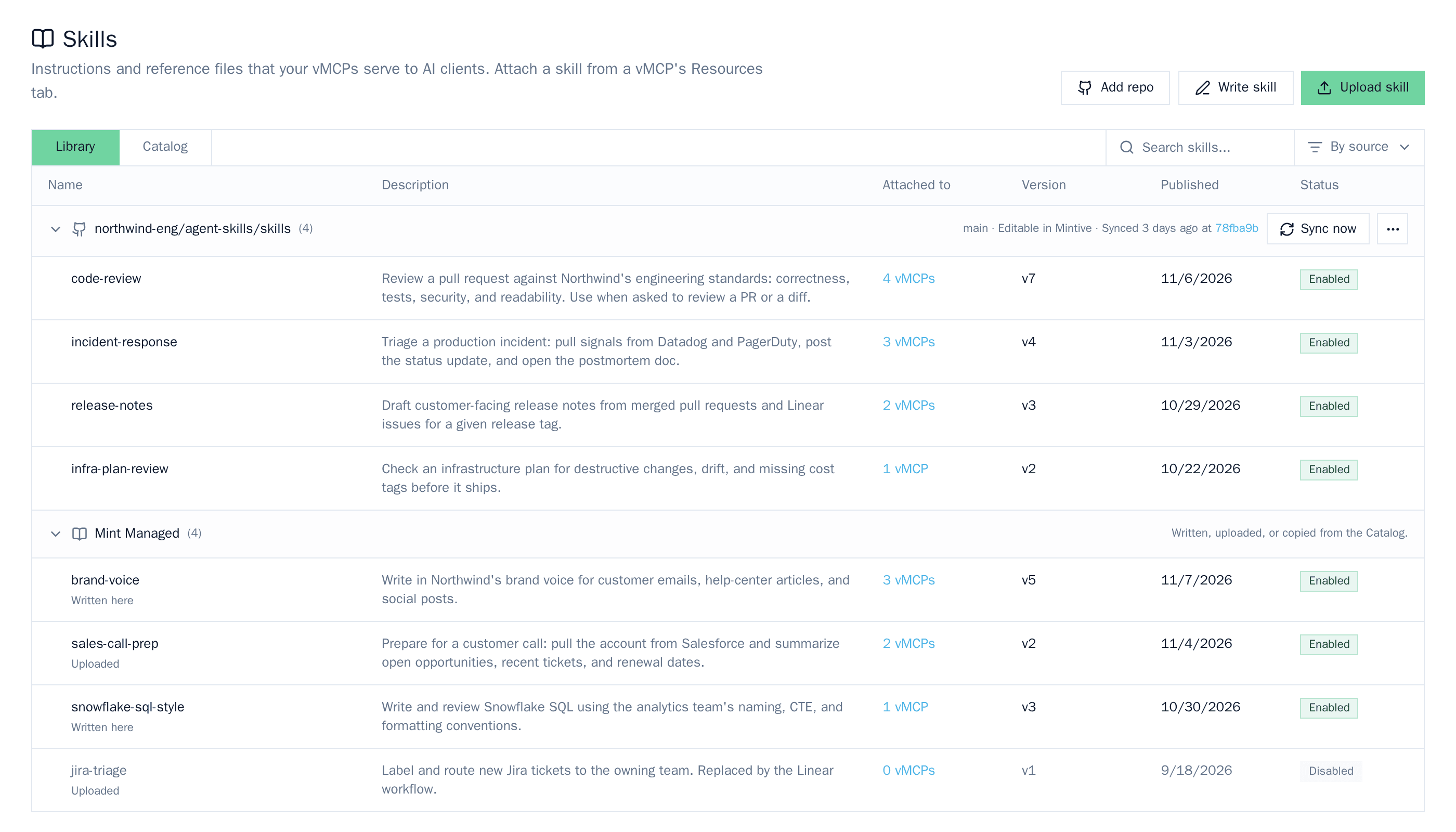
Open Skills at app.mintmcp.com/skills, under MCP gateway → Skills in the sidebar.
How skills reach your clients
- Add skills to the library by writing them in Mintive, uploading a folder, syncing a GitHub repo, or adding them from the Catalog.
- Attach skills to a vMCP, or to a Coworker Agent.
- Clients load them over MCP. Everyone who can use that vMCP can read its skills, with no setup beyond connecting to the vMCP.
Mintive serves a skill's files but never runs them. A skill can include scripts, usually in a scripts/ folder, and a client that runs one does so on the user's machine with that user's permissions. Skills with a scripts/ folder show a Scripts badge where they're attached, so read those scripts before you attach the skill, especially for skills from the Catalog.
Browse the library
The Library tab lists your organization's skills with their description, how many places they're attached (the vMCP count includes Coworker Agents), the latest version, when it was published, and whether the skill is enabled. Skills synced from a GitHub repo are grouped under that repo; skills written, uploaded, or copied from the Catalog are grouped under Mint Managed.
- Search by name or description.
- Switch views between By source, Most used, and Recently published.
- Click a skill to open it, with tabs for Files, Attached to, Access list, and Versions.
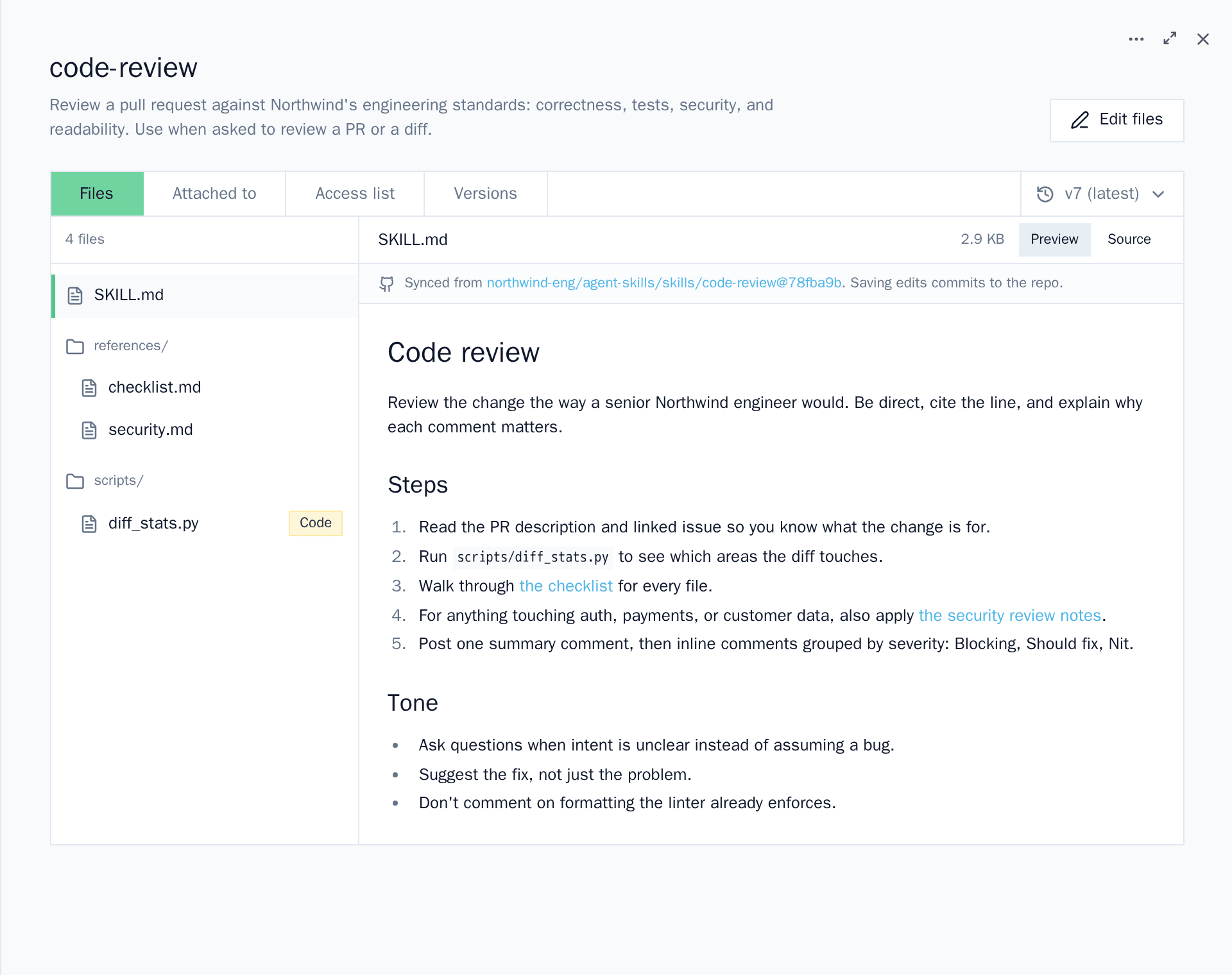
The Add repo, Write skill, and Upload skill buttons appear only for people who can create skills (see Who can do what).
Add skills
Each of these publishes the skill as version 1.
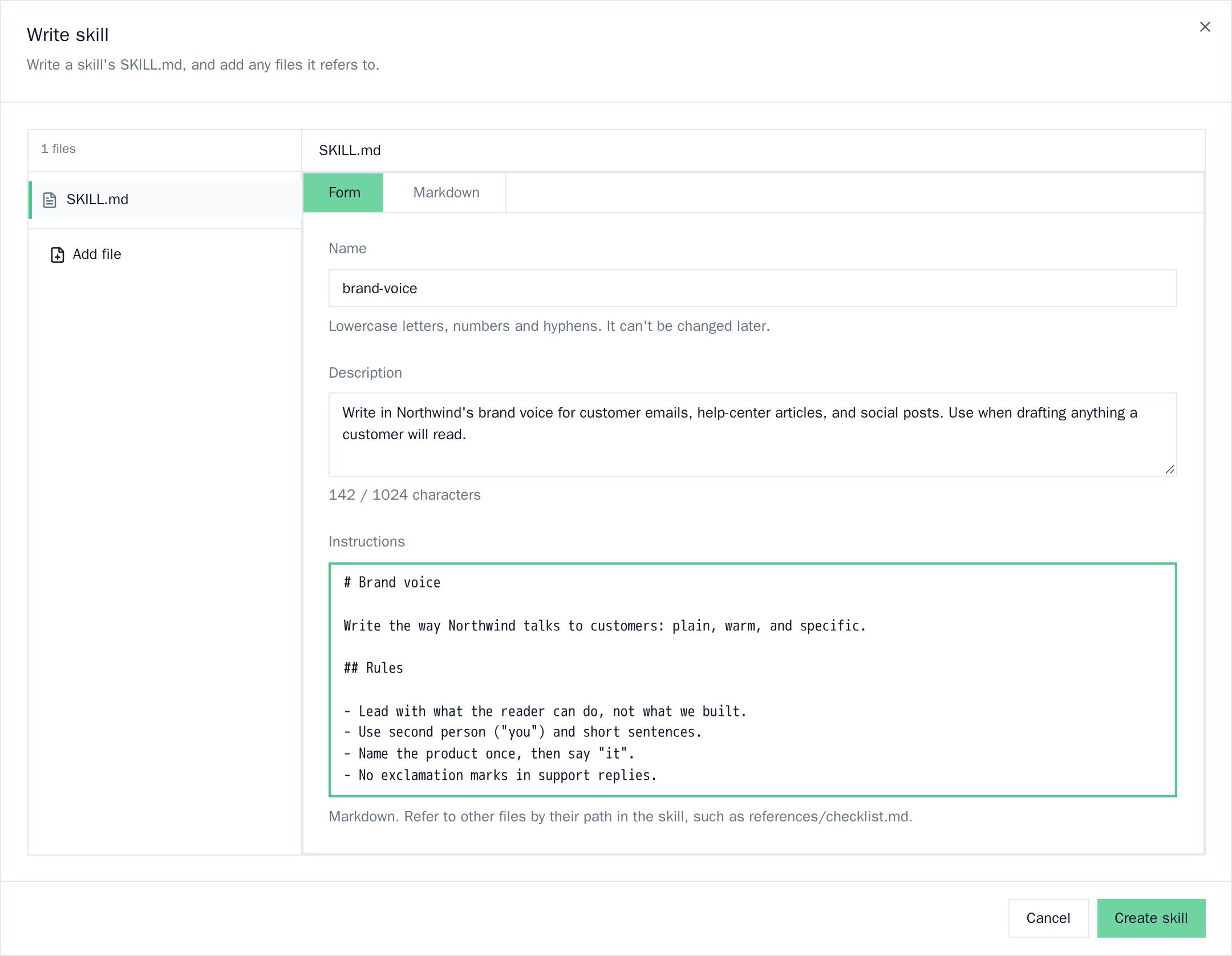
Write a skill
- Click Write skill.
- Fill in the skill in the Form view, or switch to Markdown to edit the whole
SKILL.mddirectly:- Name: lowercase letters, numbers, and single hyphens, such as
brand-voice. The name can't be changed later. - Description: what the skill does and when to use it. Models read this to decide when to load the skill, so be specific about the trigger.
- Instructions: the body of
SKILL.md.
- Name: lowercase letters, numbers, and single hyphens, such as
- Optionally click Add file to add supporting files at paths inside the skill, such as
references/examples.md. - Click Create skill.
Upload a skill folder
Click Upload skill and choose the skill's folder (not a zip file). The folder must be named after the skill, and its SKILL.md frontmatter name must match the folder name:
sales-call-prep/
  SKILL.md       # name: sales-call-prep, plus a description
  references/    # optional supporting files
  scripts/       # optional code
Supporting files can be text, code, or binary, but SKILL.md must be UTF-8 markdown, and .DS_Store, Thumbs.db, and __MACOSX files are dropped.
Sync skills from a GitHub repo
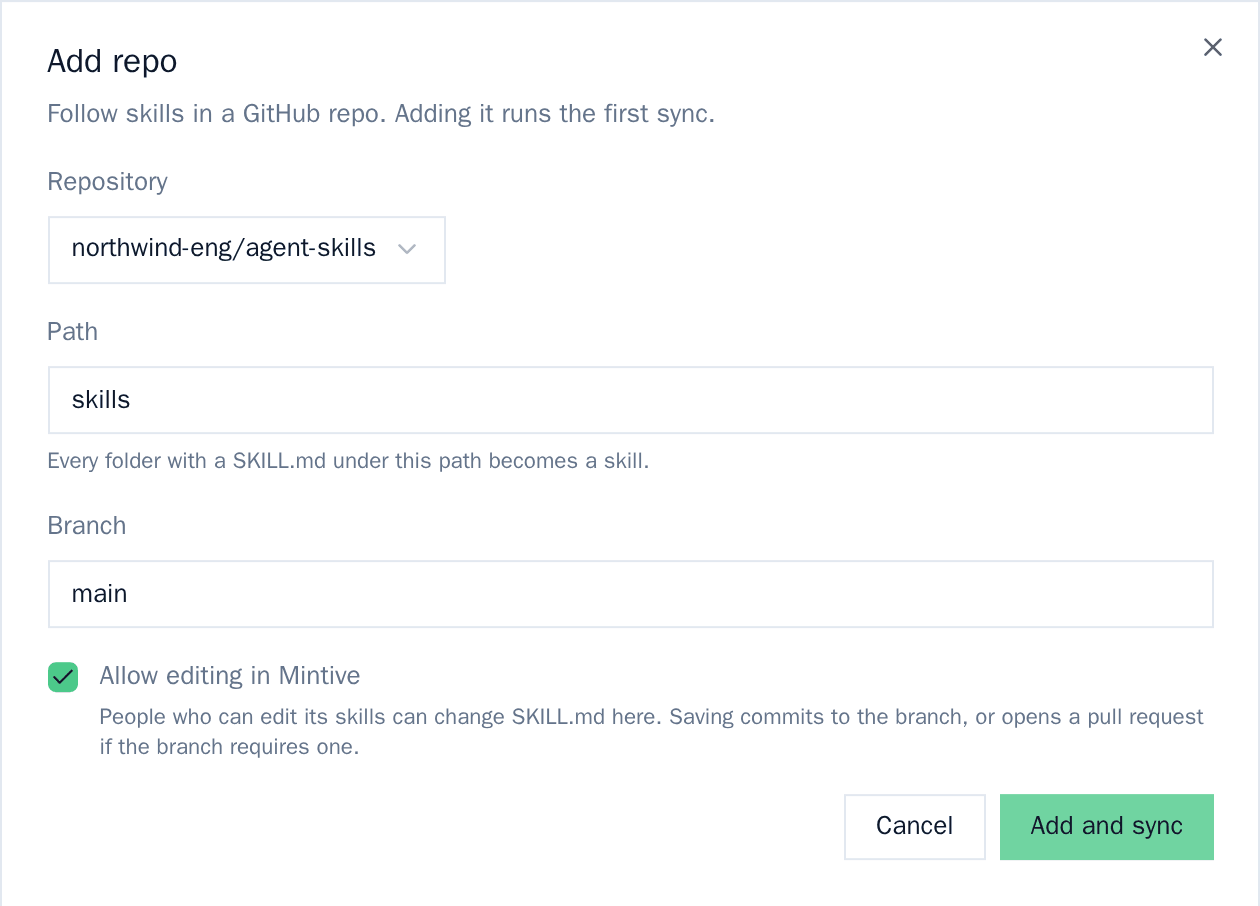
Keep skills in a GitHub repo and let Mintive follow it. Every folder with a SKILL.md under the path you choose becomes a skill.
- Click Add repo.
- Pick a Repository already connected to Mintive through your organization's GitHub App, or choose Connect another repo…. You need admin access to a repo on GitHub to connect it.
- Set the Path to the folder that holds your skills, such as
skills(no leading or trailing slash). Leave it empty to use the whole repo. - Set the Branch. It defaults to the repo's default branch.
- Optionally turn on Allow editing in Mintive (see below).
- Click Add and sync.
After the first sync, sync is manual: click Sync now on the repo's group in the Library to pick up new commits.
Synced skills are read-only in Mintive by default, so the repo stays the source of truth: change the skill in the repo, then sync. With Allow editing in Mintive on, people with Can Edit on a skill can also change its files in Mintive:
- Mintive's GitHub App makes the commit, so editors don't need write access to the repo on GitHub. The commit message says "Edited in Mintive" and credits the editor with a
Co-authored-bytrailer. - If branch protection requires pull requests, Mintive opens a pull request instead of committing to the branch. The skill updates once the pull request merges and the repo is synced.
- Only admins, people with Skill management, and the person who added the repo can turn the setting on or off.
If a skill's folder is removed from the repo, the next sync disables that skill and marks it Removed from repo. Restore the folder and sync again, or delete the skill.
Symlinks and submodules are skipped, and Git LFS files sync as their pointer text.
Add skills from the Catalog
The Catalog tab lists public skills from skills.sh, a third-party directory. Mintive doesn't write or review these skills; they're listed once they pass skills.sh's security audits. Read a skill before you add it.
Browse By repo, Popular, Trending, or Official, then click Add to library. The audits are re-checked when you add the skill, then:
- Skills hosted on GitHub are added as a synced repo, kept in step with that repo when you sync.
- Other skills are added to Mint Managed as an editable copy. Later changes on skills.sh don't reach the copy.
Maintain skills
Publish new versions
Every save or upload publishes a new, numbered version. Published versions never change.
- On the Files tab, click Edit files to change the skill in place.
- On the Versions tab, click Upload new version to replace it from a folder.
Files you don't change carry over to the new version. Attachments that follow the latest version switch to it immediately; pinned attachments stay where they are.
Roll back
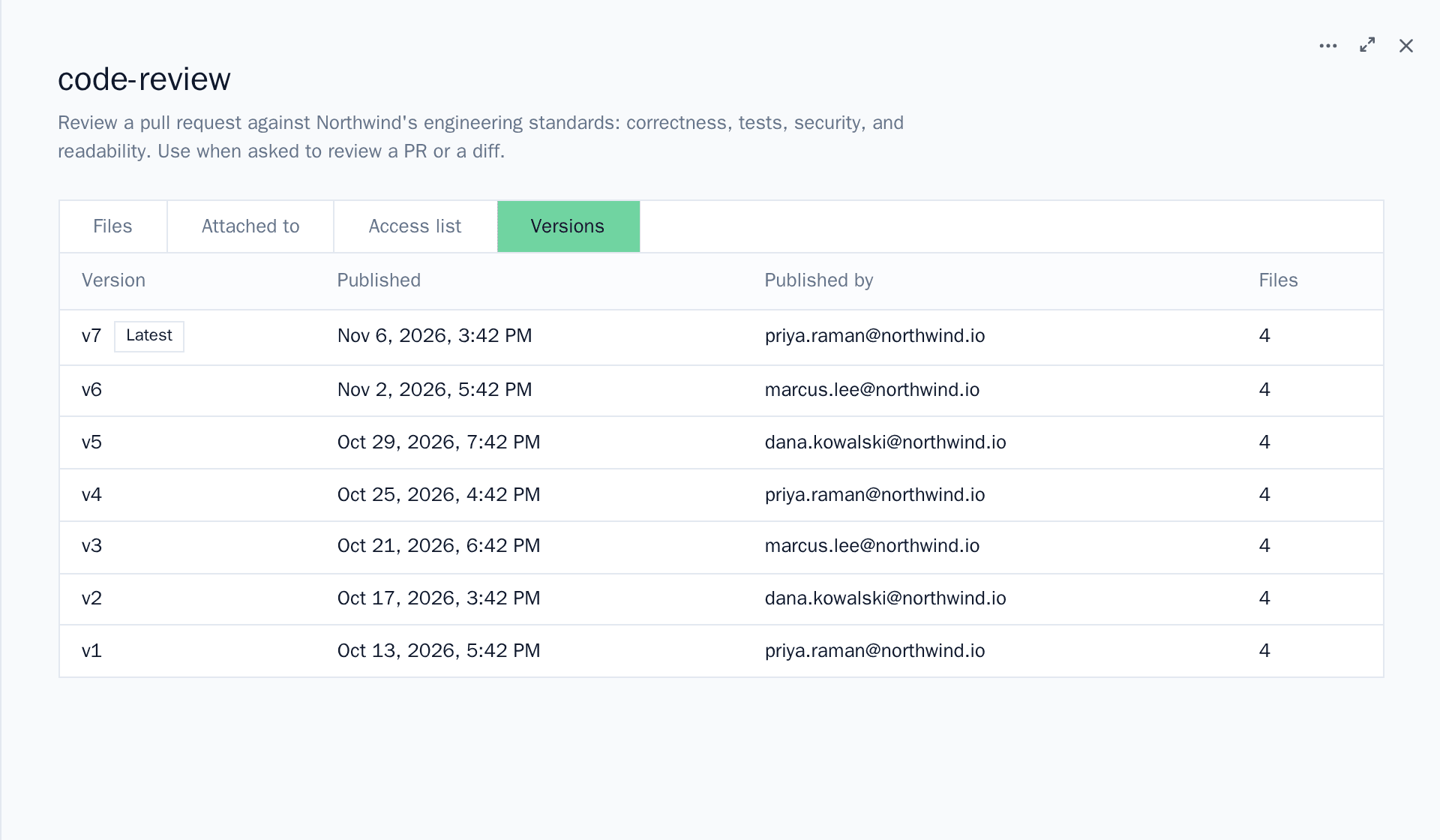
On the Versions tab, Restore republishes an older version as the new latest version, so the history stays intact. Synced skills can't be restored in Mintive; revert the change in the repo and sync instead.
Disable or delete a skill
From the skill's More skill actions menu:
- Disable skill stops every attached vMCP from serving the skill, including pinned versions. Use it as a kill switch. Enable skill turns it back on.
- Delete skill makes every version unavailable and frees the name for a new skill. Attachments remain listed as deleted and serve nothing. To delete a synced skill, first remove its folder from the repo and sync.
Attach skills to a vMCP
A skill does nothing until it's attached. Attach it from either side:
- From the vMCP: open the vMCP's settings, go to the Resources tab, and click Attach skill on the Skills card.
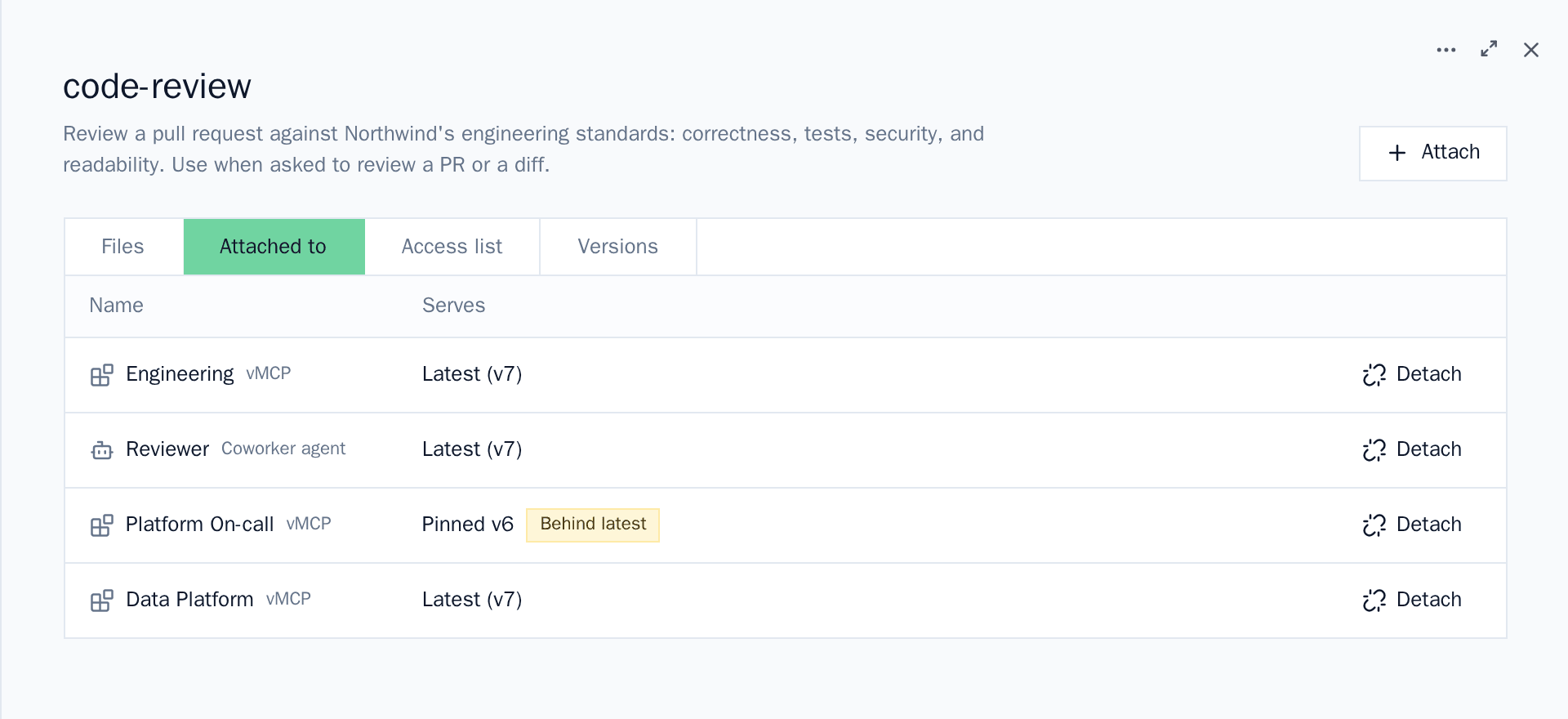
- From the skill: open the skill, go to the Attached to tab, click Attach, and pick vMCPs or Coworker Agents.
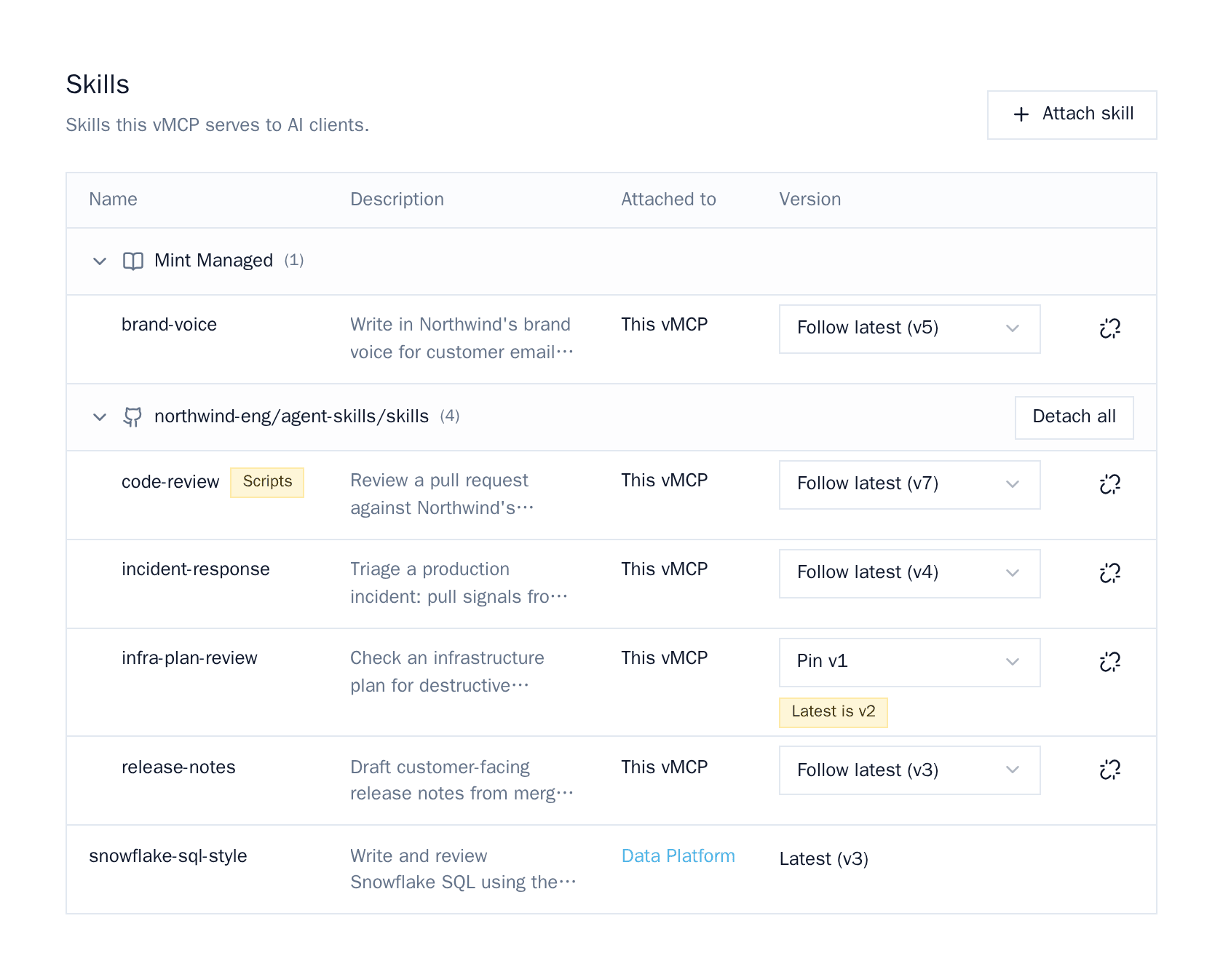
For each attachment, choose the version to serve:
| Version | Behavior |
|---|---|
| Follow latest | Future publishes update this vMCP automatically. |
| Pin vN | Stays on that version until you change it. The row shows which version is now latest. |
Use pinning to roll out a change gradually: let a test vMCP follow latest while production vMCPs stay pinned, then move the pin to the new version.
A vMCP also serves the skills attached to the vMCPs behind its connectors. Those skills show the connector's vMCP in the Attached to column and are managed on that vMCP. If the same skill arrives twice, clients get it once.
To see everywhere a skill is served, open the skill's Attached to tab. A pinned attachment on an older version is marked Behind latest.
Detaching a skill stops that vMCP's clients from seeing it. The skill stays in the library.
How clients receive skills over MCP
Skills are served as MCP resources, not tools, so attaching skills doesn't add tools to the vMCP.
- Each file in a skill is a resource at
skill://mintive/<skill-name>/<path>, for exampleskill://mintive/code-review/SKILL.md. Listing resources returns each skill'sSKILL.md. Relative links inside a skill resolve against the skill's folder, and binary files are served base64-encoded. - The vMCP's server instructions list every attached skill with its description and URI, and tell the model to read a skill's
SKILL.mdbefore starting a matching task. - Clients that implement the MCP Skills extension (
io.modelcontextprotocol/skills) can also list and fetch skills through it. - Every skill read appears in MCP Activity as a resource read with the skill's URI.
Skills are served exactly as published. If a rule or middleware would change a skill's content, the read is blocked rather than serving a modified skill.
If a model doesn't pick up a skill on its own, ask it to read the skill by name.
Attach skills to a Coworker Agent
Coworker Agents receive skills through their own MCP connection, the same way any other client does. Open the agent's Resources tab and click Attach skill, or attach from the skill's Attached to tab and pick the agent under Coworker agents.
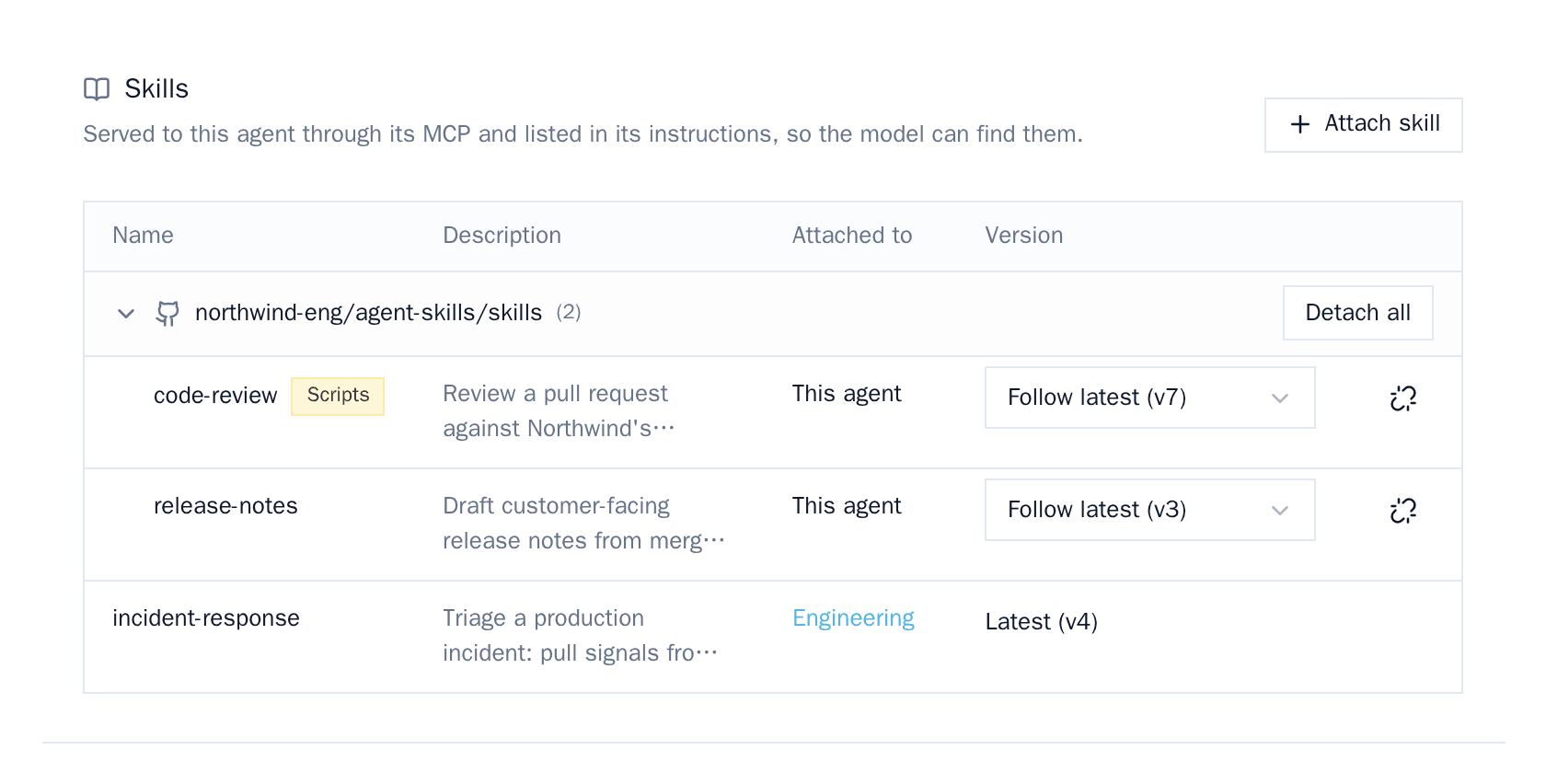
Attached skills are served to the agent over MCP and listed in its instructions, so the model can find them. Skills attached to the vMCPs behind the agent's connectors reach it too, with that vMCP in the Attached to column.
These org-wide skills are separate from the skills an agent's repository defines in .claude/skills/ (see Configure a Coworker Agent). Use the Skills library when you want one skill shared across many agents and clients, versioned and managed in one place.
Who can do what
Each skill has an Access list with two levels:
| Access | Allows |
|---|---|
| Can Use | Attach the skill to vMCPs and agents you can edit. |
| Can Edit | Also publish new versions, restore, disable, and delete the skill. |
- Turn on Entire Organization to give everyone Can Use. Can Edit is granted to specific people or directory groups.
- Whoever creates a skill gets Can Edit automatically.
- Organization roles add four Skills permissions, and Admins have all of them:
- Create skills: write, upload, and add skills, and add repos.
- Share skills: change the Access list of skills you can edit.
- View all skills: see every skill, without using or editing it.
- Skill management: Can Edit on every skill.
- Without View all skills or Skill management, people see only the skills shared with them.
- Using a skill from a client needs no extra grant. Anyone who can connect to a vMCP gets every skill attached to it. Control who receives a skill by choosing which vMCPs it's attached to and who can access those vMCPs (see Role-based access control).
Audit changes
- Attachments: attaching, detaching, and changing a pinned version update the vMCP's configuration, or the Coworker Agent's. They show up as changes to that vMCP in Enterprise → Audit logs.
- Access list: changes are recorded in Enterprise → Audit logs as access grant changes on the skill.
- Versions: the Versions tab shows who published each version and when.
- Reads: every time a client reads a skill, MCP Activity logs it.
Limits
| Item | Limit |
|---|---|
| Skill name | 1-64 characters: lowercase letters, numbers, and single hyphens, not starting or ending with a hyphen. Can't be renamed. |
| Description | 4,096 characters. Over 1,024 shows a warning, because the Agent Skills spec allows 1,024 and some clients truncate longer descriptions. |
| Files per skill | 512 |
| Upload or single edit | 3 MiB |
| Synced skill size | 16 MiB |
| Skills per vMCP | 100 |
| Skills per synced repo | 200 |
Two file paths that differ only by letter case are rejected.
Troubleshooting
Quoted entries are the messages Mintive shows, with <name> standing in for the skill or folder name.
| Message or symptom | What to do |
|---|---|
"The folder is named <folder>, but SKILL.md names the skill <name>. They must match." | Rename the folder, or fix name in the frontmatter, so they match. |
| "SKILL.md must start with YAML frontmatter between --- lines." | Add a frontmatter block between --- lines with name and description. |
| "The frontmatter isn't valid YAML." | Usually a value that contains : . Wrap the value in quotes. |
"A skill named <name> already exists." | Names are unique in your organization. Pick another name, or publish a new version of the existing skill. |
"<name> changed while you were editing (it's now v<N>). Reload it and apply your changes again." | Someone else published first. Reload and reapply your changes. |
"<name> is synced from a repo. Change it there, then sync its source." | Change it in the repo and click Sync now, or turn on Allow editing in Mintive for the repo. |
"You can't attach skill <id>: it doesn't exist or you don't have permission to use it in vMCPs." | You need Can Use on the skill and edit access to the vMCP or agent. |
| A skill doesn't show up in a client | Check that it's attached to the vMCP the client is connected to and is Enabled. For synced skills, make sure the repo was synced after the change. |