Cross app access (XAA)
Connect MCP servers through Okta Cross App Access (XAA), so Okta decides which users reach which downstream apps and users skip the per-connector OAuth consent screen.
Cross app access is available for Mintive (formerly MintMCP) Enterprise organizations, and part of the setup is done by the Mintive team, so it isn't self-serve yet. The protocol is new and still changing, so expect Okta console labels and vendor support to shift. For help at any step, email support@mintive.com.
The MCP ecosystem calls this Enterprise-Managed Authorization: the enterprise IdP, not each user's consent screen, decides which applications connect to which MCP servers on a user's behalf. The flow is specified as an MCP authorization extension built on the IETF Identity Assertion JWT Authorization Grant (ID-JAG), which Okta ships as Cross App Access. When a user calls a tool on an XAA connector, Mintive requests an ID-JAG from your Okta org for that user and exchanges it for an access token at the MCP server's authorization server, so access policy, user assignment, and revocation live in Okta.
Why use cross app access for MCP authorization
With standard per-user OAuth, each user consents to each connector individually, and Mintive stores a refresh token per user per connector. Cross app access replaces that with an IdP-governed token exchange:
- No per-connector consent. Users sign in once through SSO, and tokens for XAA connectors mint automatically when they call a tool.
- Central policy in Okta. Your Okta admin controls which users can reach which apps, with which scopes, through the Mintive AI agent's resource connections. Removing a delegation in Okta cuts off new tokens without touching Mintive.
- No stored refresh tokens. Mintive mints tokens just in time and never holds a long-lived credential for the downstream app on the user's behalf.
- Dual attribution. Every token names both the human user and Mintive as the acting agent, so the downstream app's own logs show who did what through which agent.
Limits
- Enterprise only. The XAA / ID-JAG authorization method appears only after the Mintive team turns it on for your organization (see step 2).
- Okta SAML only. Your SSO must be an Okta SAML connection set up through Mintive's SSO setup (powered by WorkOS). Okta OIDC connections don't work for XAA, and neither do other IdPs.
- The downstream app must support XAA. Its authorization server has to accept the ID-JAG grant, and it has to trust the same Okta org as Mintive. For a SaaS app, that usually means your workspace with that vendor signs in through the same Okta org.
- Not available from the catalog approval drawer yet. When you approve a catalog connector in the MCP store, the Configure drawer doesn't offer XAA / ID-JAG. Add the server with Connect to an MCP by URL instead (see step 4).
- Signed-in users only. XAA connectors require per-user credentials, so agent identities can't call them: there is no human user for Okta to name in the grant.
Prerequisites
- A Mintive Enterprise organization, and the Enterprise settings permission to configure SSO.
- SSO to Mintive through Okta SAML, not Okta OIDC. If you're on Okta OIDC today, switch the connection to SAML first: see Set up SAML SSO with Okta.
- Okta admin rights to add applications and register AI agents, in an Okta org where Directory > AI Agents is available.
- A downstream MCP server whose authorization server supports XAA and trusts your Okta org. Mintive can't test this for you, so confirm it with the vendor first.
1. Register Mintive as an AI agent in Okta
The Mintive integration in the Okta Integration Network (listed as MintMCP) supports both SAML and Cross App Access, so you add it from Okta's AI agent directory instead of the regular app catalog.
-
Sign in to your Okta Admin Console.
-
Go to Directory > AI Agents.
-
Click Register AI agent > Import from AI agent providers.
-
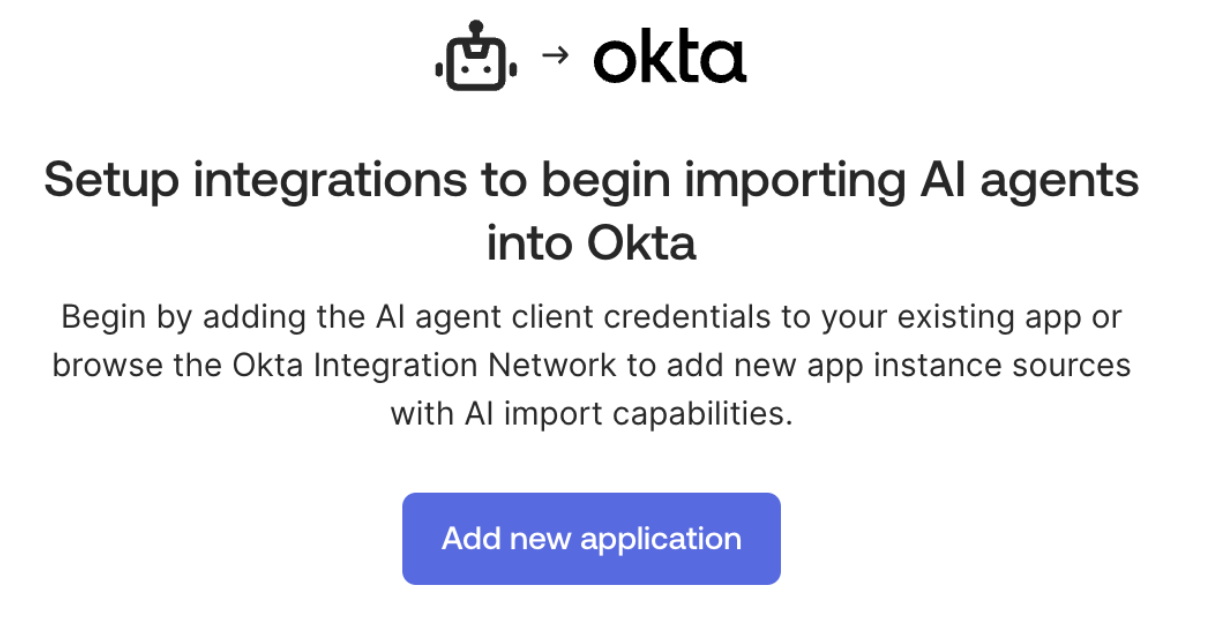
Click Add new application.
-
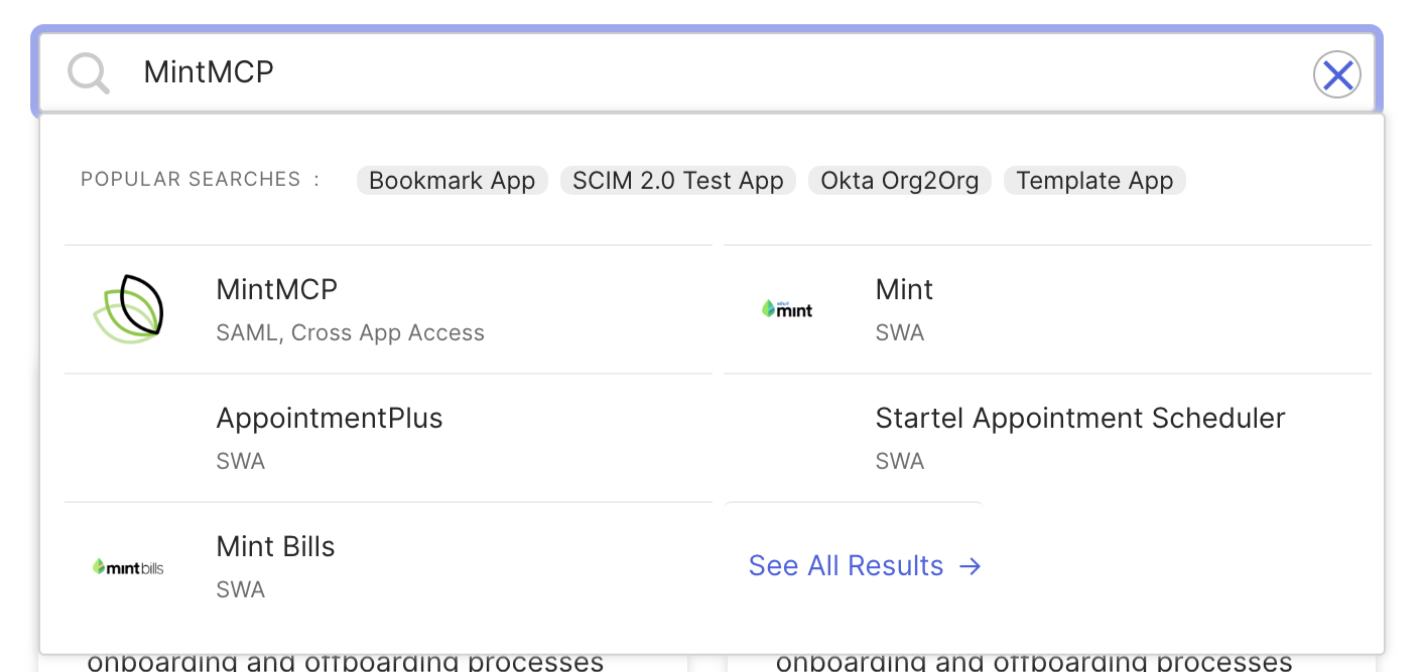
Search for MintMCP and select the result labeled SAML, Cross App Access.
-
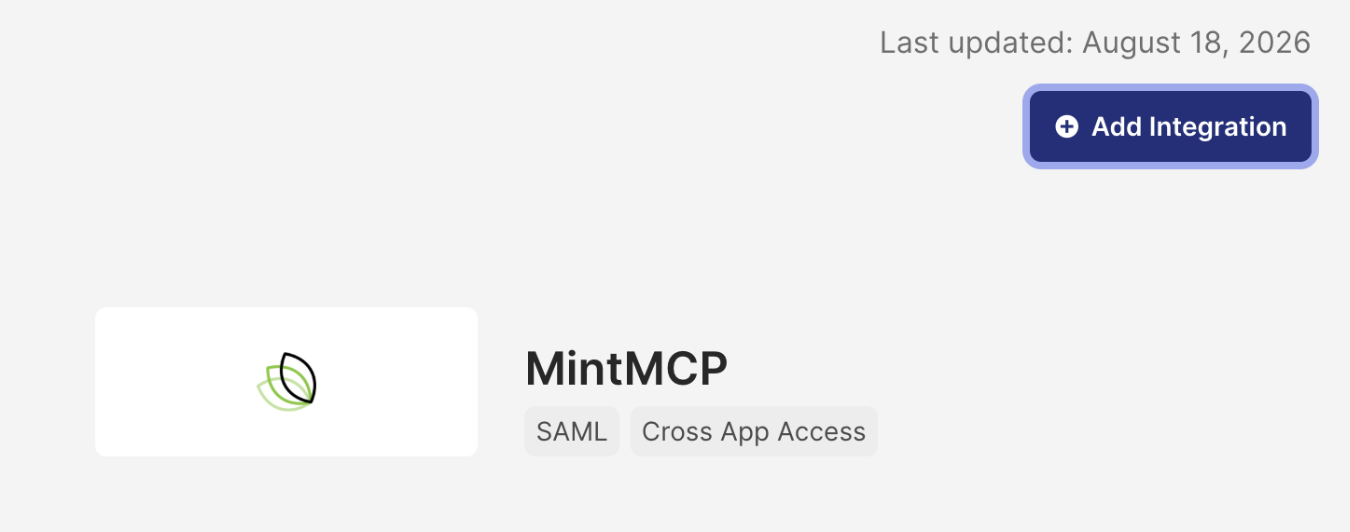
Click Add Integration.
-
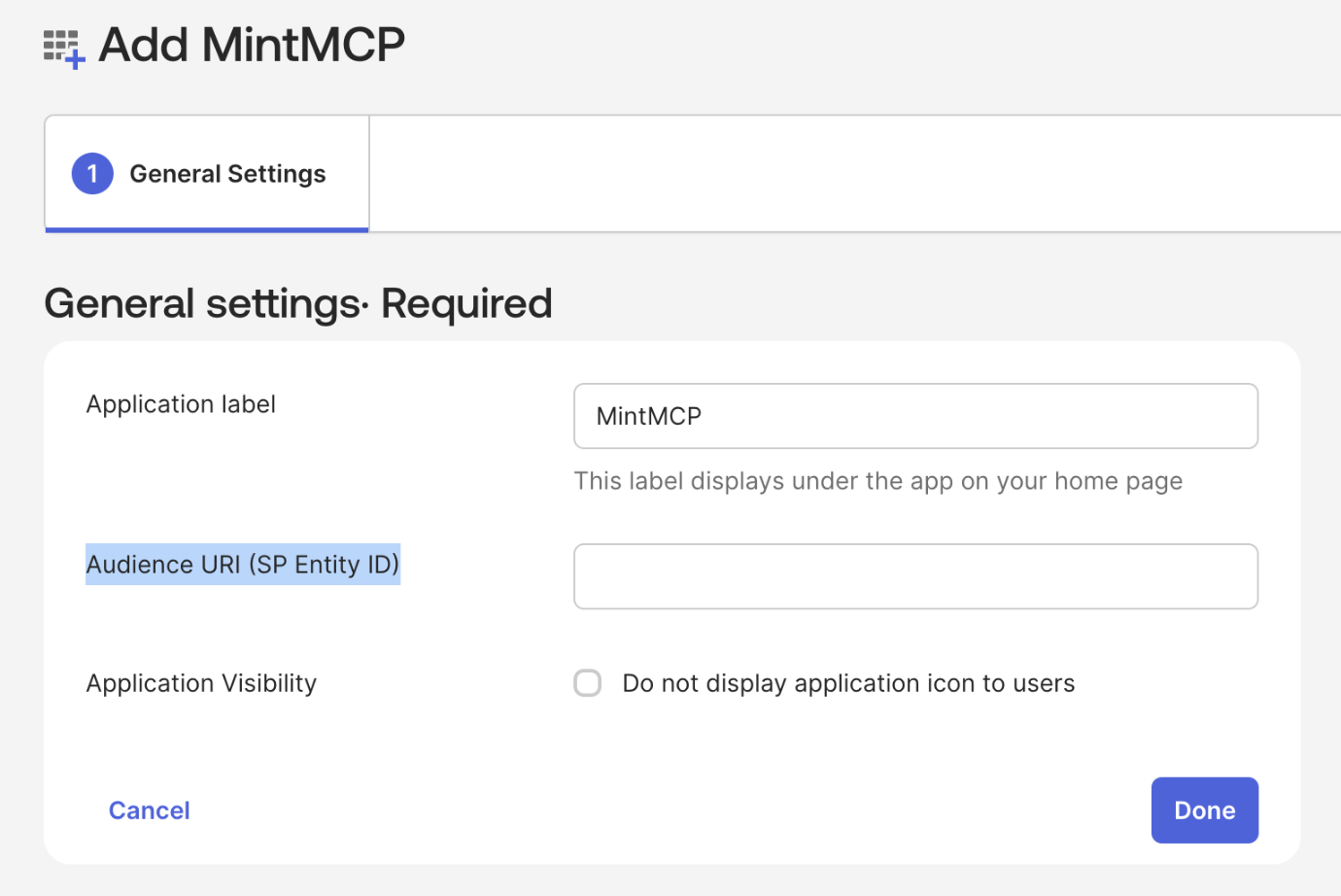
On General Settings, keep or change the Application label, then fill in Audience URI (SP Entity ID) with your organization's entity ID from Mintive:
- In a new tab, go to app.mintmcp.com/enterprise.
- Click Configure SSO and copy the IdP URI (Entity ID).
- Paste it into Audience URI (SP Entity ID) in Okta.
If Configure SSO doesn't show an IdP URI (Entity ID), your SSO connection is most likely Okta OIDC rather than Okta SAML. XAA needs SAML, so set up an Okta SAML connection first.
-
Click Done.
If your Okta SAML connection to Mintive isn't finished yet, complete it now: assign users, send Okta's metadata URL to Mintive, and test sign-in, as in steps 3 to 5 of Set up SAML SSO with Okta.
2. Send the agent ID to Mintive
Registering the agent on the Mintive side isn't self-serve yet, so the Mintive team does it for you.
- In Okta, go to Directory > AI Agents and open the Mintive agent you just added.
- Copy its agent ID.
- Email the agent ID and your Mintive organization name to support@mintive.com.
We register the agent with your SSO connection and turn on XAA / ID-JAG for your organization, then reply to confirm. If Okta needs a signing public key on the agent, we include it in that reply.
3. Connect the agent to the downstream app in Okta
On the Mintive AI agent in Okta, add a resource connection for each downstream app that Mintive should reach. Each resource connection names the app's authorization server (the audience) and the scopes Mintive may request, and the agent's delegations decide which users it can act for. Okta only issues a grant when the user and the app are both covered.
For Linear, the resource connection points at Linear's authorization server, https://mcp.linear.app, and allows the read scope (add write if users need tools that change data).
After step 2 is confirmed, each user has to sign in to Mintive again through Okta before their first XAA tool call, because the exchange runs on the Okta session from sign-in.
4. Configure the connector in Mintive
- Navigate to MCP store in the MCP gateway sidebar
- Click + Add an MCP to your registry and select Connect to an MCP by URL, or open an existing remote MCP server's connection settings. For Linear, the server URL is
https://mcp.linear.app/mcp - Under the authorization method, select XAA / ID-JAG ("Authorize with a delegated ID-JAG exchange"). The connection type switches to per-user credentials, which XAA requires
- Fill in the XAA / ID-JAG section:
| Field | Required | What to enter | Linear example |
|---|---|---|---|
| Audience | Yes | The downstream authorization server, as an http(s) URL. It must match the audience on the Okta resource connection from step 3 | https://mcp.linear.app |
| Scope | Yes | Space-separated scopes. Okta must allow them on the resource connection, and Mintive requests the same scopes at the token exchange | read |
| Resource token endpoint | Yes | The token endpoint where Mintive exchanges the ID-JAG for an access token | https://mcp.linear.app/token |
| Resource | No | Resource indicator (RFC 8707), sent only on the token exchange if the endpoint supports it | https://mcp.linear.app/mcp |
| Resource client ID | No | The client ID the downstream app issued for this connection, sent as client_id on the token exchange. Required if you enter a secret | The client ID of the OAuth client registered with Linear |
| Resource client secret | No | The secret for that client. Mintive stores it encrypted and sends it with the client ID using HTTP Basic auth (client_secret_basic) | That client's secret |
- Save the connection. The server's authentication card shows Configured once the broker is in place, and there is no per-user connect step: tokens mint automatically on first use
Most of these values come from the server's OAuth metadata. The issuer and token endpoint are in /.well-known/oauth-authorization-server on the authorization server, and the resource is in the MCP server's /.well-known/oauth-protected-resource document. Check that the authorization server lists urn:ietf:params:oauth:grant-type:jwt-bearer in grant_types_supported, because without it the server can't accept the ID-JAG. Linear's metadata, for example, lists that grant along with the urn:ietf:params:oauth:grant-profile:id-jag profile.
How the Okta ID-JAG token exchange works
The ID-JAG is a short-lived signed JWT that your IdP issues and the MCP server's authorization server accepts in place of an interactive OAuth flow. In the Enterprise-Managed Authorization model the MCP client performs this exchange, and Mintive acts as that client for the connectors behind your gateway.
When a user calls a tool on an XAA connector:
- Mintive asks your Okta org (through Mintive's SSO layer) for an ID-JAG naming the signed-in user, the audience, and the scopes. Okta only issues the grant if the user and app are covered by the Mintive agent's resource connections and delegations.
- Mintive exchanges the ID-JAG at the resource token endpoint using the JWT bearer grant (
urn:ietf:params:oauth:grant-type:jwt-bearer, RFC 7523) and receives an access token. - Mintive sends the tool call to the MCP server with that token as the bearer credential.
The ID-JAG carries the claims the downstream app needs to make its own decision: iss is your Okta org, sub is the human user, aud is the downstream authorization server, scope lists the granted scopes, and act identifies Mintive as the agent acting on the user's behalf.
Mintive reuses each user's access token only until shortly before it expires, and never for longer than two hours, so revoking a user in Okta stops new access within that window.
Cross app access security model
What Okta controls:
- Which users can get grants, through the agent's delegations and your Okta sign-on policies (MFA and conditional access apply at SSO sign-in)
- Which apps and scopes the Mintive agent can request, through resource connections
- Revocation: deactivating a user or removing a delegation in Okta stops new tokens
What Mintive does:
- Mints tokens just in time per user, and never stores an IdP refresh token for XAA connectors
- Never injects an expired token; tokens at or past expiry are minted again
- Logs each exchange with the organization, user, and connector, so token mints are auditable alongside tool calls
- Returns exchange failures to the client as a connection error with the reason ("Could not obtain an access token via ID-JAG exchange: ...") instead of failing silently
Troubleshooting
| Error or symptom | Likely cause |
|---|---|
no_refresh_token or profile_not_found | The user hasn't signed in to Mintive through the Okta SAML connection since XAA was turned on, or the Mintive agent wasn't active when they signed in. Have them sign out and sign in again |
| No IdP URI (Entity ID) under Configure SSO | Your SSO connection is most likely Okta OIDC. XAA needs Okta SAML, so set up an Okta SAML connection first |
invalid_target or an audience error | The Audience doesn't match an active resource connection on the Mintive agent in Okta |
invalid_scope | The Scope is empty or not allowed on the resource connection |
invalid_client | The Resource client ID or secret is wrong, or the client isn't registered with that authorization server |
invalid_grant: Invalid assertion | Okta issued the ID-JAG, but the downstream app rejected it: it doesn't trust your Okta org or can't match the user. Check that your workspace with that vendor signs in through the same Okta org |
| XAA / ID-JAG isn't in the authorization method list | XAA isn't turned on for your organization yet (see step 2), or you're in the catalog approval drawer, which doesn't offer it |
For anything else, email support@mintive.com with your organization name, the connector, the approximate time, and the error text.
Related documentation
- Set up SAML SSO with Okta: The Okta SAML connection that cross app access builds on
- Configure SSO and SCIM: SSO setup for other identity providers
- Authentication models: How per-user and shared credentials work across connectors
- Add a remote MCP: The connector setup flow where the authorization method is chosen