Set up the Google Postmaster Tools MCP server
The Google Postmaster Tools MCP server lets AI agents check Gmail deliverability for your sending domains: spam rate, SPF, DKIM and DMARC authentication rates, delivery errors, and compliance with Gmail's sender requirements. Each user signs in with their own Google account, so agents only see the domains that account has verified in Postmaster Tools. This guide covers enabling the Postmaster Tools API, creating an OAuth client, and adding the connector to Mintive.
Prerequisites
- A Mintive admin account
- A Google Cloud project with an OAuth consent screen already configured, plus permission to enable APIs and create OAuth credentials
- At least one sending domain verified in Postmaster Tools for each user who connects
Enable the API
- Go to console.cloud.google.com and select or create a project.
- Go to APIs & Services → Library and enable the Gmail Postmaster Tools API.
Create the OAuth client
The OAuth client gives Mintive a client ID and secret to broker each user's Google sign-in. The Google Cloud OAuth flow is the same as the Google Ads MCP setup, so the screens below come from that guide.
-
Go to console.cloud.google.com/auth/clients and click Create client.
-
Set Application type to Web application and give it a name (for example,
Mintive OAuth).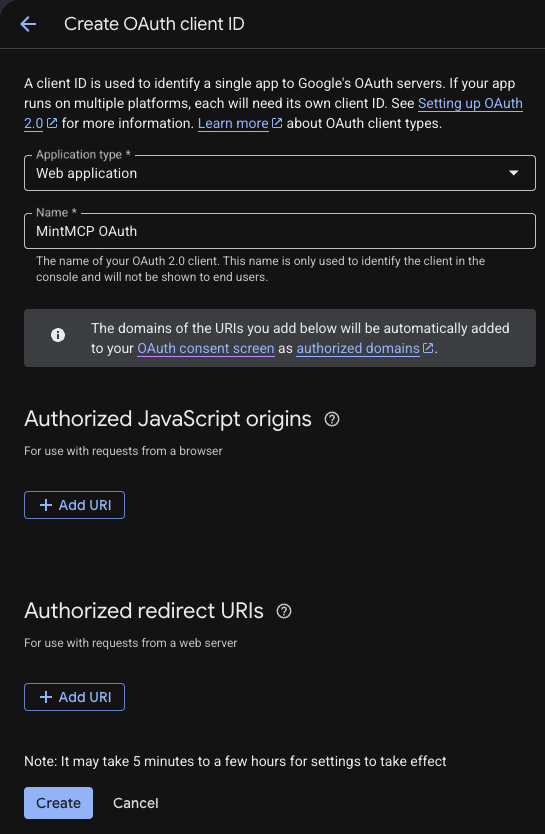
-
Under Authorized redirect URIs, click Add URI and enter the callback for your Mintive region:
Mintive region Redirect URI US ( app.mintmcp.com)https://app.mintmcp.com/oauth/callbackEU ( eu.mintmcp.com)https://eu.mintmcp.com/oauth/callbackThe install panel in Mintive shows the callback for your organization.
Leave Authorized JavaScript origins empty. This URI must match the Redirect URL in the connector's OAuth settings exactly, or sign-in fails with
redirect_uri_mismatch.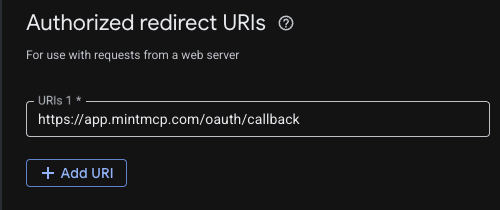
-
Click Create. Google shows the Client ID and Client secret once, so copy both now because you can't view the secret again after closing the dialog.
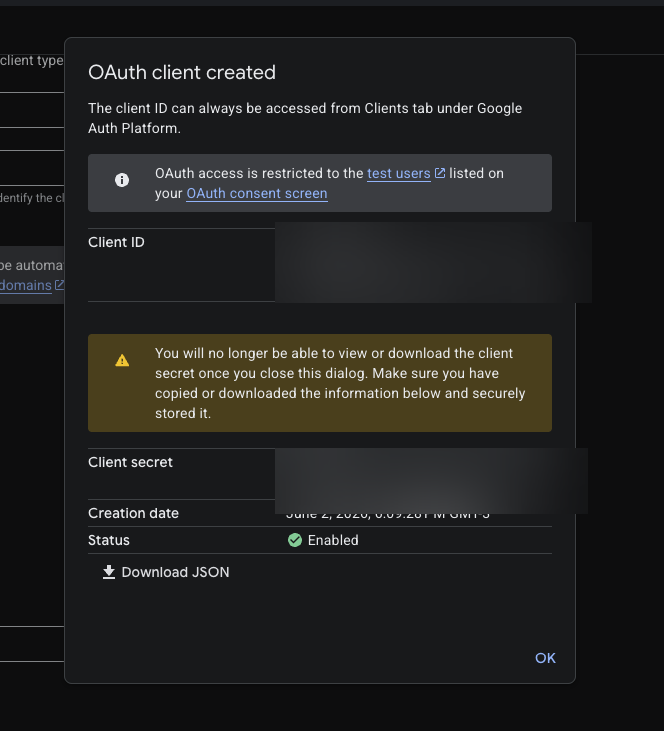
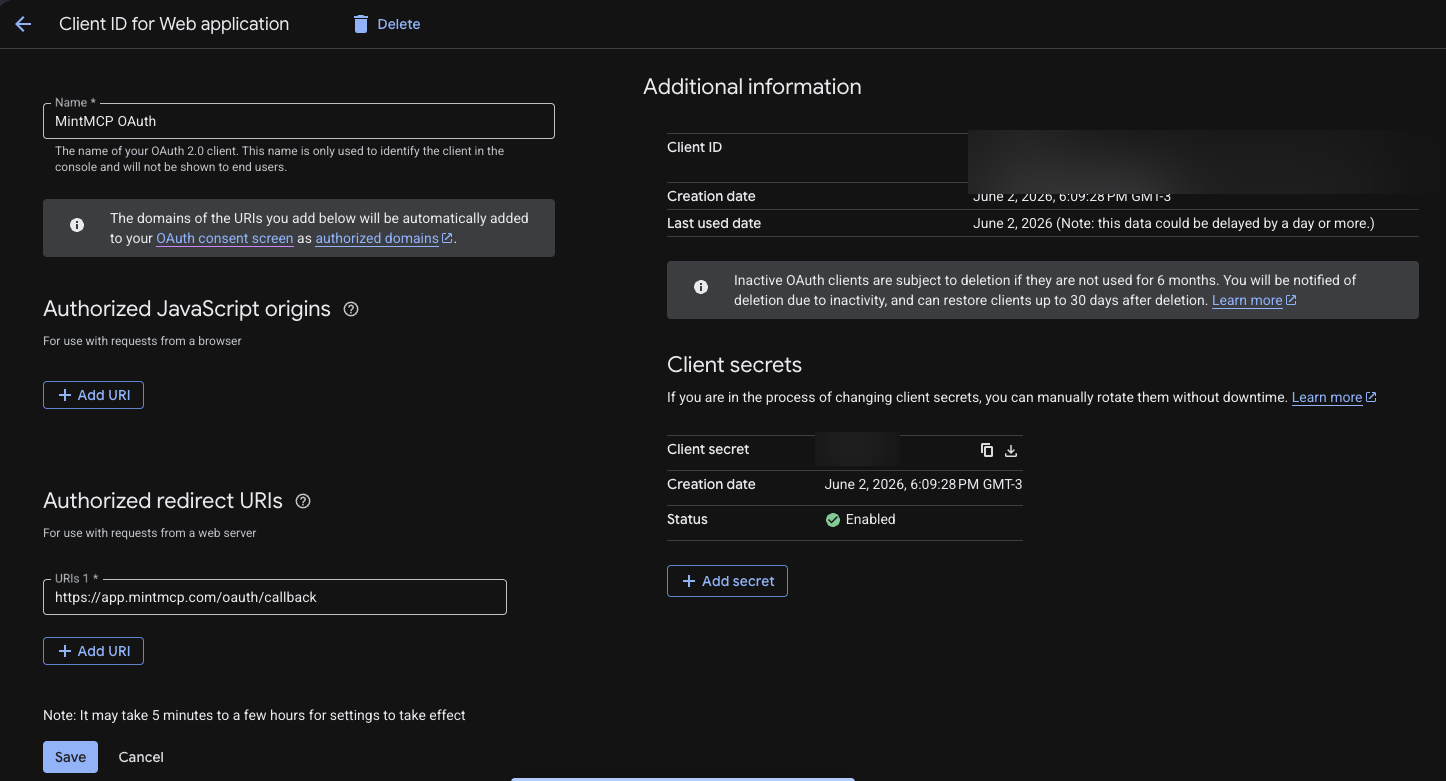
Reopen the client anytime from the Clients list to edit its redirect URIs or rotate the secret.
Consent screen scopes
Declare the scopes the connector requests on the OAuth consent screen. Go to console.cloud.google.com/auth/scopes, click Add or remove scopes, add both scopes below, and click Save:
| Scope | Purpose |
|---|---|
https://www.googleapis.com/auth/postmaster.domain | List the domains registered in Postmaster Tools and their verification state |
https://www.googleapis.com/auth/postmaster.traffic.readonly | Compliance status and traffic metrics |
Both are non-sensitive scopes, so publishing the app to users outside your Workspace organization doesn't require Google's scope verification review.
Add Google Postmaster Tools to Mintive
- In Mintive, go to MCP gateway → Catalog.
- Find the Google Postmaster Tools connector and click to install it.
- Open the connector's OAuth settings and enter the Client ID and Client Secret from the OAuth client you created.
- Confirm the Redirect URL shown in the connector's OAuth settings matches the URI you added to the OAuth client, which is the callback for your region (
https://app.mintmcp.com/oauth/callbackorhttps://eu.mintmcp.com/oauth/callback). They must be identical. - Click Install.
What agents can check
- Domains: the sending domains the user has registered in Postmaster Tools, with each one's verification state and the user's permission on it.
- Compliance status: whether a domain meets each of Gmail's sender requirements (SPF, DKIM, DMARC policy and alignment, message formatting, DNS records, encryption, user-reported spam rate, one-click unsubscribe, and honoring unsubscribes), plus the overall deliverability verdict and its reason.
- Traffic metrics: spam rate, SPF, DKIM and DMARC success rates, delivery error rates and counts by error type and reason, TLS encryption, and Feedback Loop data, per day or for a whole date range. Agents can query several domains in one call.
Postmaster Tools only reports traffic for days when a domain sent enough mail to Gmail users, so quiet days are missing from the results rather than reported as zero. Compliance status and metrics are only available for domains in the Verified state.
Security considerations
- Each user authenticates individually through OAuth, so tool calls run against that user's own Postmaster Tools access and only return domains that user's Google account has verified.
- Every tool is read-only. Google has no read-only scope for listing domains, so the connector requests
postmaster.domain, which Google's API also accepts for adding, verifying, and removing domains. The connector has no tools that do any of those, so agents can't change your domain registrations. postmaster.traffic.readonlycovers compliance status and traffic metrics, and can't modify anything.- Mintive holds the refresh token and mints a short-lived access token per request, so no long-lived Google credential is stored in the connector or its container.
- Every tool call is attributed to the individual user in Mintive's audit log, because no credential is shared between members.
Next steps
- Tool customization: Control which Google Postmaster Tools tools are exposed to users
- MCP gateway administration: Manage access and permissions