Set up the Microsoft Dynamics 365 (CRM) MCP server
Microsoft's remote Dataverse MCP server lets AI agents read and update the records behind the Dynamics 365 CRM apps: accounts, contacts, leads, opportunities, cases, and work orders, all under each user's own Dataverse security roles. This guide covers preparing the Dataverse environment, registering a Microsoft Entra app for OAuth, allowing that app as an MCP client, and connecting the server to Mintive from the catalog.
What this connector covers
Dynamics 365 Sales, Customer Service, Field Service, and Contact Center store their records in the same Dataverse environment, so one connector reaches all of them:
| App | Example tables |
|---|---|
| Sales | account, contact, lead, opportunity, quote |
| Customer Service | incident (cases), knowledgearticle, queue |
| Field Service | msdyn_workorder, bookableresourcebooking |
| Contact Center | msdyn_ocliveworkitem (conversation history) |
The lead, opportunity, and incident tables only exist once the matching Dynamics 365 app is installed in the environment. An environment with only a Dataverse database has the core tables, such as account and contact.
The Copilot features of Dynamics 365 Sales and Customer Service (lead research, opportunity summaries, case summaries) are served by separate Microsoft MCP servers and aren't part of this connector.
Prerequisites
- A Mintive admin account
- A Power Platform environment with a Dataverse database, and the Power Platform administrator role
- Application Administrator, Cloud Application Administrator, or Global Administrator in the Microsoft Entra tenant
- Users need a work or school account in the tenant and a Dataverse security role in the environment
Prepare the Dataverse environment
-
Sign in to the Power Platform admin center and go to Manage > Environments, then select your environment.
-
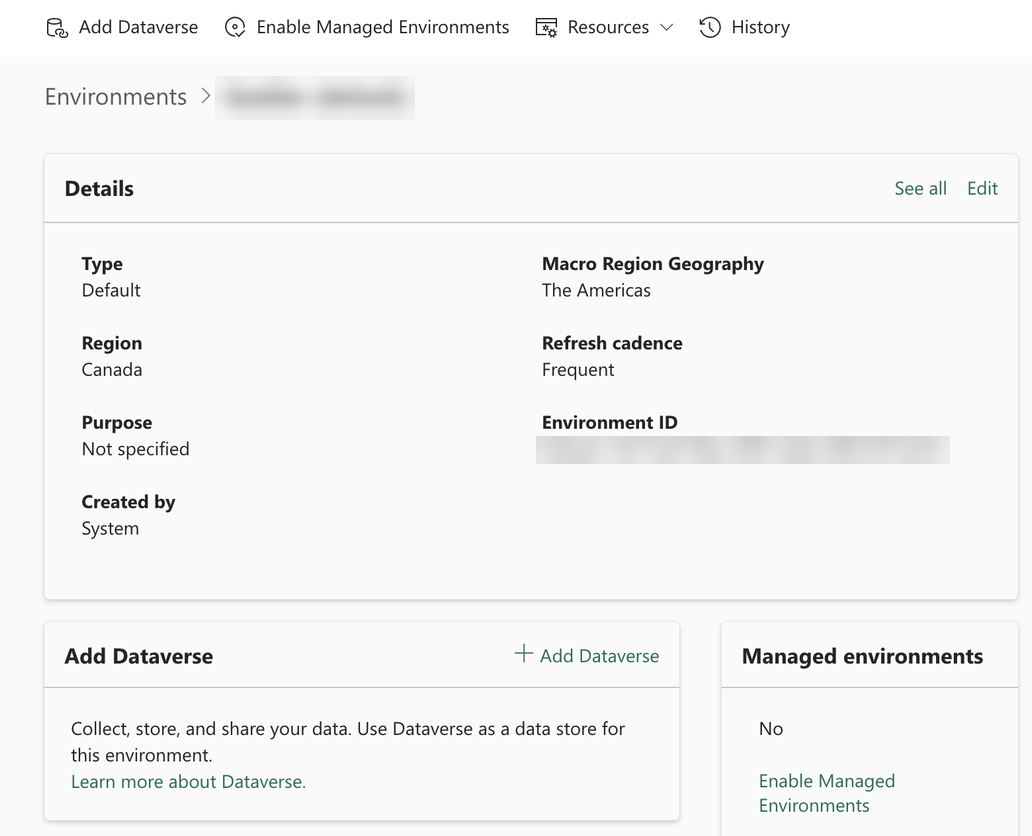
If the environment shows an Add Dataverse card, click Add Dataverse, pick a language and currency, and wait for provisioning to finish. The Settings button only appears once the environment has a Dataverse database.
-
Click Membership in the top bar, then Add me, so your account holds the System Administrator security role inside the environment. The allowed MCP client list is restricted to that role, and being a tenant or Power Platform admin doesn't grant it.
-
Copy the Environment URL from the Details card, for example
contoso.crm.dynamics.com. The region part of the host varies (crm,crm3,crm4, and so on).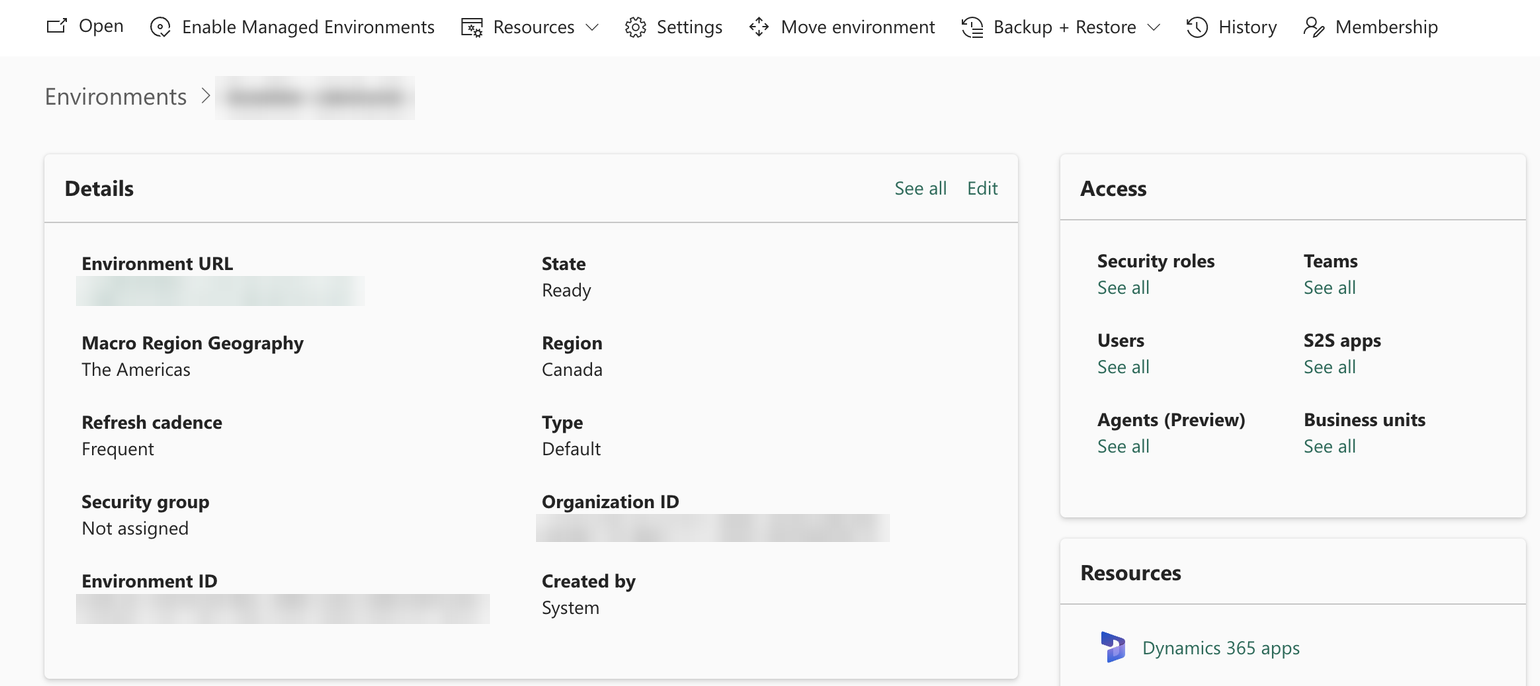
-
Click Settings, expand Product, and select Features.
-
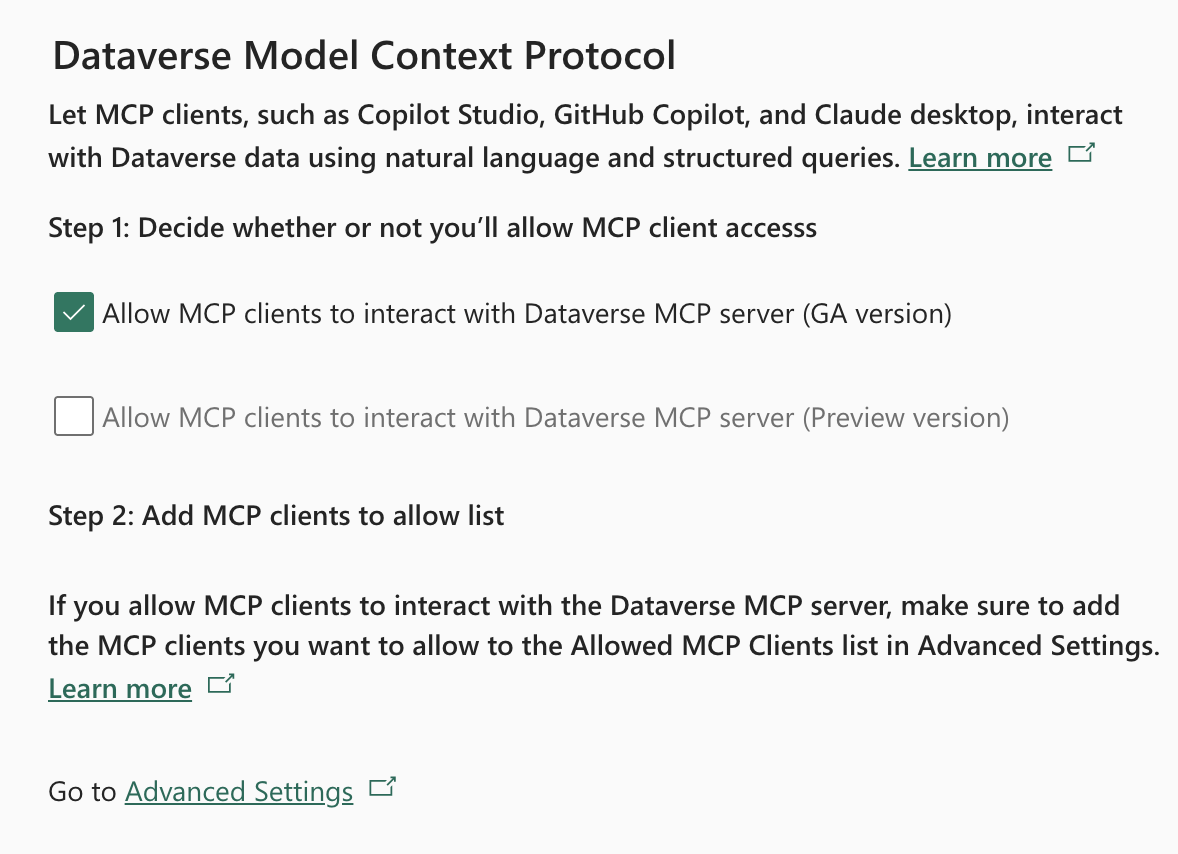
Scroll to Dataverse Model Context Protocol and make sure Allow MCP clients to interact with Dataverse MCP server (GA version) is checked.
Register a Microsoft Entra app
Microsoft Entra doesn't support dynamic client registration, so an admin registers an app once and Mintive uses its client ID and secret for the OAuth flow.
-
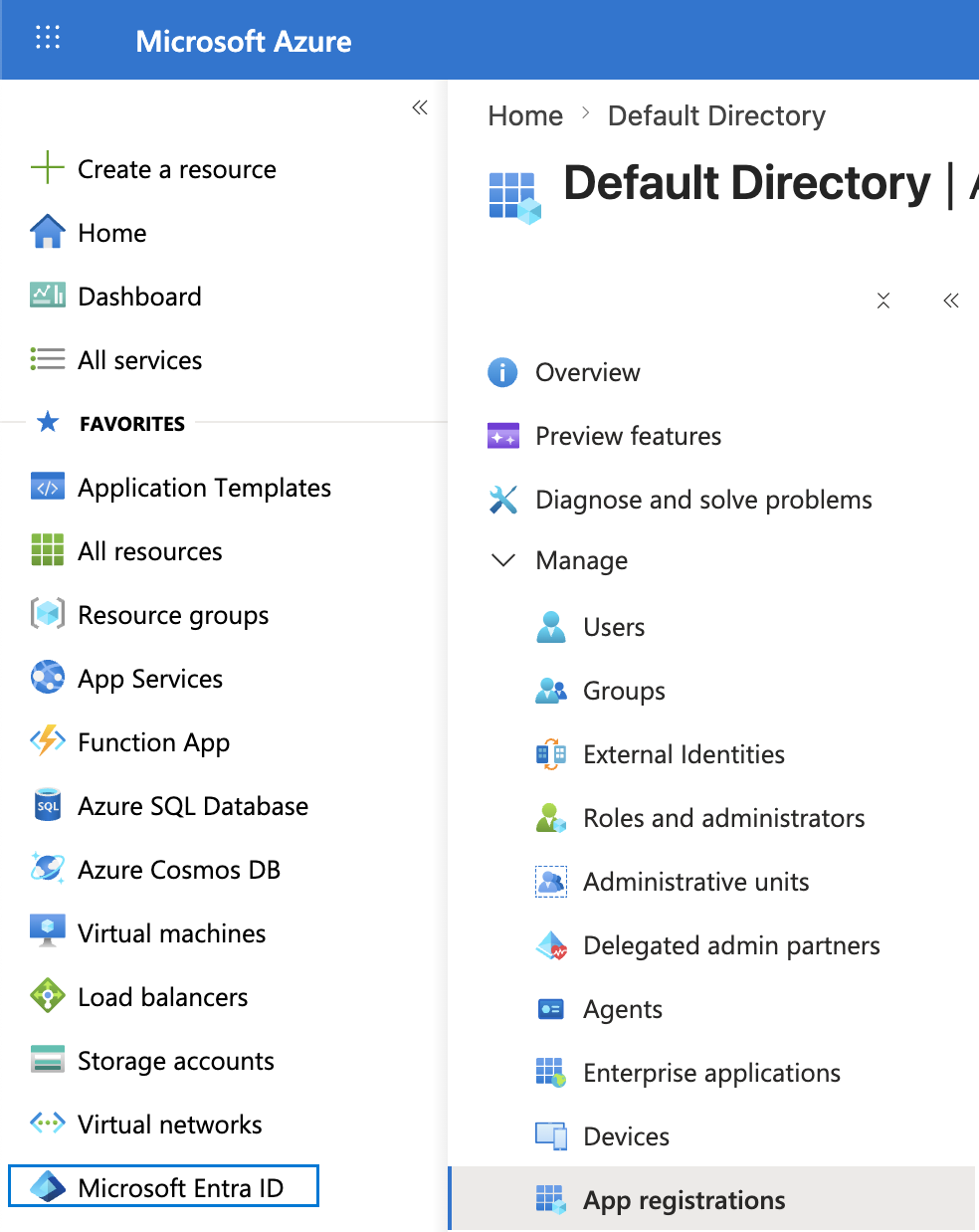
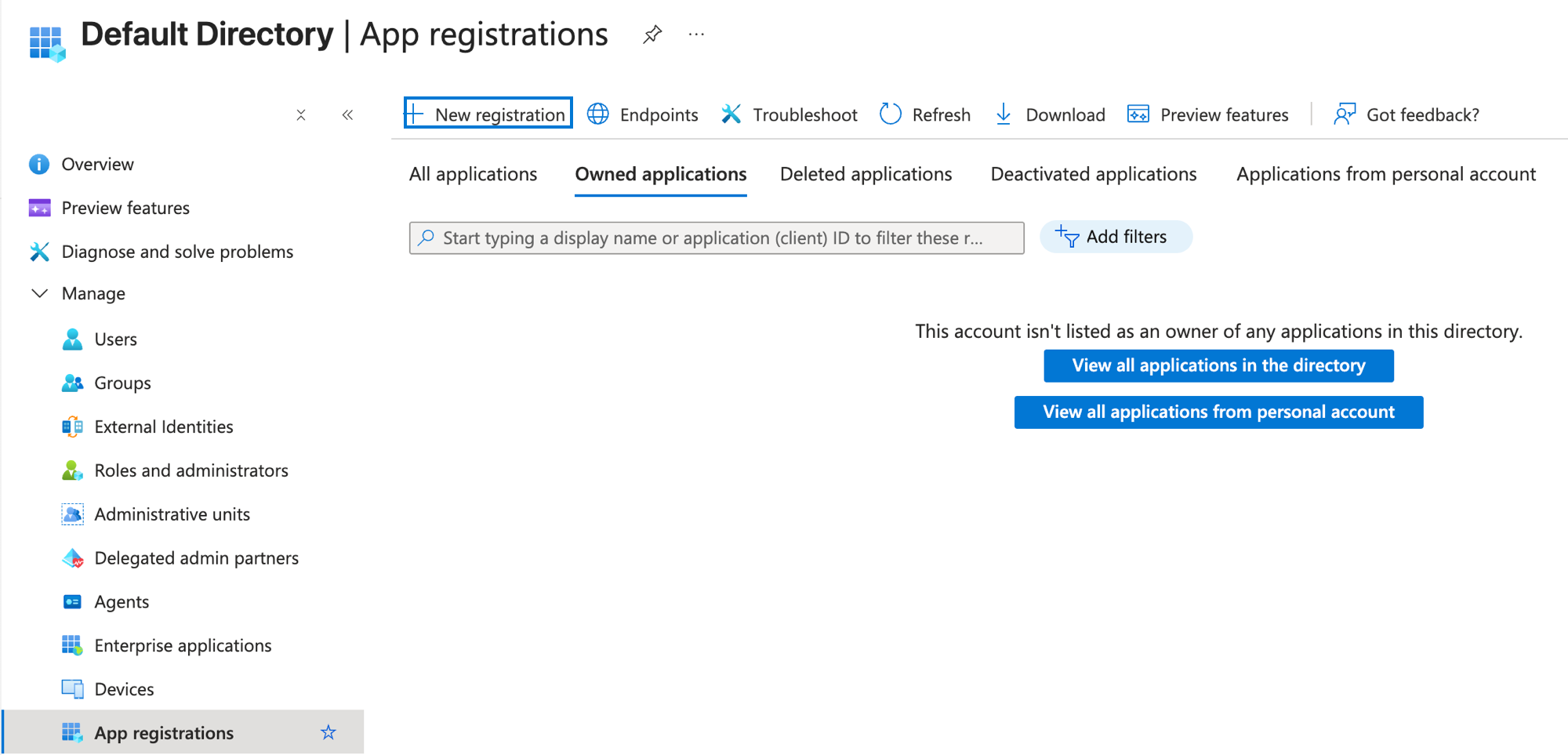
Go to portal.azure.com > Microsoft Entra ID > App registrations.
-
Click New registration.
-
Enter a name, for example
Mintive Dynamics 365, and under Supported account types, select Single tenant only. -
Under Redirect URI (optional), select Web and enter the redirect URI for your Mintive region:
Mintive region Redirect URI US https://app.mintmcp.com/oauth/callbackEU https://eu.mintmcp.com/oauth/callback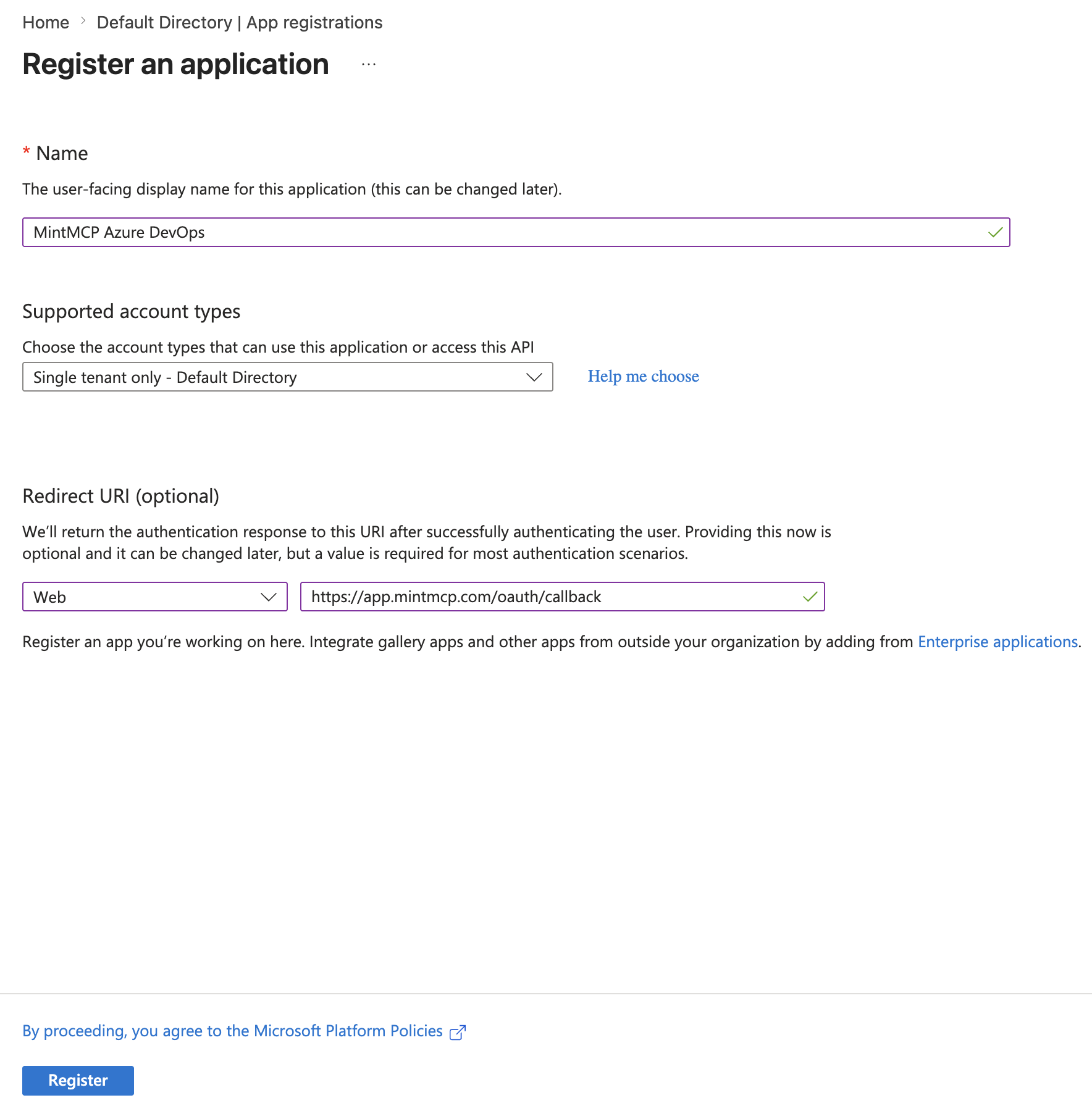
-
Click Register.
-
Go to API permissions > Add a permission > Microsoft APIs, and select Dynamics CRM > Delegated permissions. Under mcp, check
mcp.tools, then click Add permissions.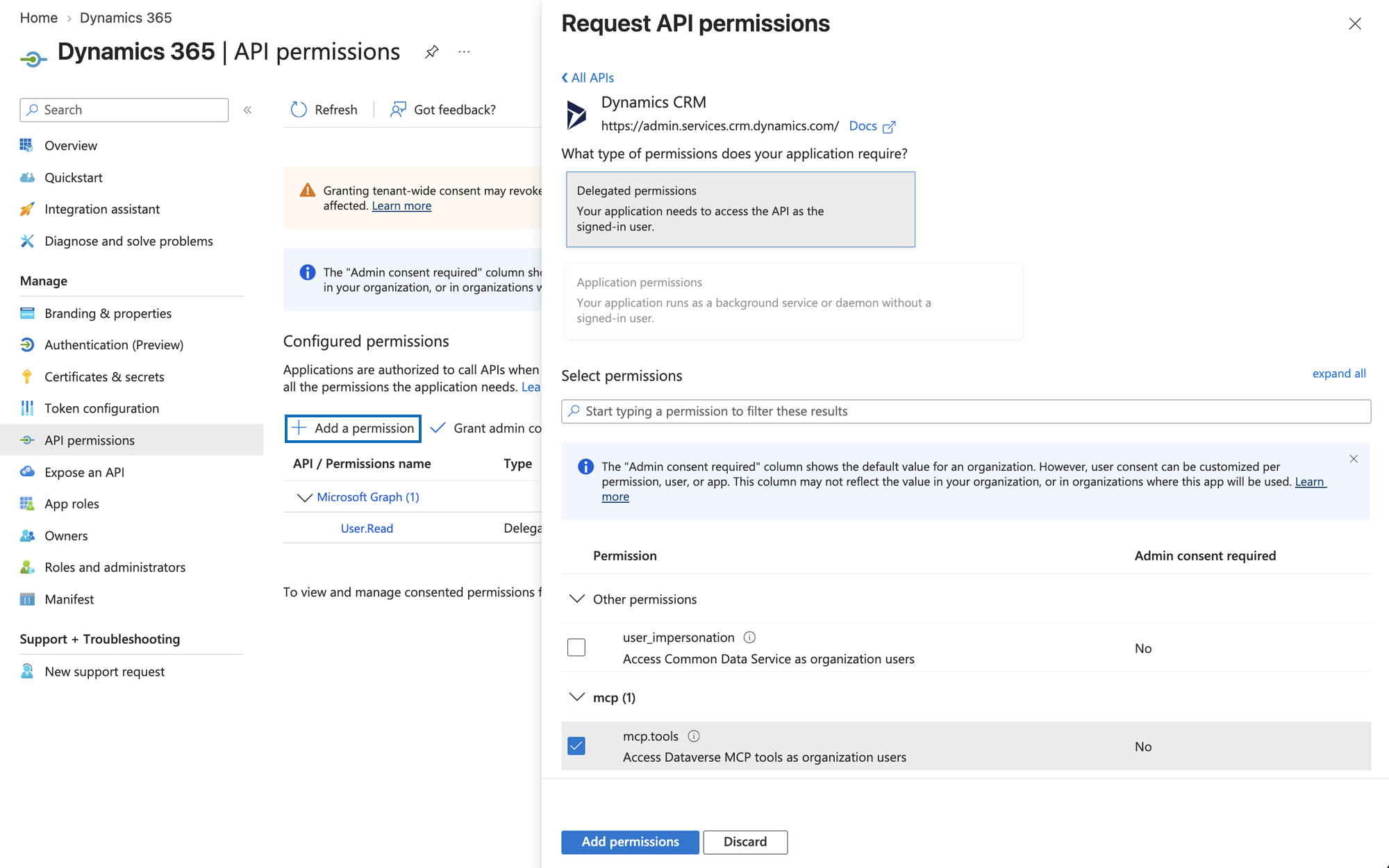
-
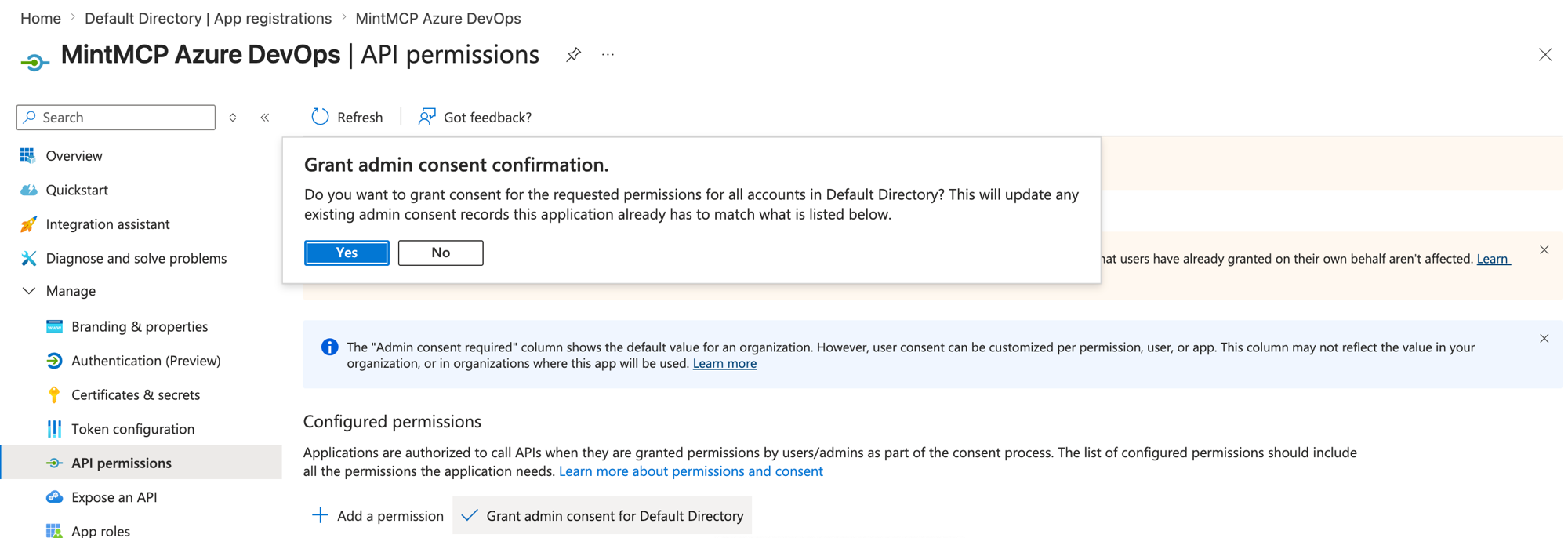
Click Grant admin consent and confirm, so users are not individually prompted to consent.
-
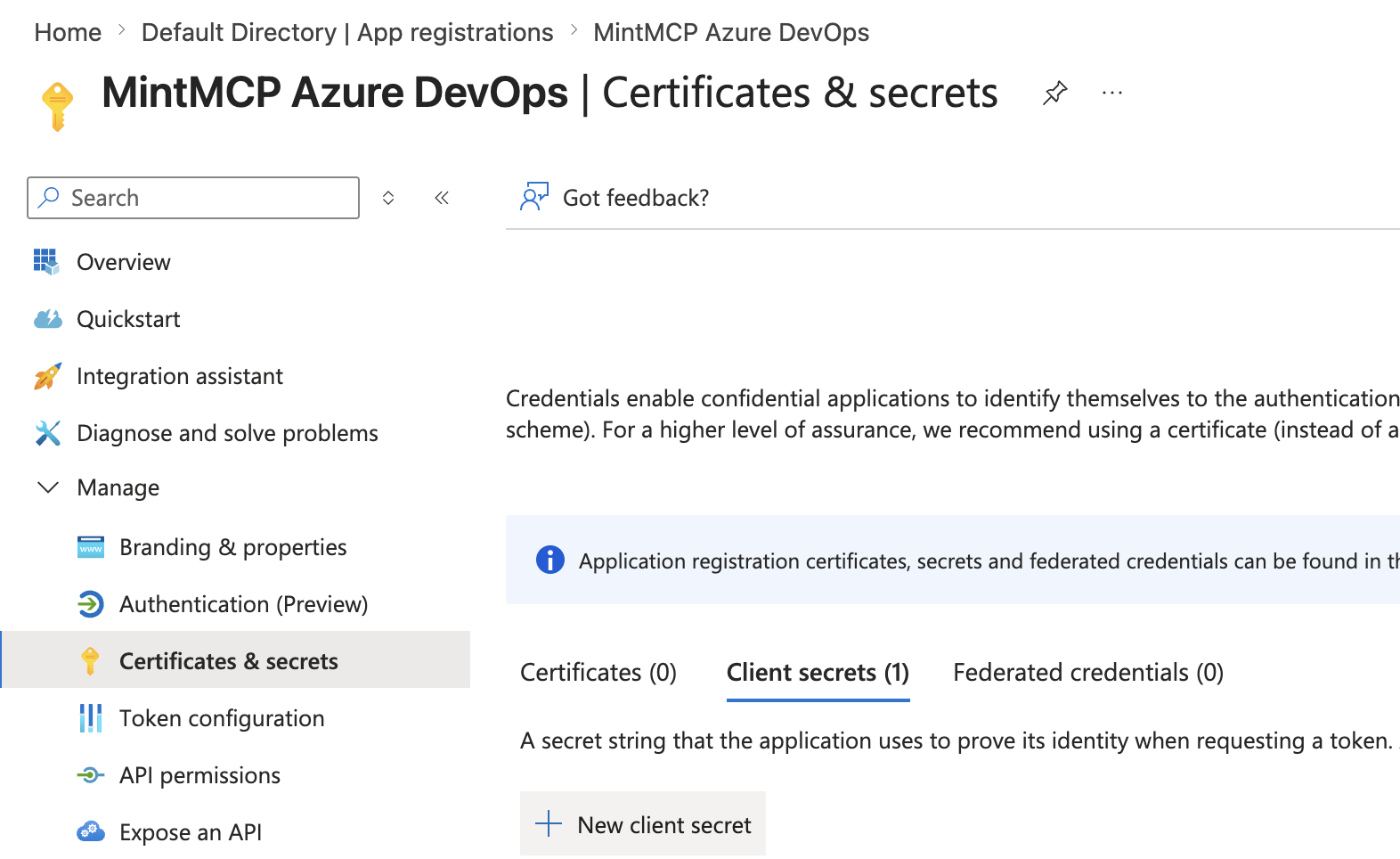
Go to Certificates & secrets > Client secrets > New client secret.
-
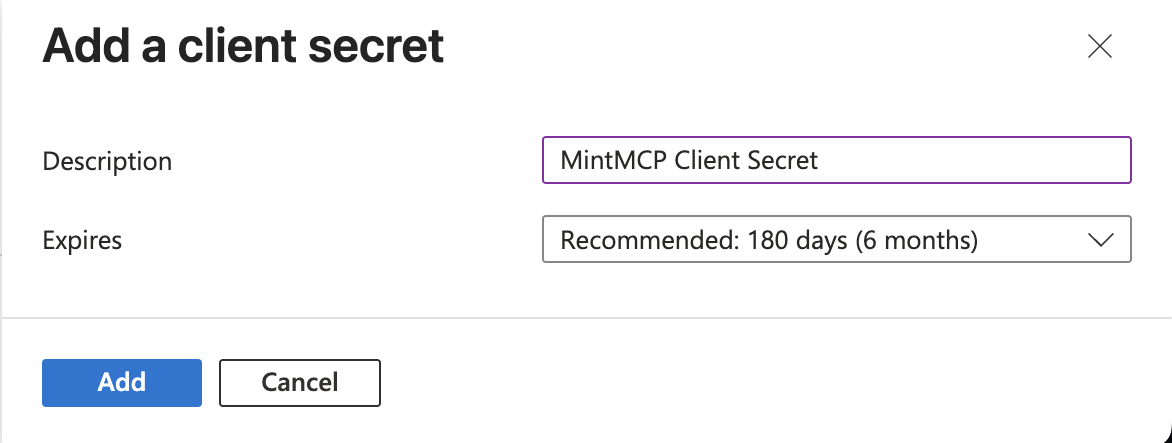
Enter a description and expiry, then click Add.
-
Copy the secret Value immediately, because it isn't shown again.

-
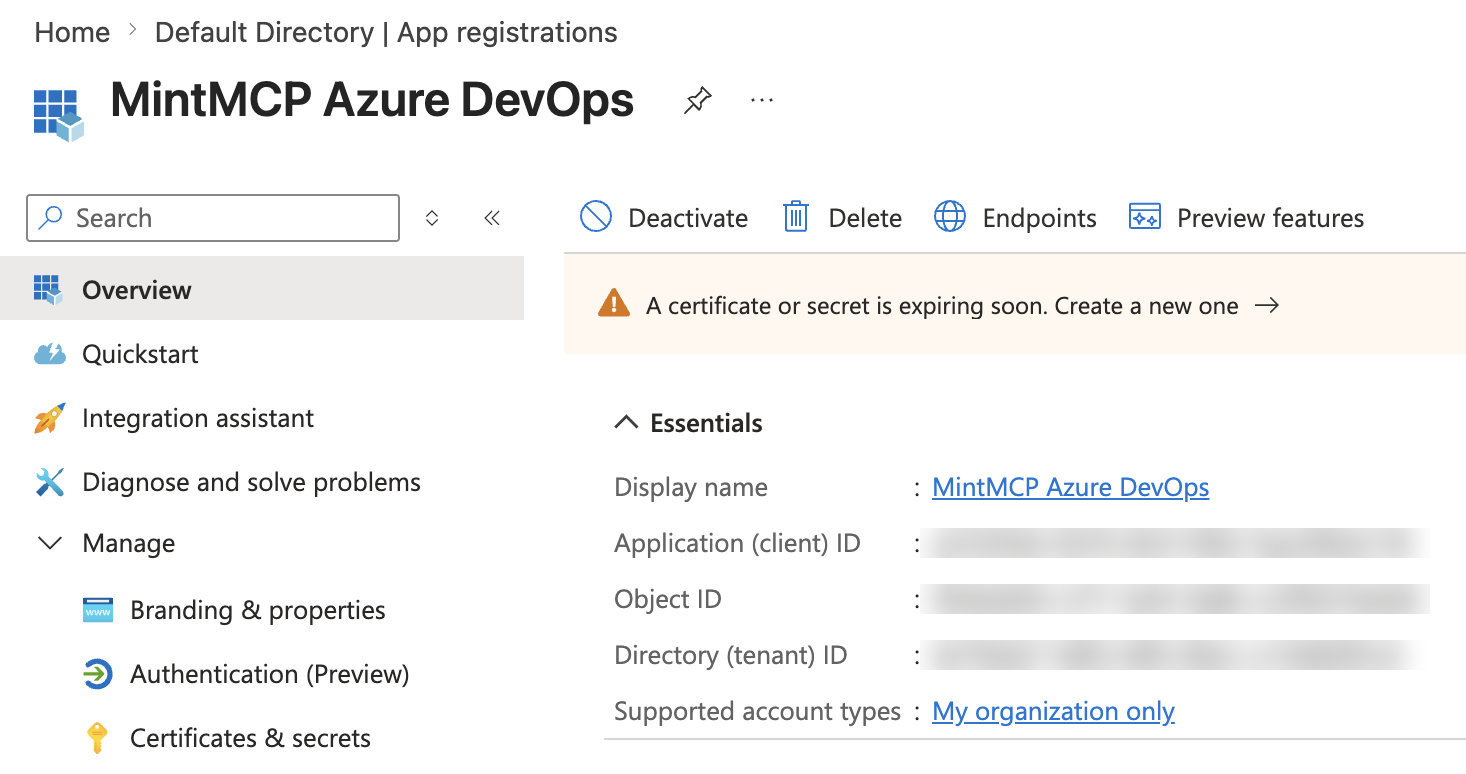
On the Overview page, copy the Application (client) ID.
Allow the app as an MCP client
Dataverse only accepts MCP connections from client apps on the environment's allowed list, which by default enables Microsoft Copilot Studio.
-
Back in the Power Platform admin center, open the environment's Settings > Product > Features.
-
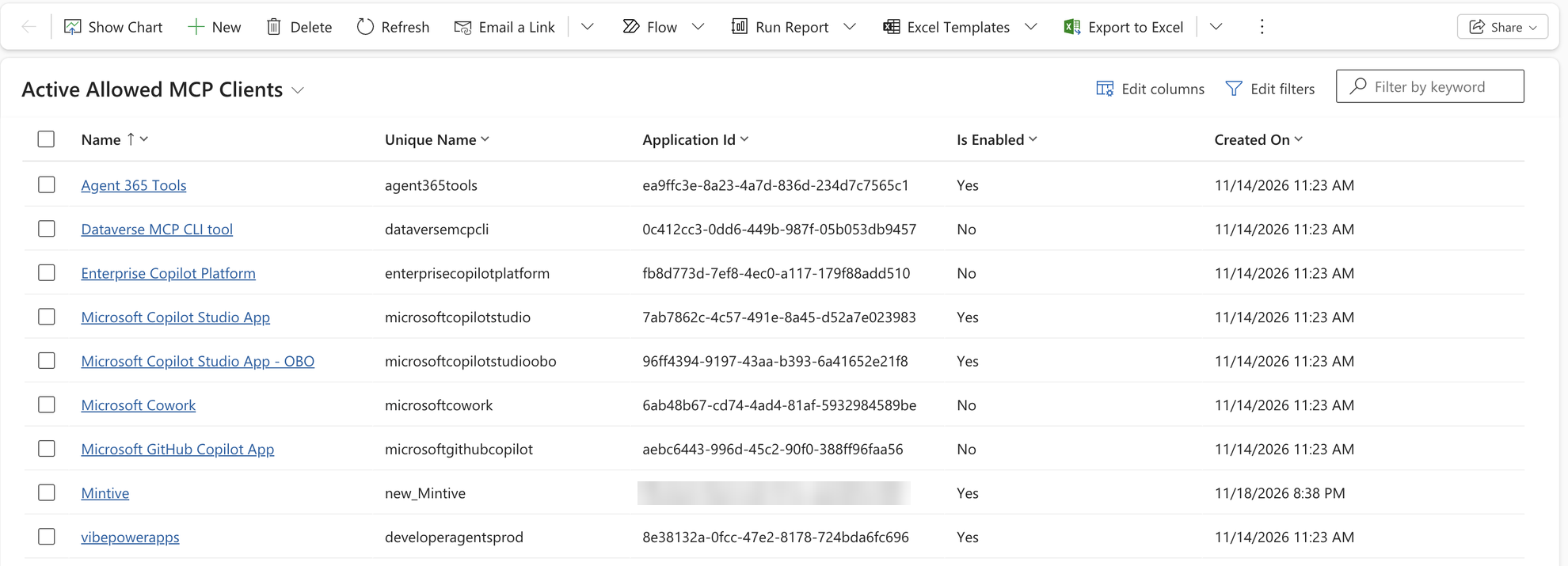
Under Dataverse Model Context Protocol, click Advanced Settings. The Active Allowed MCP Clients list opens in a new tab.
-
Click New and fill in the form:
Field Value Name MintiveUnique Name new_MintiveApplication Id The Application (client) ID from your Entra app Is Enabled YesThe Unique Name must start with a customization prefix such as
new_, because Dataverse stores each allowed client as a solution component. -
Click Save & Close and confirm the client appears in the list with Is Enabled set to Yes.
Add Microsoft Dynamics 365 (CRM) to Mintive
Microsoft Dynamics 365 (CRM) is listed in the Mintive catalog. Because Entra doesn't support dynamic client registration, you supply the client ID and secret from the app you registered above.
-
In Mintive, go to MCP gateway > Catalog.
-
Find Microsoft Dynamics 365 (CRM) and click Install.
-
Enter the server URL: your Environment URL followed by
/api/mcp, for examplehttps://contoso.crm.dynamics.com/api/mcp. -
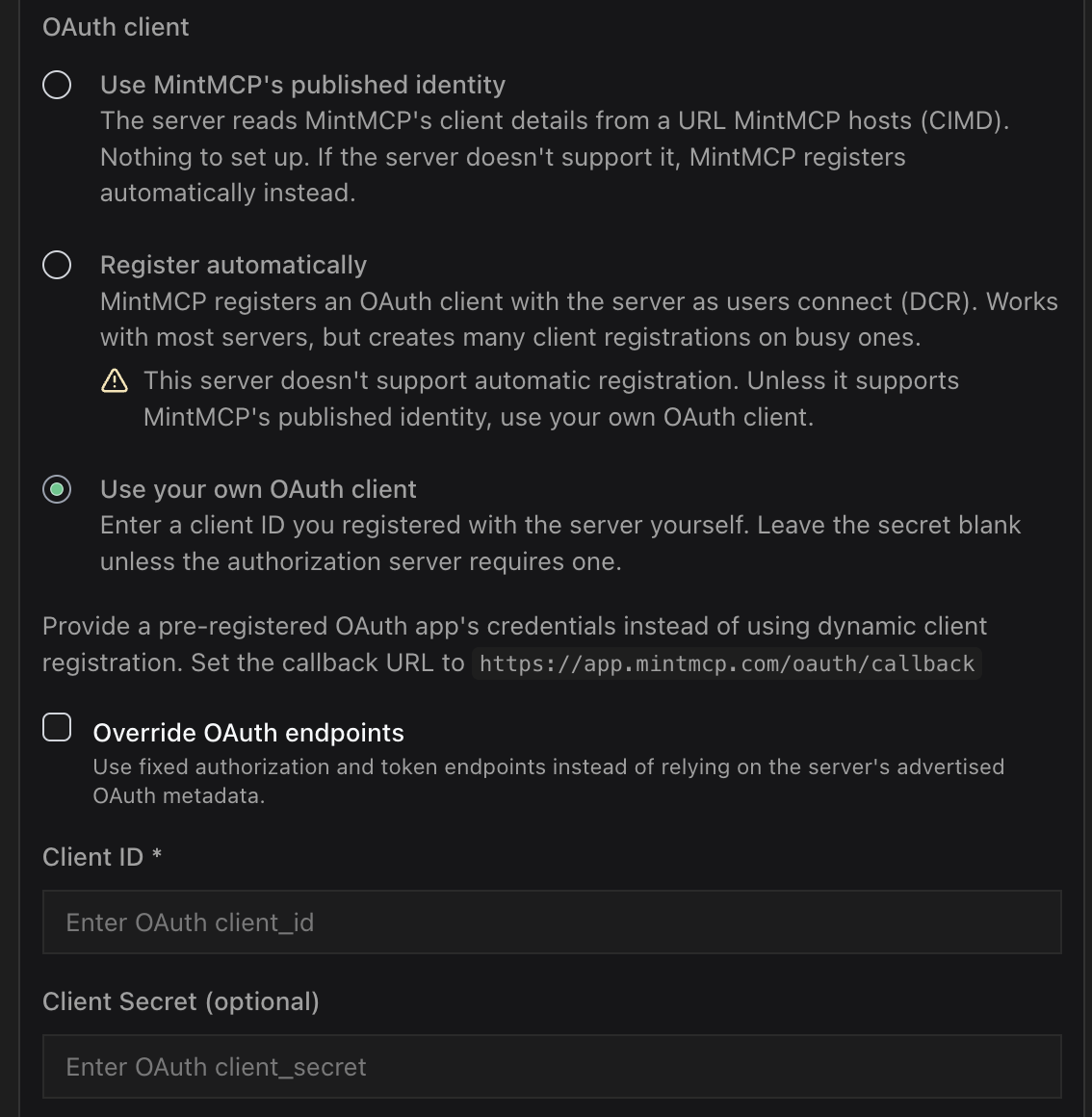
Under OAuth client, select Use your own OAuth client and leave Override OAuth endpoints unchecked, because the server advertises its own authorization endpoints.
-
Paste the Application (client) ID in the Client ID field and the secret Value in the Client Secret field. The secret is required for an app registered on the Web platform, even though the field is marked optional.
-
Click Install.
Each user signs in with their own Microsoft account on first use, so tool calls run under their identity and Dataverse security roles. Connect one install per environment: to reach several environments, install the connector once for each Environment URL.
Available tools
| Tool group | Tools | What it does |
|---|---|---|
| Discovery | search, describe | Finds tables, skills, scopes, and Custom APIs, and returns table schemas with column logical names |
| Query | read_query, search_data | Runs Dataverse SQL SELECT queries, and searches record content when Dataverse search is enabled |
| Records | create_record, update_record, delete_record | Creates, updates, and deletes rows, one at a time or in batches |
| Tables | create_table, update_table, delete_table | Creates tables, adds columns and choice options, and deletes tables |
| Files | init_file_upload, commit_file_upload, file_download | Uploads files to and downloads files from file columns |
| Skills | upsert_skill, delete_skill, create_skill_resource | Manages Dataverse business skills and their resource files |
| Custom APIs | invoke_api | Runs a Dataverse Custom API by name |
The delete tools and invoke_api are marked destructive, and the delete tools require explicit user approval in their arguments. To limit what users can reach, for example to a read-only set of search, describe, and read_query, disable tools with tool customization.
Licensing and Copilot Credits
Microsoft bills Dataverse MCP tool calls made by agents built outside Microsoft Copilot Studio against Copilot Credits, at the text and generative AI tools (basic) rate, and search_data at a usage-based rate. Users with qualifying Dynamics 365 Premium licenses or a Microsoft 365 Copilot license aren't charged for accessing Dynamics 365 data. See Microsoft's Dataverse MCP billing rates for current pricing.
Troubleshooting
-
No Settings button on the environment: the environment has no Dataverse database. Click Add Dataverse on the environment page.
-
"You do not have permission to access these records" on Active Allowed MCP Clients: your account doesn't hold the System Administrator security role in the environment. Click Membership > Add me on the environment page, wait a minute, and reload.

-
0x800608ad"Export key attribute uniquename for component allowedmcpclient must start with a valid customization prefix": the Unique Name has no publisher prefix. Usenew_Mintive, or the prefix of your environment's default publisher under Solutions > Publishers in Power Apps.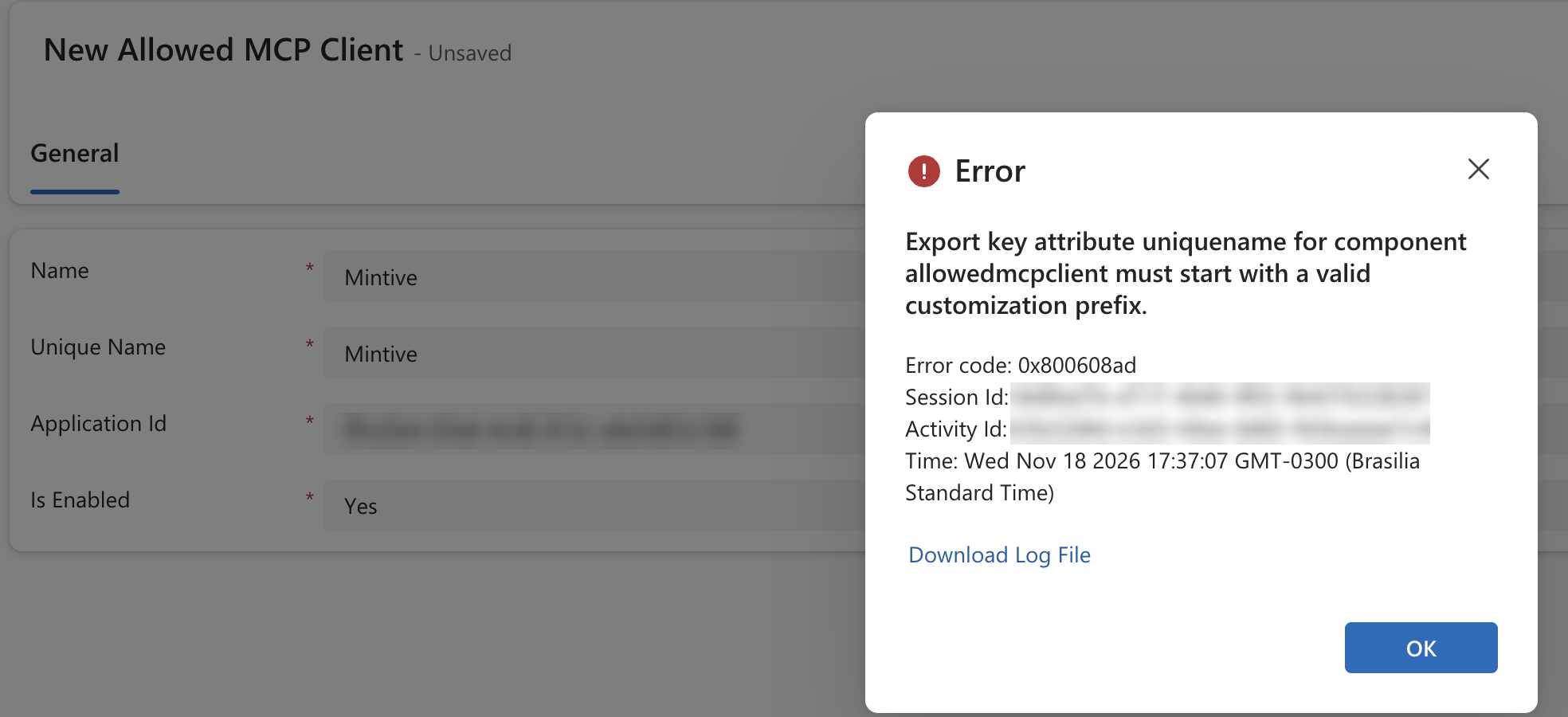
-
AADSTS7000218after signing in: the app is registered on the Web platform but Mintive has no client secret. Paste the secret Value in Client Secret. -
AADSTS700025after signing in: the redirect URI is registered under Mobile and desktop applications, which can't use a client secret. Move the redirect URI to the Web platform. -
Sign-in succeeds but the server rejects requests: the app isn't enabled as an allowed MCP client, or the Environment URL in Mintive points at a different environment. Check the Active Allowed MCP Clients list and the server URL.
-
search_datadoesn't appear in the tool list: Dataverse search is off for the environment. Turn it on under Settings > Product > Features > Dataverse search. -
Queries against
lead,opportunity, orincidentfail: the Dynamics 365 Sales or Customer Service app isn't installed in the environment, so those tables don't exist.
Security considerations
- Each user authenticates with their own Microsoft account, so tool calls are bounded by their Dataverse security roles and row-level security.
- The allowed MCP client list controls which apps can call the server per environment. Set Is Enabled to No on the Mintive entry to cut off access without deleting the Entra app.
- The server exposes write and schema tools, including table deletion. Disable the tools your team doesn't need with tool customization.
- Client secrets expire after at most 24 months. Add a new secret and update it in Mintive before the old one expires, or every connection fails.
- Entra Conditional Access policies apply to these sign-ins the same way they apply to Dynamics 365.
- All tool calls flow through the Mintive gateway, so they are attributed to individual users in the audit log.
Next steps
- Tool customization: control which Dataverse tools are exposed to users
- Set up the Salesforce MCP server: connect another CRM through Mintive
- MCP gateway administration: manage access and permissions across your MCP gateway