Set up SAML SSO with Okta
Connect your Okta organization to Mintive so your team signs in with their corporate identity instead of a separate password. This guide covers the Mintive integration in the Okta Integration Network (OIN) catalog — adding the app, exchanging SAML metadata, assigning users, and testing sign-in.
Prerequisites
Before you start, make sure you have:
- A Mintive organization on a plan that includes enterprise SSO. If you're not sure, contact enterprise@mintmcp.com.
- The Enterprise settings permission in Mintive, which is what grants access to SSO configuration — see Roles and permissions.
- A verified email domain in Mintive. Domain verification is a prerequisite for SSO because Mintive uses the domain to route users to your identity provider — see Verify a domain.
- An Okta account with Super Administrator rights, or an administrator role that can add applications from the catalog and assign users to them.
Supported features
The Mintive integration supports:
- SP-initiated SSO — users start at Mintive and are redirected to Okta to authenticate.
- IdP-initiated SSO — users start from the Mintive tile on their Okta dashboard and arrive at Mintive already signed in.
- Just-In-Time (JIT) provisioning — the first time an assigned user signs in through Okta, Mintive creates their account and adds them to your organization. You don't have to invite users individually before they sign in.
Configuration steps
Configuration runs in both consoles: you collect one value from Mintive, enter it in Okta, then hand Okta's metadata back to Mintive. Keep both browser tabs open, because you'll move between them.
Enabling SAML affects everyone who uses this app. Once the connection is active, users in your verified domain authenticate through Okta rather than their existing Mintive credentials, so roll this out during a maintenance window and confirm at least one administrator can sign in before you assign the rest of your users.
1. Get your Audience URI from Mintive
- Sign in to app.mintmcp.com as an administrator.
- Go to Enterprise settings at app.mintmcp.com/enterprise.
- Click Configure SSO. The Mintive admin portal opens in a new tab.
- Select Okta SAML as your identity provider.
- Copy the Audience URI (SP Entity ID). The value is unique to your organization and looks like this:
| Field | Example value |
|---|---|
| Audience URI (SP Entity ID) | n3Px8wlK2Ja6DCUz4GFtyVBQM |
Leave this tab open — you'll come back to it in step 4.
2. Add Mintive from the Okta catalog
- Sign in to your Okta Admin Console.
- Go to Applications > Applications.
- Click Browse App Catalog.
- Search for Mintive and select it from the results.
- Click Add integration.
- On the General Settings page, enter an Application label —
Mintiveworks well. - Below the label, paste the Audience URI (SP Entity ID) you copied in step 1.
- Click Next.
Okta populates the ACS URL for you, so there's nothing to enter on the Sign On tab.
3. Assign users and groups
Go to the Assignments tab, click Assign, and choose Assign to People or Assign to Groups. Only assigned users can sign in to Mintive, so assign a test administrator first and add the rest once you've confirmed the flow works.
Mintive identifies users by email address and uses it for user identity forwarding to downstream MCP servers, so make sure each assigned user has a valid, stable email in their Okta profile. Mintive reads the following attributes from the SAML assertion:
| Attribute | Used for |
|---|---|
email | The primary user identifier |
firstName | Display name |
lastName | Display name |
groups | Optional — maps Okta groups to Mintive access policies and roles |
4. Send the Okta metadata to Mintive
-
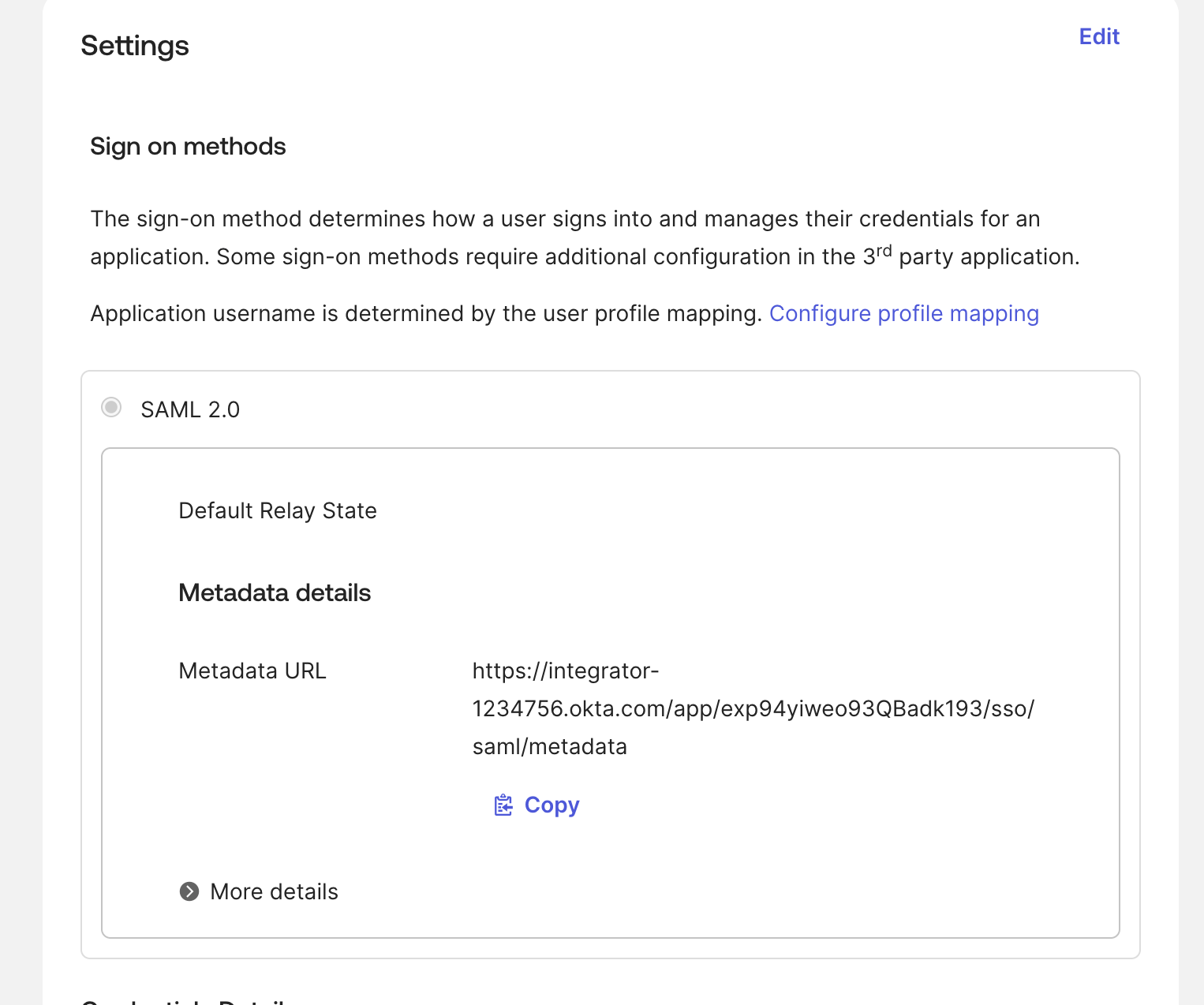
In the Sign On tab of your Mintive application, find the SAML 2.0 section and copy the Metadata URL.
-
Switch back to the Mintive admin portal tab and paste the metadata URL into the field for it.
-
Click Save. Mintive fetches your Okta signing certificate and sign-on URL from the metadata, validates the connection, and activates it.
5. Test the connection
Open a private browser window, go to app.mintmcp.com, and sign in with an assigned test account. You should be redirected to Okta, and after authenticating, land back in Mintive with your name and email populated correctly. Once that works, assign the rest of your users.
SP-initiated SSO
In the SP-initiated flow, users start at Mintive. When someone opens app.mintmcp.com and enters their work email, Mintive matches the domain to your organization and redirects the browser to Okta. The user authenticates there — with whatever MFA, conditional access, and device posture rules you enforce — and Okta posts a SAML assertion back to the ACS URL, which returns the user to Mintive with an active session.
The same redirect happens when an AI client connects to a Virtual MCP server. Clients like Claude, Cursor, and ChatGPT run an OAuth flow against a Mintive endpoint, and the login step in that flow goes through Okta too, so your Okta policies apply to AI client connections and not just browser sign-ins. Users don't need to configure anything in their client for this — the next connection simply redirects through Okta.
Users can also launch Mintive from their Okta dashboard, which signs them in directly.
Troubleshoot
| Problem | Cause and fix |
|---|---|
| Okta shows "User is not assigned to this application" | The user isn't assigned in Okta. Add them under Assignments in the Mintive application. |
| The connection stays inactive after you paste the metadata URL | Okta serves metadata from a public URL, so confirm you copied the full Metadata URL from the SAML 2.0 section rather than the app's embed link, and that it loads in a browser. |
| Sign-in succeeds but the user doesn't land in the organization | The email domain isn't verified against your Mintive organization. See Verify a domain. |
| A user's name is missing or wrong in Mintive | The Okta profile is missing firstName or lastName. Correct the Okta user profile — the next sign-in refreshes it. |
For anything not covered here, contact enterprise@mintmcp.com and include your organization name and the approximate time of the failed sign-in.