Set up Agent Monitor for Cursor
Install hook scripts to send Cursor agent activity to Mintive for monitoring and rule enforcement.
Prerequisites
- Agent Monitor Setup access with admin permissions
- Cursor v1.7+ with Hooks enabled (
Cursor Settings → Hooks)
Generate an organization key
- Go to Agent Monitor Setup
- Select the Cursor tab
- Click Generate Organization Key if needed
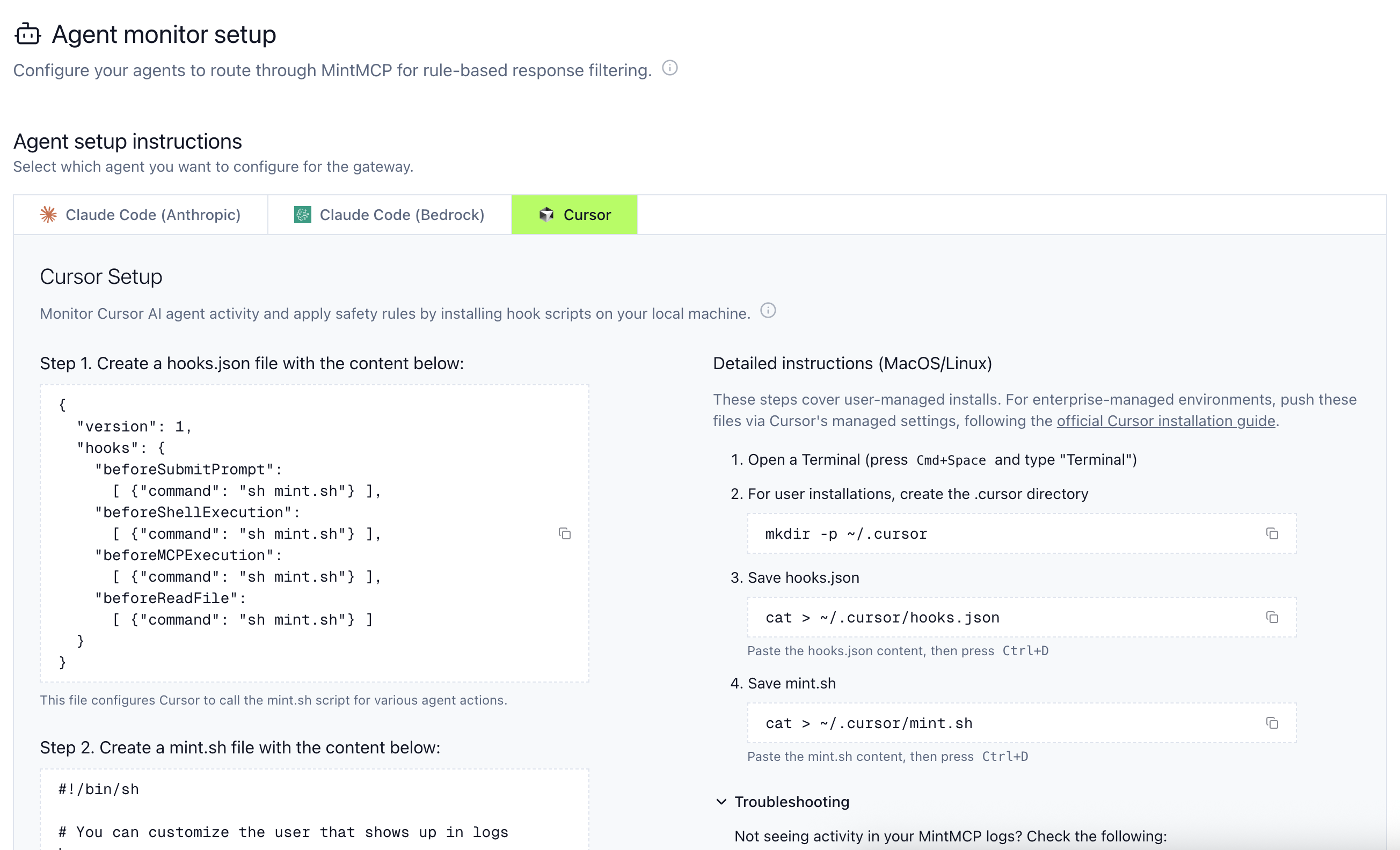
Install hook files
User-specific installation
Create the hooks directory:
mkdir -p ~/.cursor
Create ~/.cursor/hooks.json with the configuration from Mintive:
{
  "version": 1,
  "hooks": {
    "beforeSubmitPrompt": [{ "command": "sh mint.sh" }],
    "beforeShellExecution": [{ "command": "sh mint.sh" }],
    "beforeMCPExecution": [{ "command": "sh mint.sh" }],
    "beforeReadFile": [{ "command": "sh mint.sh" }]
  }
}
Save ~/.cursor/mint.sh with the script from the Mintive UI.
Enterprise deployment
Deploy hooks organization-wide by placing hooks.json and mint.sh in a shared location. See Cursor's hooks documentation for details.
Verify
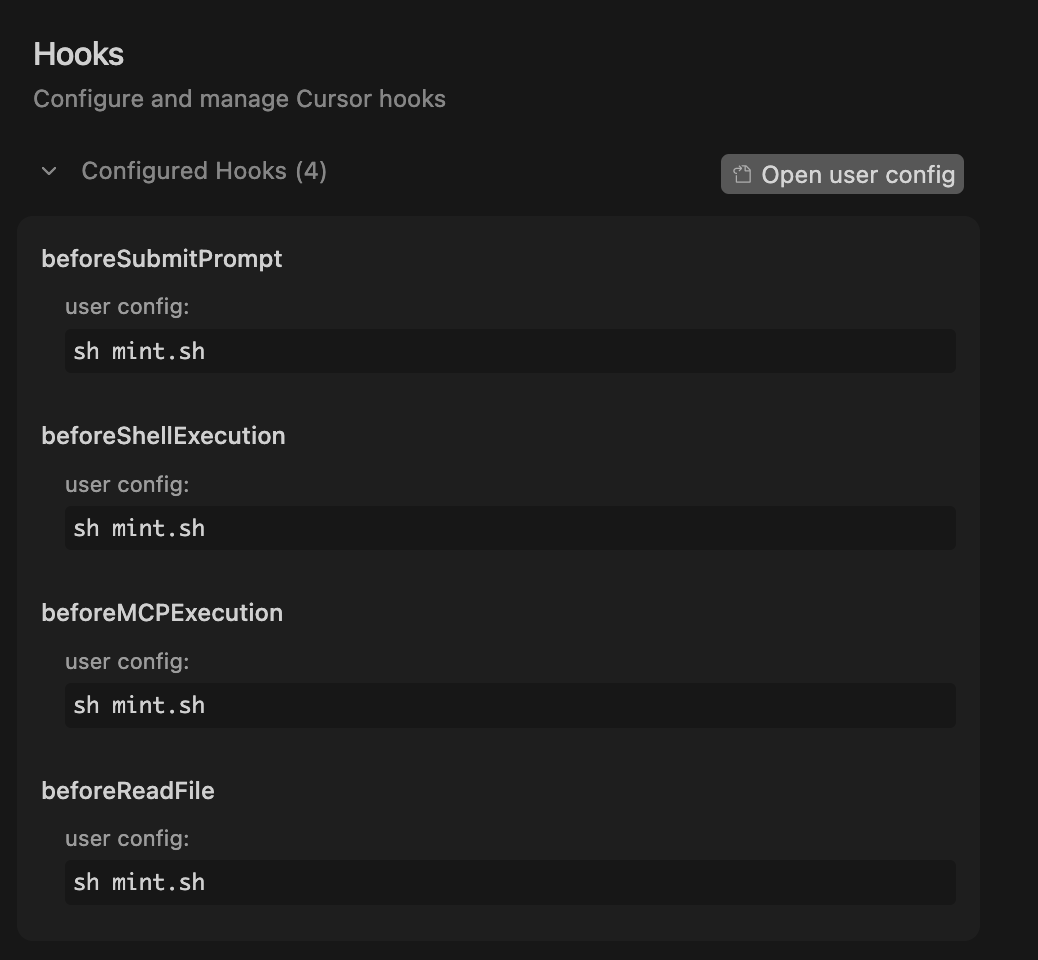
- Open Cursor Settings → Hooks and confirm
sh mint.shappears for each hook
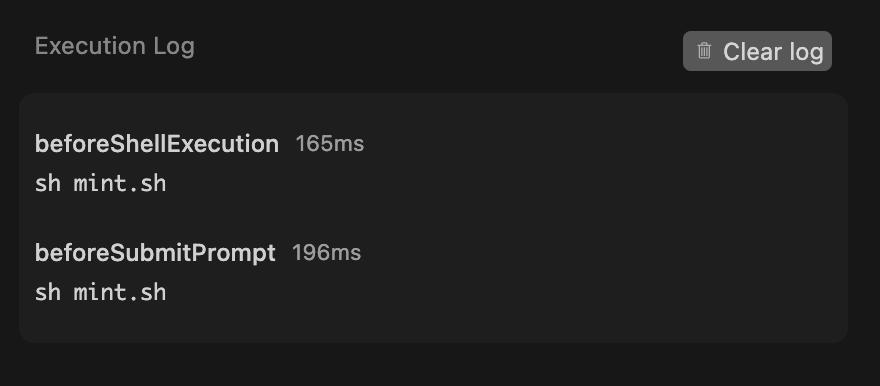
- Run an agent action (read a file, execute a command)
- Check Live Activity for the logged action
Troubleshooting
If activity doesn't appear:
- Confirm both files exist in
~/.cursor - Check the Hooks Output panel in Cursor for errors
- Verify your organization key hasn't been regenerated