Export logs to Microsoft Sentinel
Send Mintive (formerly MintMCP) activity logs to a Microsoft Sentinel workspace with the Azure Monitor / Microsoft Sentinel export format. Mintive authenticates to Azure with a Microsoft Entra app registration and delivers OpenTelemetry logs straight to an Azure Monitor data collection rule (DCR), so there's no collector or other infrastructure to run in between. Records land in the OTelLogs table of the Log Analytics workspace that Sentinel uses, where you can query them and build analytics rules.
To query Sentinel data from AI clients through the gateway instead, see Set up the Microsoft Sentinel MCP servers.
How it works
Mintive requests a token from Microsoft Entra ID with the app's client ID and secret, then sends logs to the DCR's OTLP endpoint with that token. Azure Monitor accepts them only because the app holds the Monitoring Metrics Publisher role on that DCR, and the DCR routes them to the Sentinel workspace. Each record's body and attributes land in the Body and Attributes columns of OTelLogs, with the fields described in Log record schemas.
Prerequisites
- A Mintive admin account with access to Enterprise settings
- An Azure subscription where you can create resources and assign roles (Owner, or Contributor plus User Access Administrator)
- Permission to create app registrations in the Microsoft Entra tenant that holds the subscription
- One Azure region for every resource you create, for example West US 2 (
westus2)
Values you'll collect
Several values are created in one step and pasted in a later one, so record each as you copy it. Store the client secret in a password manager rather than a plain notes file.
| Value | Where you get it | Where you use it |
|---|---|---|
| Log Analytics workspace resource ID | Create the workspace | DCR deployment |
| DCE logs ingestion endpoint | DCR deployment outputs | Logs URL |
| DCR immutable ID | DCR deployment outputs | Logs URL |
| Logs URL | Built from the two values above | Mintive Endpoint URL |
| Directory (tenant) ID | App registration | Mintive Tenant ID |
| Application (client) ID | App registration | Mintive Client ID |
| Client secret value | App registration | Mintive Client secret |
Create the workspace and enable Sentinel
If you already have a Log Analytics workspace with Sentinel enabled, skip to step 4 and use it.
-
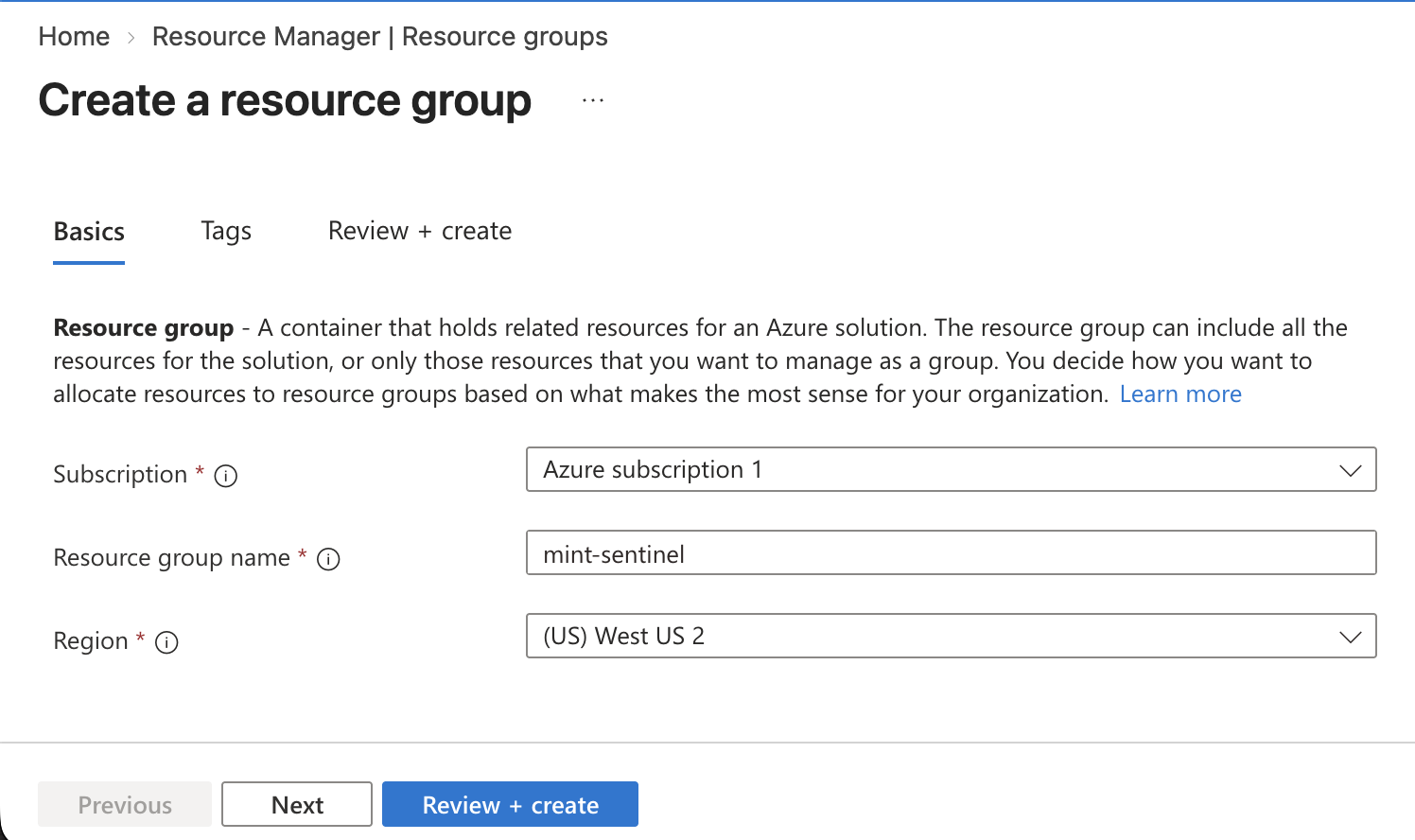
In the Azure portal, create a resource group.
-
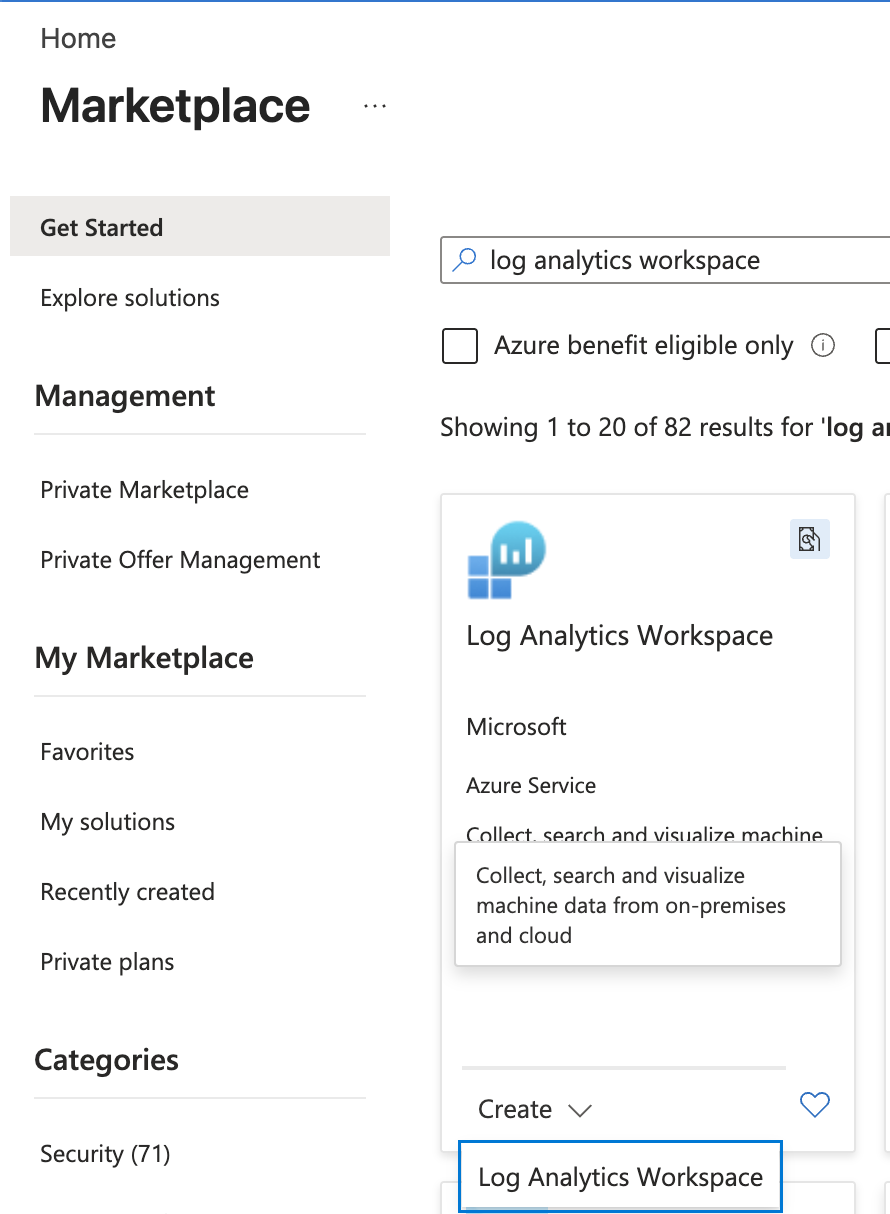
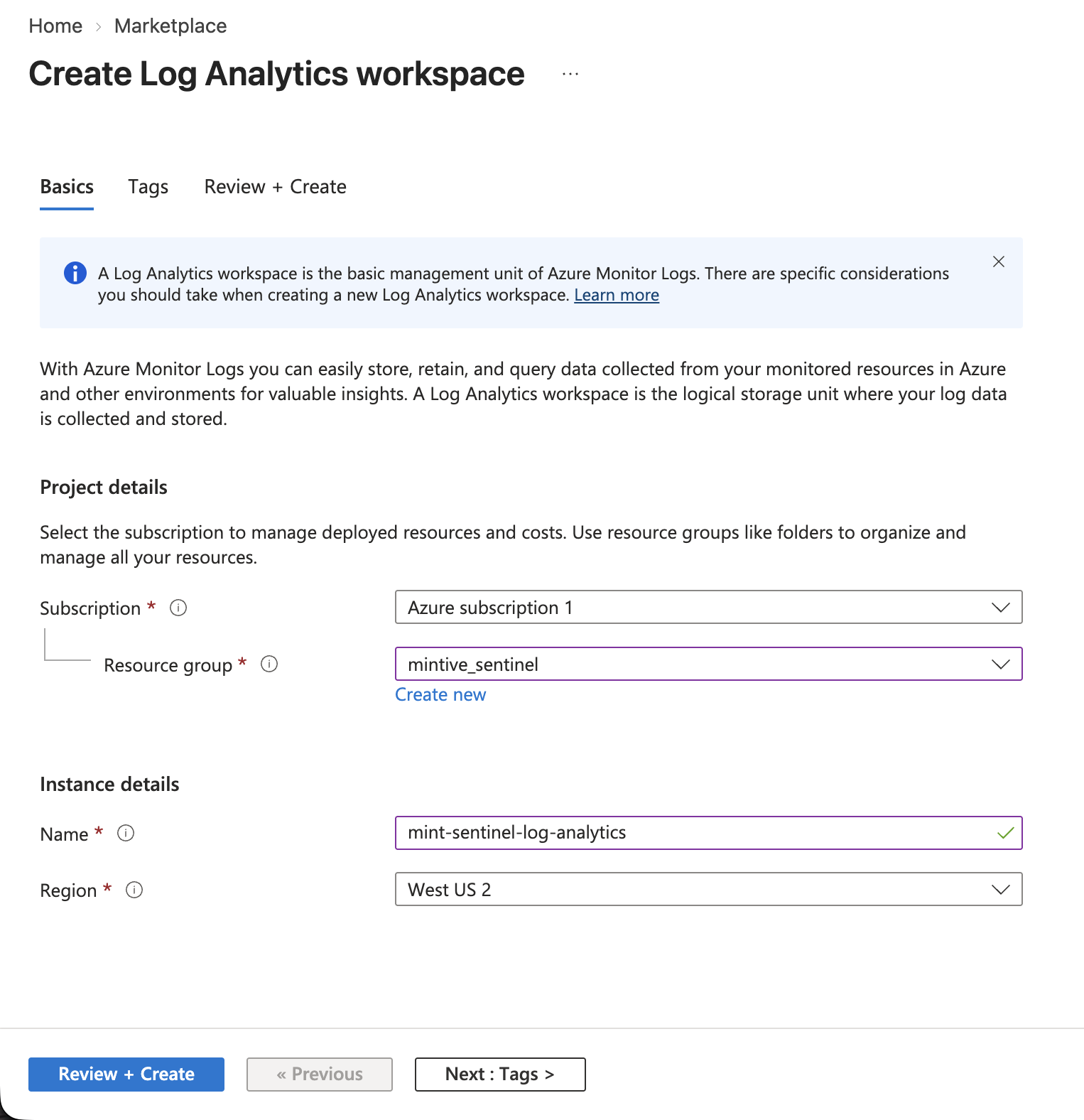
In Marketplace, search for Log Analytics Workspace, click Create > Log Analytics Workspace on the Microsoft card, and create the workspace in that resource group.
-
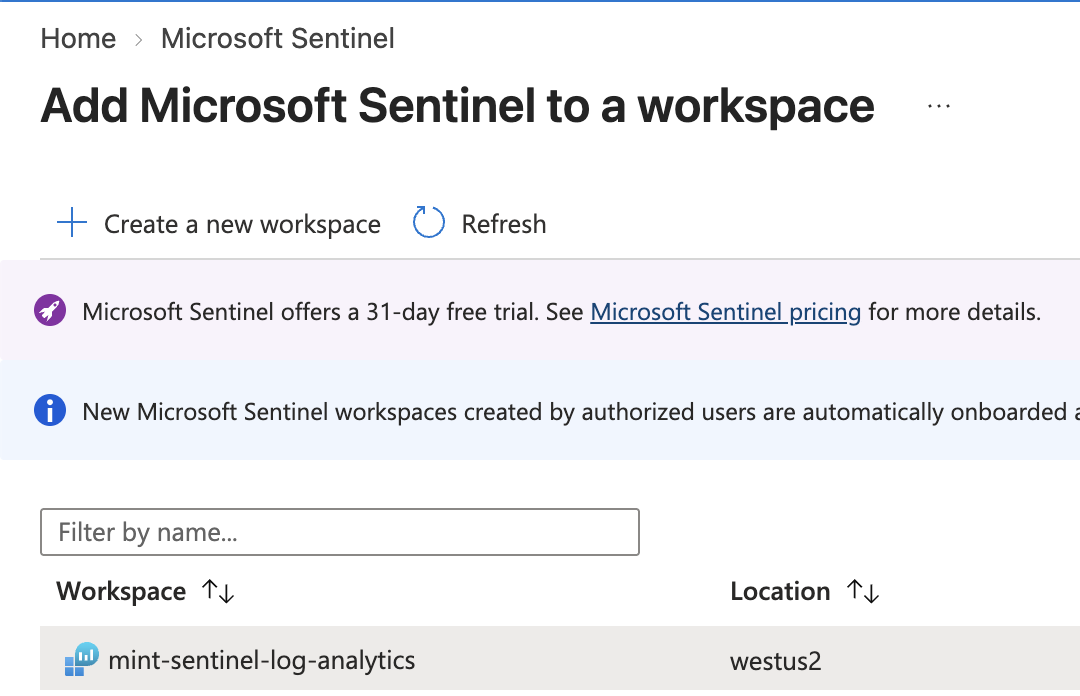
Go to Microsoft Sentinel > Create, select the workspace, and click Add.
-
Open the Log Analytics workspace, go to Overview > JSON View, and copy the Resource ID.


Create the data collection endpoint and rule
Deploy the DCR from the template below rather than with the Application Insights OTLP support option, because that option creates its own Log Analytics workspace and the logs would not reach Sentinel.
-
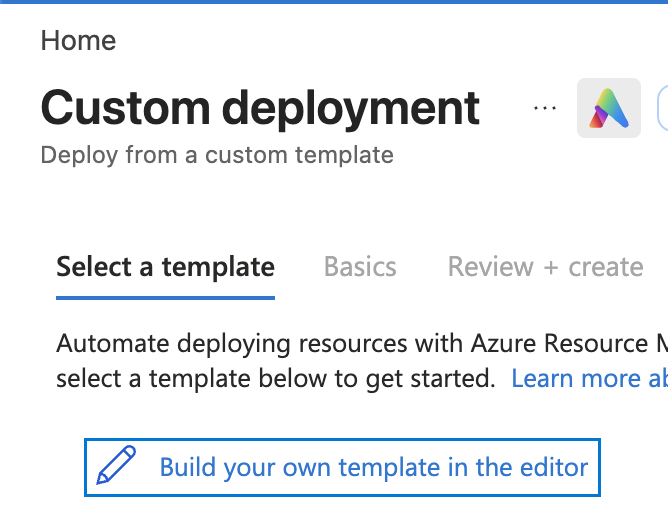
In the Azure portal, go to Deploy a custom template > Build your own template in the editor.
-
Replace the editor contents with the template below and click Save.
Logs-only DCR template
otlp-logs-dcr-template.json{"$schema": "https://schema.management.azure.com/schemas/2019-04-01/deploymentTemplate.json#","contentVersion": "1.0.0.0","parameters": {"dataCollectionRuleName": {"type": "string","defaultValue": "otlpDcr","metadata": {"description": "Name of the Data Collection Rule"}},"dataCollectionEndpointName": {"type": "string","defaultValue": "otlpDce","metadata": {"description": "Name of the Data Collection Endpoint"}},"location": {"type": "string","metadata": {"description": "Location for the Data Collection resources"}},"logAnalyticsWorkspaceResourceId": {"type": "string","metadata": {"description": "Resource ID of the Log Analytics Workspace"}}},"variables": {},"resources": [{"type": "Microsoft.Insights/dataCollectionEndpoints","apiVersion": "2024-03-11","name": "[parameters('dataCollectionEndpointName')]","location": "[parameters('location')]","properties": {"description": "Data Collection Endpoint for OTLP telemetry","networkAcls": {"publicNetworkAccess": "Enabled"}}},{"type": "Microsoft.Insights/dataCollectionRules","apiVersion": "2024-03-11","name": "[parameters('dataCollectionRuleName')]","location": "[parameters('location')]","dependsOn": ["[resourceId('Microsoft.Insights/dataCollectionEndpoints', parameters('dataCollectionEndpointName'))]"],"properties": {"description": "DCR to ingest OTLP telemetry via AMA (dataSources) or sent directly with OTel Collector (directDataSources)","dataCollectionEndpointId": "[resourceId('Microsoft.Insights/dataCollectionEndpoints', parameters('dataCollectionEndpointName'))]","dataSources": {"otelLogs": [{"streams": ["Microsoft-OTel-Logs"],"enrichWithResourceAttributes": ["*"],"name": "otelLogsDataSource"}],"otelTraces": [{"streams": ["Microsoft-OTel-Traces-Spans","Microsoft-OTel-Traces-Events","Microsoft-OTel-Traces-Resources"],"enrichWithResourceAttributes": ["*"],"name": "otelTracesDataSource"}]},"directDataSources": {"otelLogs": [{"streams": ["Microsoft-OTel-Logs"],"enrichWithResourceAttributes": ["*"],"name": "otelLogsDataSourceDirect"}],"otelTraces": [{"streams": ["Microsoft-OTel-Traces-Spans","Microsoft-OTel-Traces-Events","Microsoft-OTel-Traces-Resources"],"enrichWithResourceAttributes": ["*"],"name": "otelTracesDataSourceDirect"}]},"destinations": {"logAnalytics": [{"workspaceResourceId": "[parameters('logAnalyticsWorkspaceResourceId')]","name": "myLAW"}]},"dataFlows": [{"streams": ["Microsoft-OTel-Logs","Microsoft-OTel-Traces-Spans","Microsoft-OTel-Traces-Events","Microsoft-OTel-Traces-Resources"],"destinations": ["myLAW"]}]}}],"outputs": {"dataCollectionEndpointId": {"type": "string","value": "[resourceId('Microsoft.Insights/dataCollectionEndpoints', parameters('dataCollectionEndpointName'))]"},"dataCollectionRuleId": {"type": "string","value": "[resourceId('Microsoft.Insights/dataCollectionRules', parameters('dataCollectionRuleName'))]"},"dataCollectionRuleImmutableId": {"type": "string","value": "[reference(resourceId('Microsoft.Insights/dataCollectionRules', parameters('dataCollectionRuleName')), '2024-03-11', 'full').properties.immutableId]"},"dataCollectionEndpointLogsIngestion": {"type": "string","value": "[reference(resourceId('Microsoft.Insights/dataCollectionEndpoints', parameters('dataCollectionEndpointName')), '2024-03-11', 'full').properties.logsIngestion.endpoint]"}}} -
Fill in the parameters:
Parameter Value Resource group The resource group that holds the workspace Location The region code, for example westus2Data Collection Rule Name, Data Collection Endpoint Name Keep the defaults, otlpDcrandotlpDceLog Analytics Workspace Resource Id The workspace resource ID -
Click Review + create, then Create.
-
When the deployment finishes, open its Outputs tab and copy
dataCollectionEndpointLogsIngestionanddataCollectionRuleImmutableId.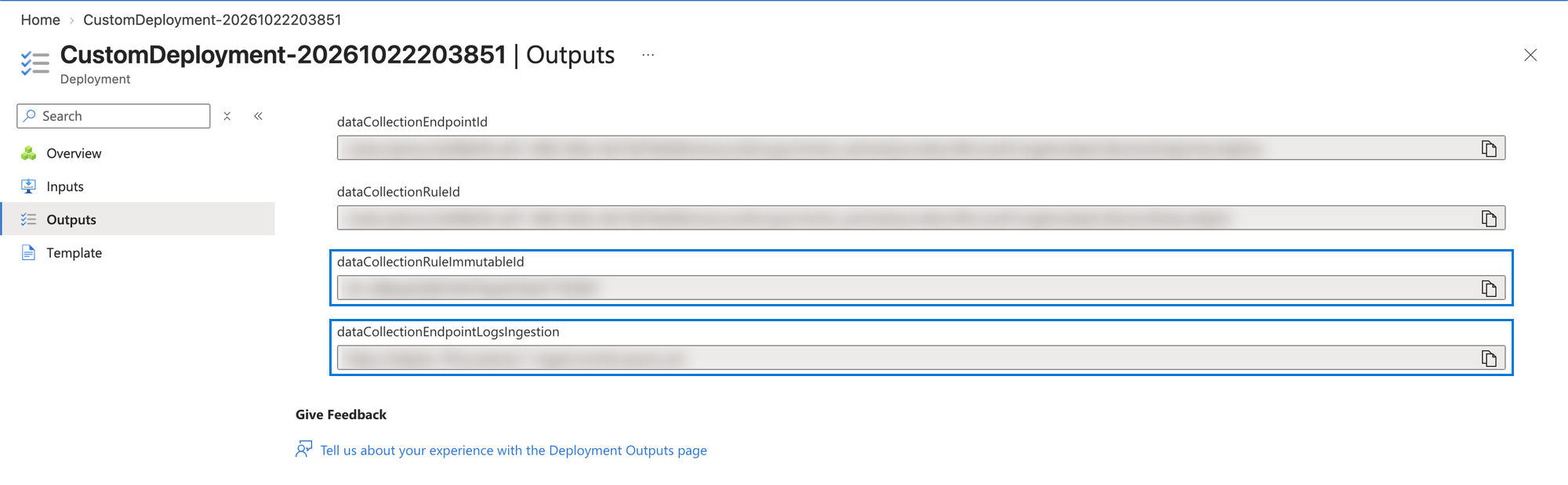
-
Build the logs URL from those two values:
Logs URL<dataCollectionEndpointLogsIngestion>/datacollectionRules/<dataCollectionRuleImmutableId>/streams/Microsoft-OTLP-Logs/otlp/v1/logs
To look the values up again later, open otlpDce > Overview > JSON View for logsIngestion.endpoint, and otlpDcr > Overview for the Immutable ID.
Register a Microsoft Entra app
Mintive signs in as this app with the client credentials flow, so the app needs no redirect URI and no API permissions.
-
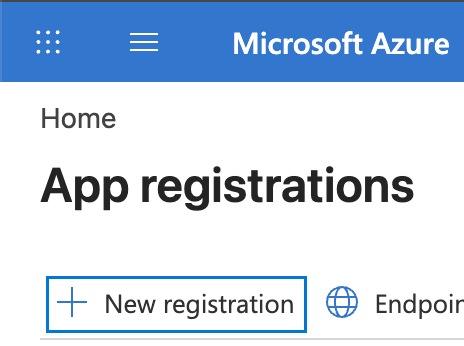
Go to Microsoft Entra ID > App registrations > New registration.
-
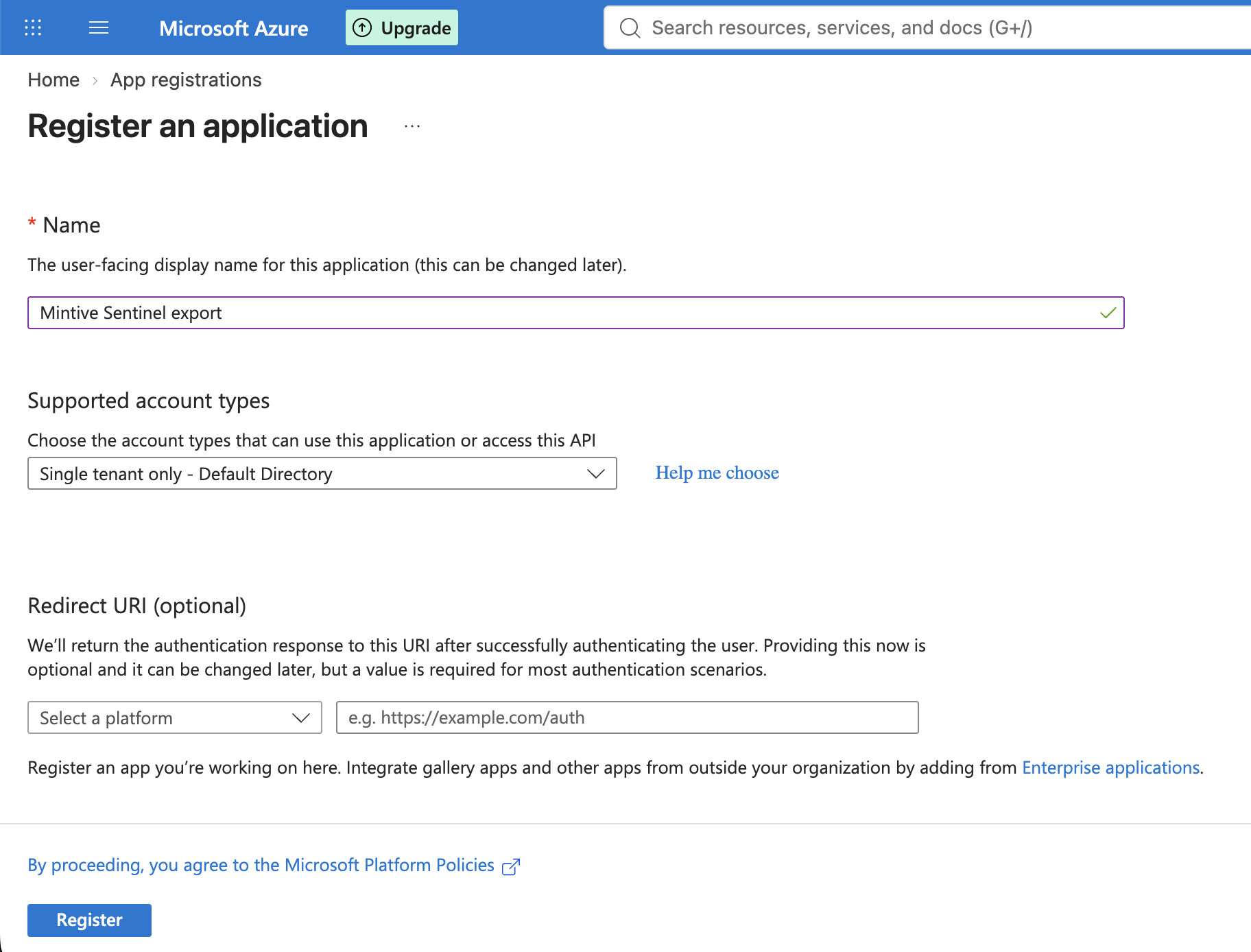
Enter a name, for example Mintive Sentinel export, keep Single tenant only, leave Redirect URI empty, and click Register.
-
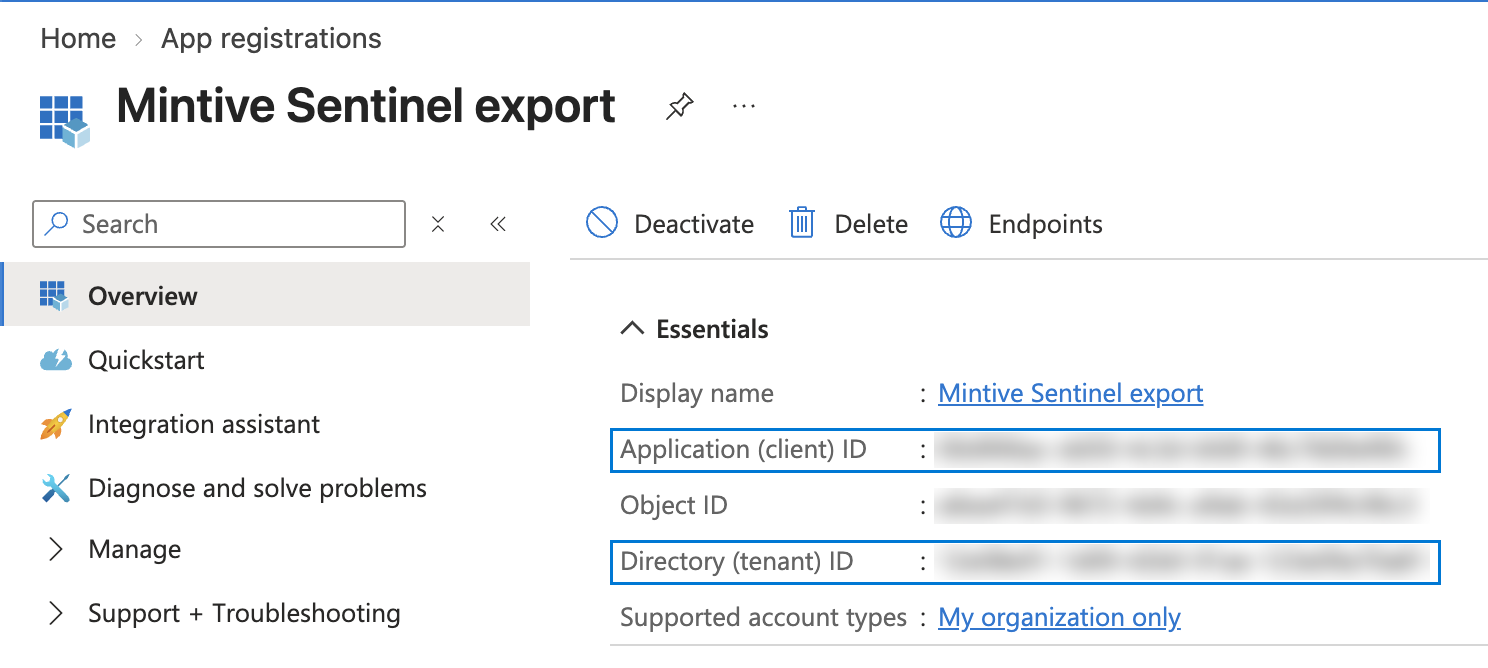
On the app's Overview page, copy the Directory (tenant) ID and the Application (client) ID.
-
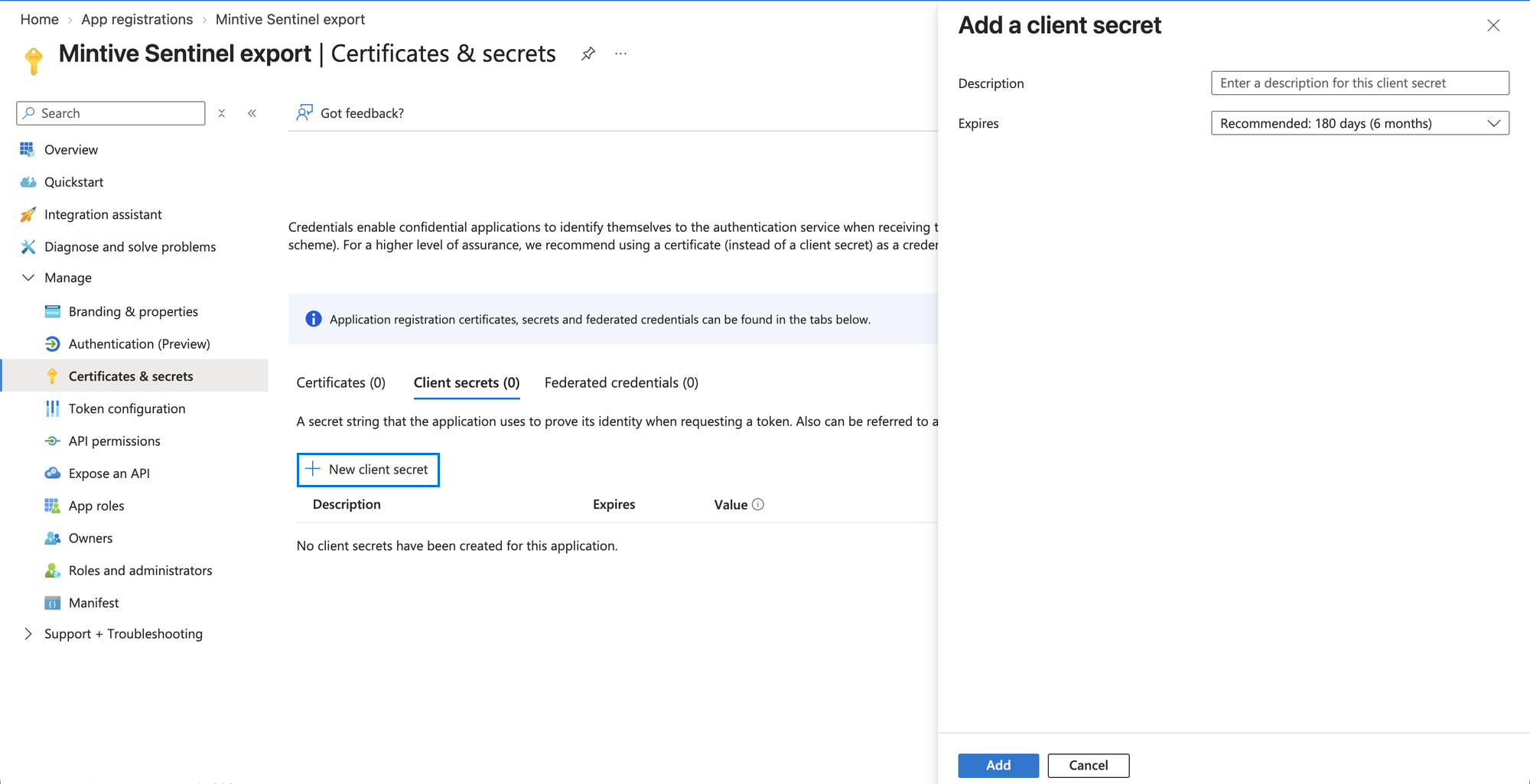
Go to Manage > Certificates & secrets > New client secret, pick an expiry, and click Add.
-
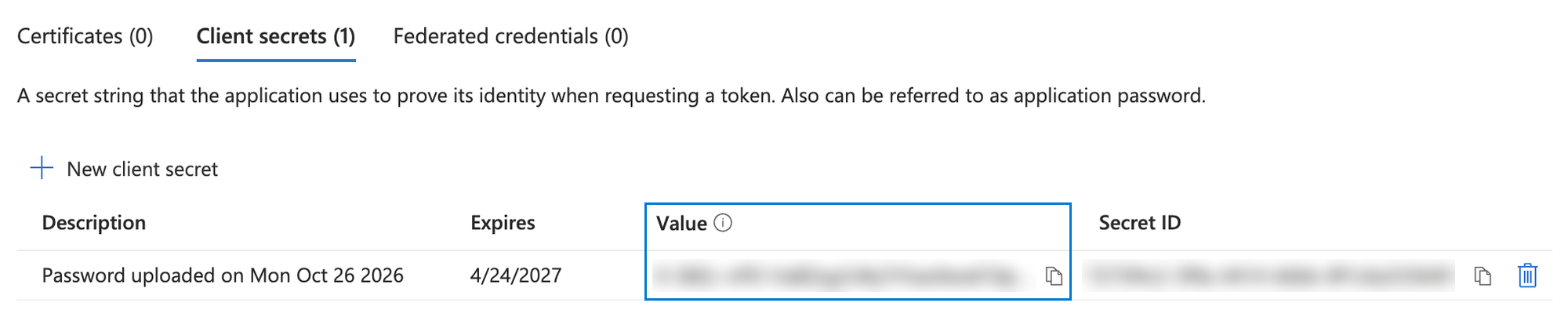
Copy the secret's Value right away, since Azure shows it only once. Don't copy the Secret ID.
Grant the app access to the DCR
-
Go to Data collection rules, open the Data collection rules tab, and select
otlpDcr. The Overview tab only lists rules attached to resources, so it doesn't show this one.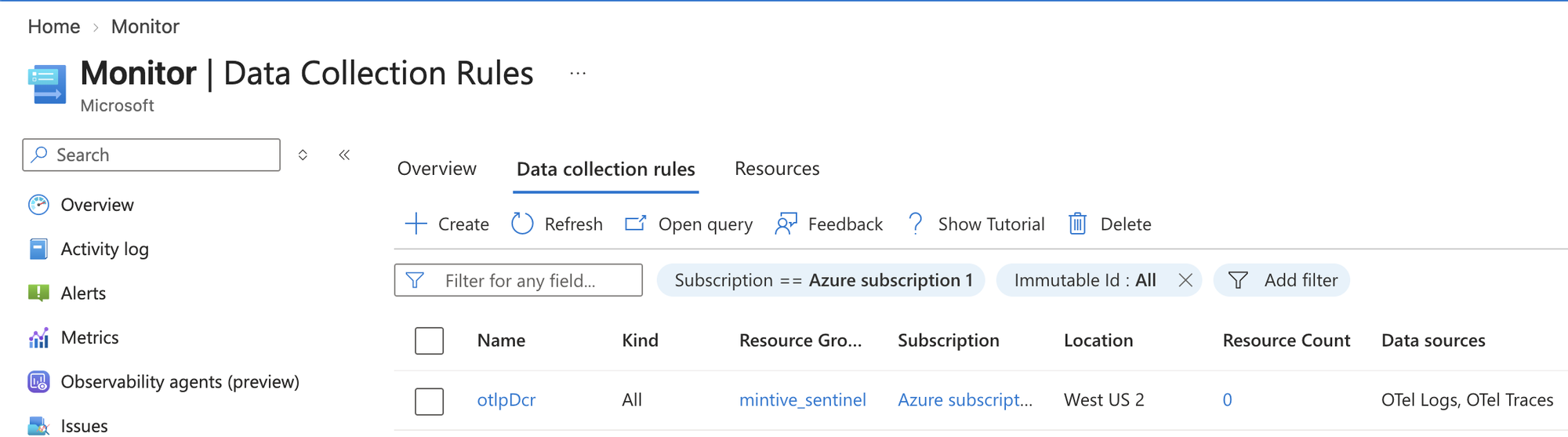
-
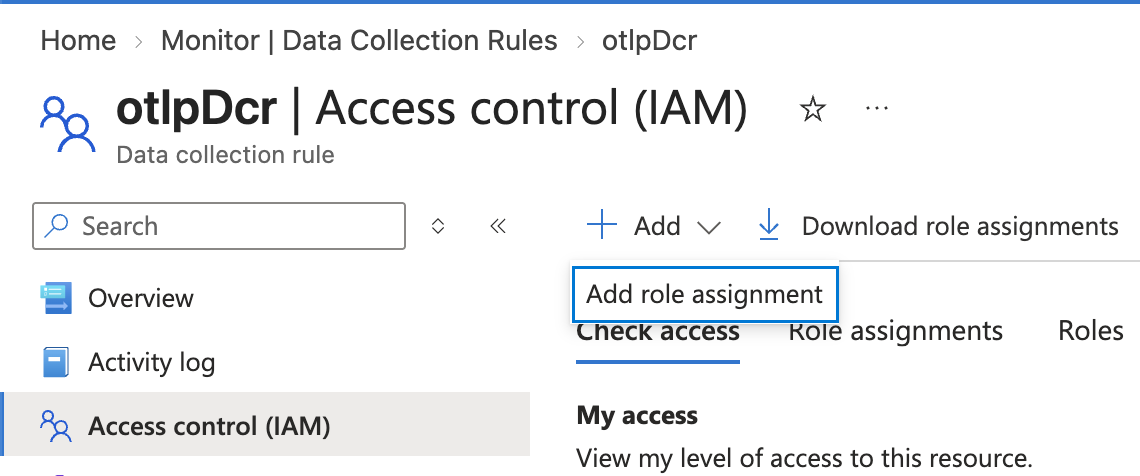
Go to Access control (IAM) > Add > Add role assignment.
-
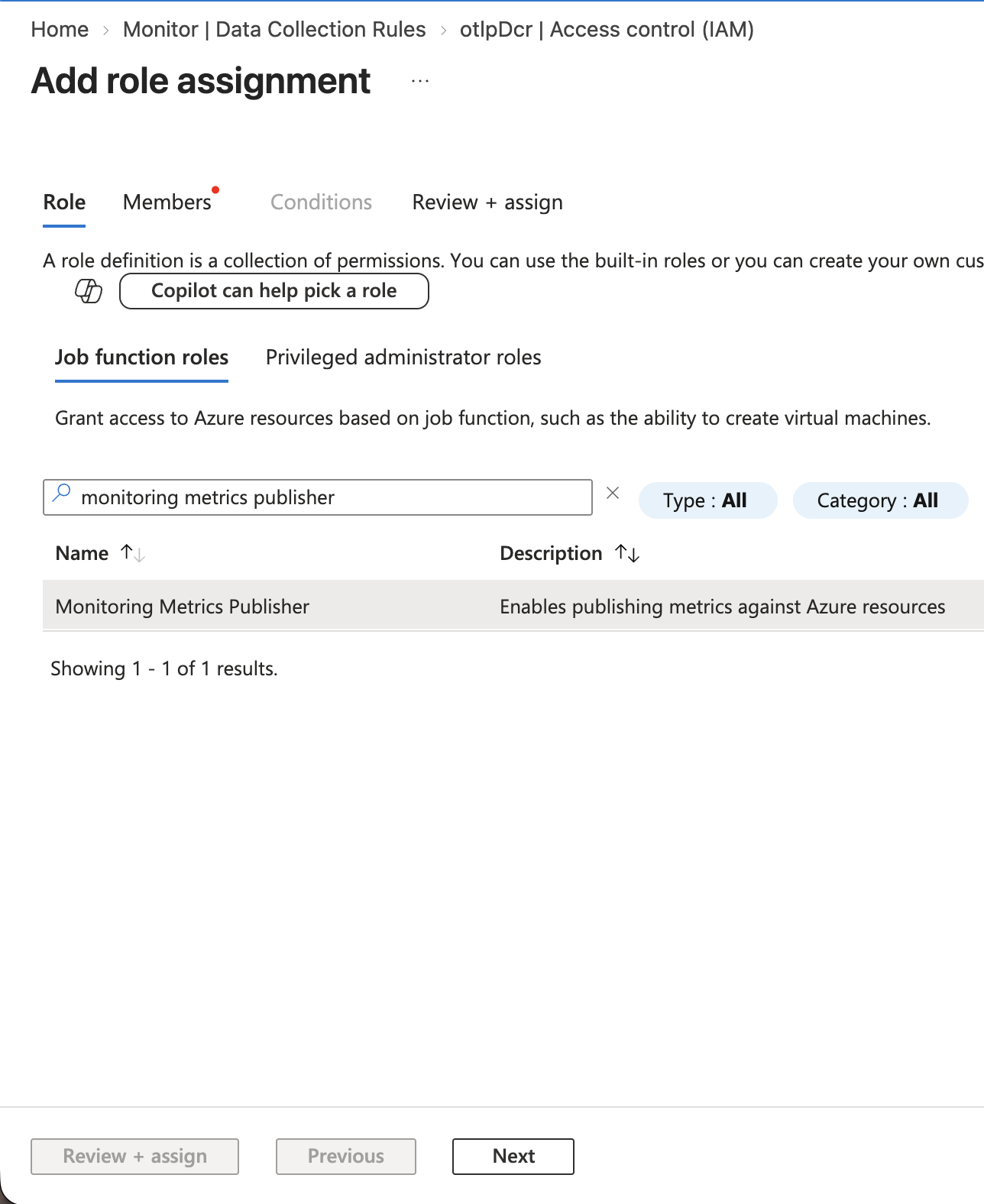
Select Monitoring Metrics Publisher and click Next. Despite its name, this is the role Azure Monitor requires to send any data, logs included, to a DCR.
-
Set Assign access to to User, group, or service principal, click Select members, search for the app by name and choose it, and click Select, then Review + assign.
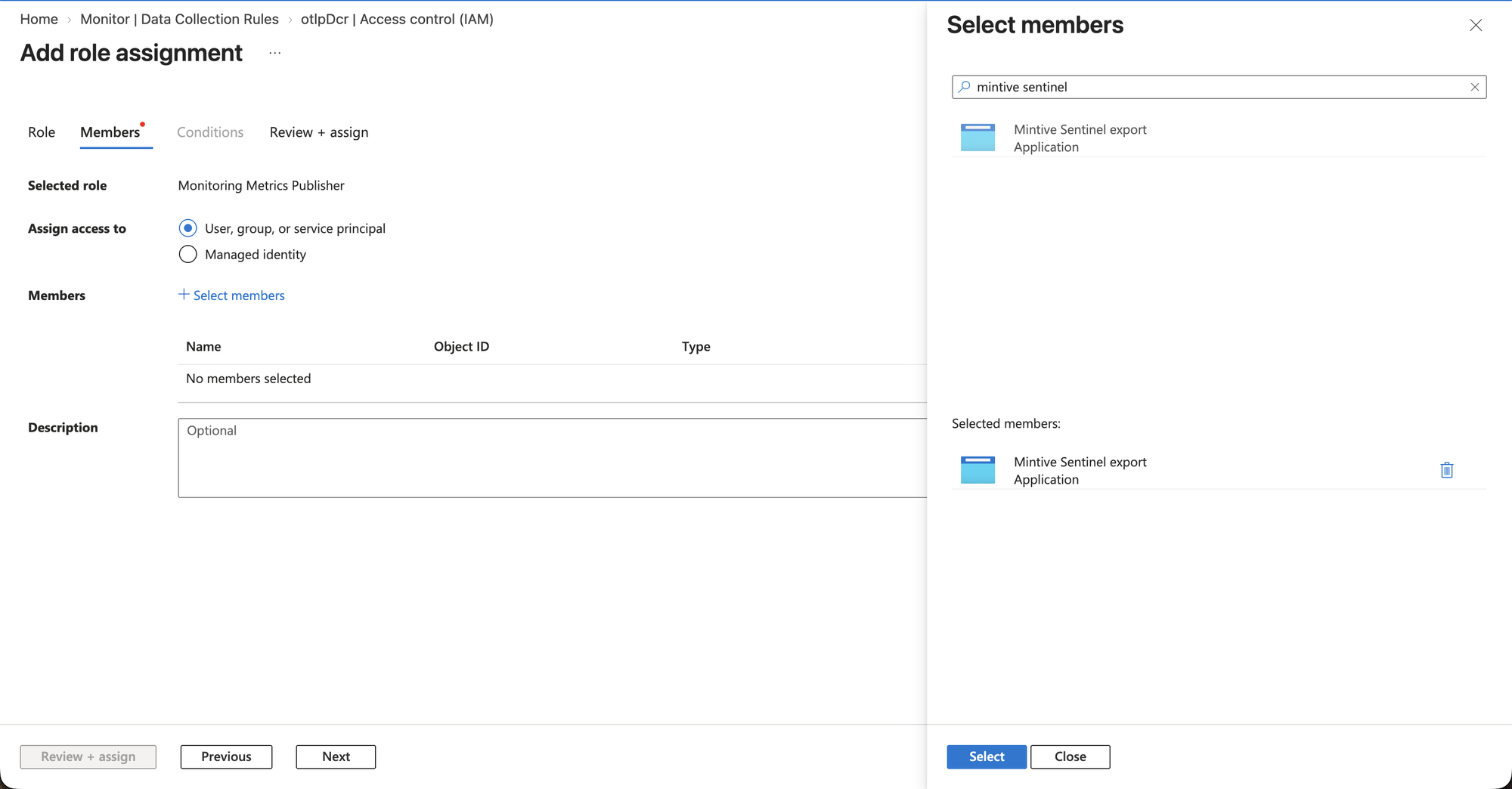
Role assignments can take up to 10 minutes to apply, and the connection test returns 403 until they do.
Configure the export in Mintive
-
Go to Enterprise > OTLP export and turn on Enable OTLP export.
-
Under Choose how to resume, select Deliver queued events to send events that queued while the export was off, or Start with new events to skip them.
-
Set Export Format to Azure Monitor / Microsoft Sentinel.
-
Enter the Tenant ID, Client ID, and Client secret from the app registration.
-
Set Endpoint URL to the logs URL.
-
Under Event categories, select what to send:
Category What it sends MCP Gateway Tool calls made through Mintive gateway endpoints Agent Monitor Agent activity and tool calls captured by Agent Monitor hooks Audit Authentication, credential, and configuration-change audit events -
If the export previously used the OTLP format with an
Authorizationheader, remove that header, since Mintive now sets it with the Entra token. -
Click Save OTLP settings, then Test connection. The test runs against the saved settings, so save first.
Verify in Sentinel
-
Open the Log Analytics workspace and go to Logs. Turn off the Agent toggle if the page opens in chat mode, and switch the editor to KQL mode.
-
Run this query to find the connection test record, which has the body
Mintive OTEL export testand the attributes{"event.type":"connection_test","source":"mintmcp"}:OTelLogs| where TimeGenerated > ago(30m)| order by TimeGenerated desc -
Make a tool call that matches a selected event category, wait a few minutes for ingestion, and run:
OTelLogs| where TimeGenerated > ago(2h)| summarize count(), LastSeen = max(TimeGenerated) by ScopeNameAny scope other than
mintmcp-otel-testmeans product events are arriving.
From here, build Sentinel analytics rules on OTelLogs to raise incidents, and workbooks to chart activity.
Troubleshooting
| Symptom | Cause and fix |
|---|---|
Test connection returns 401 or 403 | The tenant ID, client ID, or secret is wrong, the secret expired, or the role assignment hasn't applied yet. Check the values and wait up to 10 minutes after assigning the role |
Test connection returns 404 | The endpoint URL is malformed. Rebuild it from the DCE logs ingestion endpoint and the DCR immutable ID |
getaddrinfo ENOTFOUND https | https:// appears twice in the endpoint URL |
| The test record arrives but tool calls don't | The event category for that activity isn't selected (gateway tool calls need MCP Gateway, agent hook activity needs Agent Monitor), the tool call was made in a different Mintive organization, or ingestion is still in progress |
| Template deployment fails | The Location doesn't match the workspace region, or the workspace resource ID is incomplete. Copy it again from the workspace's JSON View |
Security considerations
- The app has no API permissions, and its only Azure access is the Monitoring Metrics Publisher role on one DCR, so it can write logs to that rule but can't read workspace data or reach other resources.
- Assign the role on the DCR itself rather than on the resource group or subscription.
- The client secret expires on the date chosen at creation. Rotate it by creating a new secret, updating it in Mintive, running Test connection, and then deleting the old secret in Entra.
- Exported records carry user IDs, emails, and tool names, so limit who can read the
OTelLogstable with Sentinel and Log Analytics access controls. With zero data retention on, exports contain metadata only.
Related
- Export to SIEM: export formats, event sources, and log record schemas
- Set up the Microsoft Sentinel MCP servers: query Sentinel from AI clients through the gateway
- Audit and observability: what Mintive records and where
- Microsoft's OTLP ingestion guide: how Azure Monitor receives OpenTelemetry data