Set up the Elastic Agent Builder MCP server
Elastic Agent Builder serves an MCP endpoint from your own Kibana, so agents can list indices, read mappings, run searches and ES|QL queries, and call the custom tools you define in Agent Builder. This guide covers finding your endpoint, creating an API key or an OAuth client, and connecting your deployment to Mintive (formerly MintMCP).
Prerequisites
- A Mintive admin account
- Elastic Cloud Hosted or a self-managed deployment on 9.2 or later (generally available from 9.3), or an Elastic Cloud Serverless project
- A Kibana user with read access to the Elastic Agent Builder feature
- A Kibana instance that is reachable from Mintive, or connected through a Private Network
Find your MCP endpoint
The endpoint is your Kibana URL followed by /api/agent_builder/mcp:
| Kibana space | Server URL |
|---|---|
| Default space | https://<your-kibana-host>/api/agent_builder/mcp |
| Custom space | https://<your-kibana-host>/s/<space-id>/api/agent_builder/mcp |
Use the Kibana URL, not the Elasticsearch URL. On Elastic Cloud it looks like https://my-deployment.kb.us-east-1.aws.elastic.cloud, and you can copy it from the deployment or project overview page. Agents only see the tools and data in the space the URL points to.
Choose your authentication method
| Your deployment | Authentication |
|---|---|
| Elastic Cloud Hosted or self-managed | API key |
| Elastic Cloud Serverless | API key or OAuth |
Add Elastic Agent Builder to Mintive
- API key
- OAuth (Serverless)
Each user creates their own API key in Kibana, so Elastic applies the privileges of the key and its creator and Mintive attributes every tool call to the user who made it.
Create an API key
- In Kibana, go to the API keys management page. Find it in the navigation menu or by typing "API keys" in the global search field.
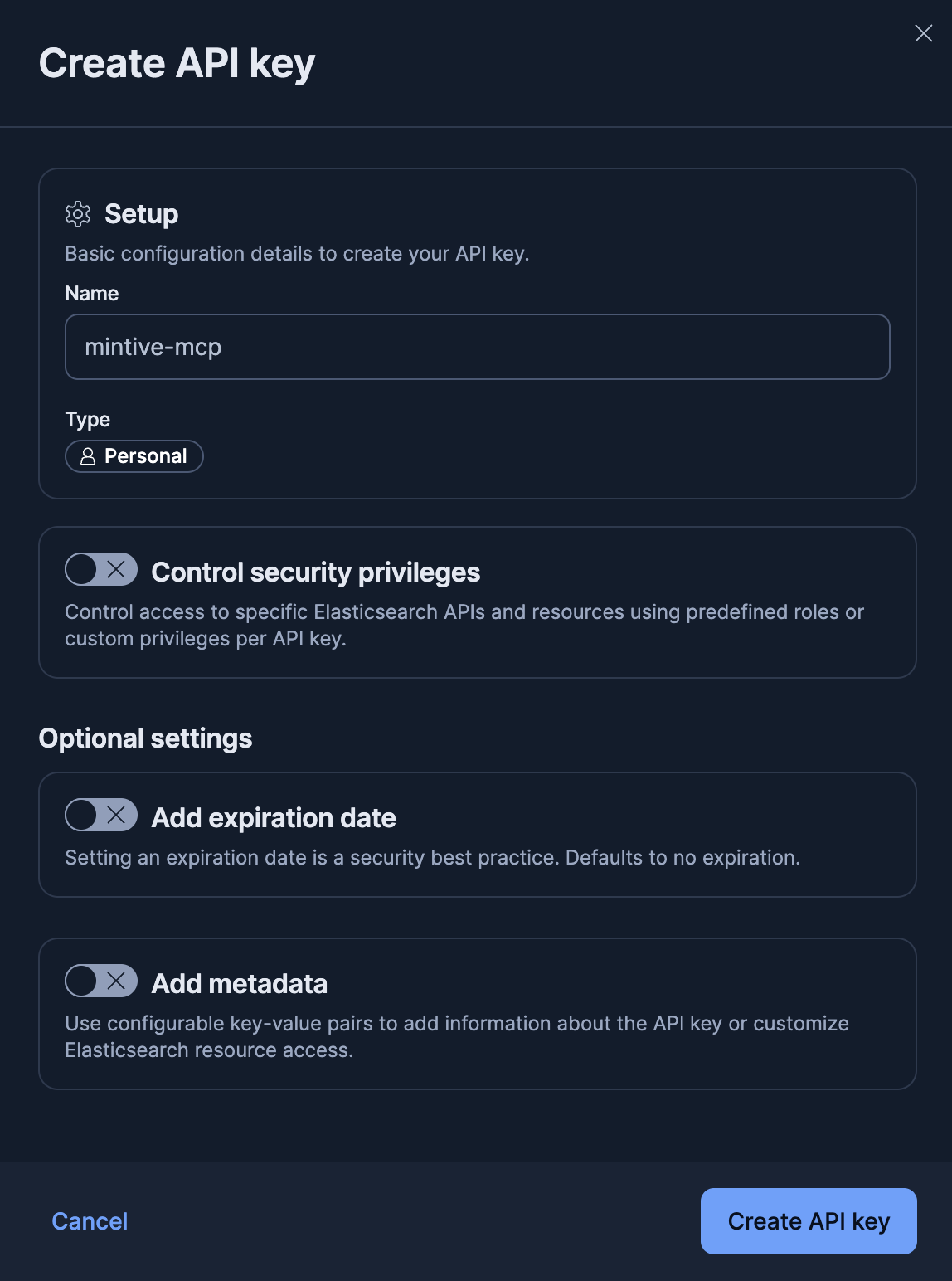
- Click Create API key.
-
Under Setup, enter a Name, for example
mintive-mcp. The Type stays Personal, so the key can never exceed your own privileges. -
Optionally, turn on Control security privileges to give the key less access than you have, and enter the role descriptor below as custom privileges. Replace
*with the index patterns agents may query, and changespace:defaulttospace:<space-id>if your Server URL points to a custom space. Leave it off and the key works with the privileges you hold when you create it.{"mcp-access": {"cluster": ["monitor_inference"],"indices": [{"names": ["*"],"privileges": ["read", "view_index_metadata"]}],"applications": [{"application": "kibana-.kibana","privileges": ["feature_agentBuilder.read", "feature_actions.read"],"resources": ["space:default"]}]}}Privilege What it grants monitor_inferenceRead access to the inference endpoints Agent Builder tools use read,view_index_metadataSearch the listed indices and read their mappings feature_agentBuilder.readAccess to the MCP endpoint feature_actions.readRead access to the Kibana connectors that tools run through -
Under Optional settings, turn on Add expiration date and set a lifespan that matches your rotation policy, since keys default to no expiration.
-
Click Create API key.
-
Copy the key in Encoded format, since Kibana shows it only once.
Install the connector
- In Mintive, go to MCP store and open the Catalog tab.
- Select Elastic Agent Builder to open its configuration panel.
- In Server URL, enter the endpoint from Find your MCP endpoint.
- Choose API key as the authentication method, then click Install.
The install doesn't ask for a key, because each user pastes their own encoded key from the previous section when they first connect. Mintive sends it as Authorization: ApiKey <key>.
Each user signs in to the Serverless project and approves the connection, so Elastic applies that person's own permissions. Elastic doesn't support dynamic client registration, so register an OAuth client in the project first.
Register an OAuth client
- In your Serverless project, go to Agents. Search for "Agent Builder" if it isn't in the navigation menu.
- Select Tools, then click Manage all tools.
- Click Manage MCP > Manage MCP clients (OAuth), then click Add MCP client.
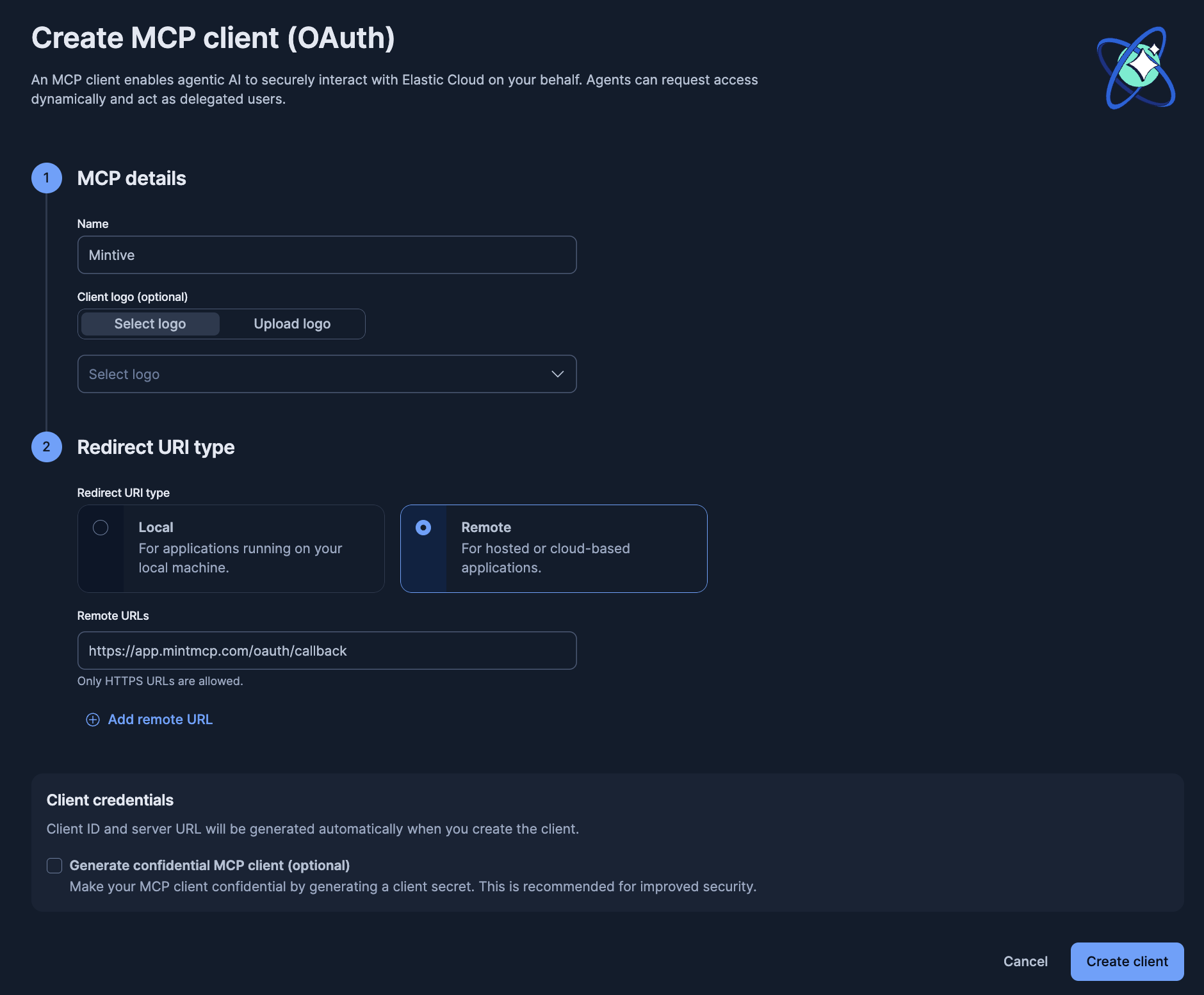
- Under MCP details, enter
Mintivein Name. Users see this name on the consent screen.
-
Under Redirect URI type, select Remote and enter the callback for your Mintive region in Remote URLs:
Mintive region Redirect URI US ( app.mintmcp.com)https://app.mintmcp.com/oauth/callbackEU ( eu.mintmcp.com)https://eu.mintmcp.com/oauth/callback -
Under Client credentials, select Generate confidential MCP client (optional) so Elastic issues a client secret.
-
Click Create client.
-
Copy the Client ID, Client secret, and MCP server URL. The secret is shown only once.
Install the connector
- In Mintive, go to MCP store and open the Catalog tab.
- Select Elastic Agent Builder to open its configuration panel.
- In Server URL, enter the MCP server URL you copied from Elastic.
- Choose OAuth (Serverless only) as the authentication method.
- Open OAuth Client Advanced Settings and paste the Client ID and Client Secret.
- Click Install.
Connect a Kibana instance that isn't internet-facing
If Mintive can't reach your Kibana host, route the connector through a Private Network. Private Networks are available on Enterprise plans.
If your organization doesn't have one yet, create the network, then install a connection replica with Helm or Docker on a host that can reach Kibana, and wait for the replica to show Ready before you add the route:
- In Mintive, go to Settings > Enterprise > Private networks and open the network that has a Ready replica inside the network where Kibana runs.
- Click Add route.
- Enter a Name, such as
Kibana, then enter your Kibana hostname as the Target host and443as the Port. - Turn on Remote MCP connectors and Originate TLS to the target. Paste your CA bundle in Private CA certificate bundle if Kibana uses a private CA.
- Click Add route and wait for it to show Ready.
- Open the Elastic Agent Builder connector in Mintive, choose Private Network under Network path, and select the route.
The scheme, host, and port of the Server URL must match the route's target origin.
Security considerations
- A key without custom privileges reaches every index and Kibana feature its creator can. Use Control security privileges to limit it to the indices and space agents need, and set an expiration so keys rotate on a schedule.
- API keys don't expire by default. Invalidate one from the API keys page when a user leaves or a key is exposed.
- Both methods are per-user, so Elastic enforces each person's privileges and Mintive attributes every tool call to the user who made it.
- OAuth connections expire after 30 days without use, and users re-authorize the next time they connect. Revoke a client from Manage MCP clients (OAuth) to cut off every connection made through it.
- Elastic Workflows exposed as tools can take actions beyond reading data, so use tool customization to hide the ones users shouldn't call.
Troubleshooting
403 Forbiddenon connect: the user who created the key lacks read access to Elastic Agent Builder in the space from the Server URL. If the key uses custom privileges, also confirm it includesfeature_agentBuilder.readand that itsresourcesinclude that space.404 Not Found: confirm the Server URL uses the Kibana host, not the Elasticsearch host, ends with/api/agent_builder/mcp, and that the deployment runs 9.2 or later.- OAuth option fails on a Hosted or self-managed deployment: OAuth is available only on Serverless projects. Use an API key instead.
- Connection times out: Kibana isn't reachable from Mintive. Connect it through a Private Network, or contact enterprise@mintmcp.com to get Mintive's dedicated egress IP if your Elastic Cloud deployment uses IP filtering.
Next steps
- Tool customization: control which Agent Builder tools are exposed to users
- MCP gateway administration: manage access and permissions
- Private networks: reach a Kibana instance that is not internet-facing