Set up the Microsoft Intune MCP server
The Microsoft Intune MCP server gives AI agents access to managed devices, compliance policies, configuration profiles, apps, Windows Autopilot devices, and the Entra ID groups they're assigned to. Each user signs in with their Microsoft account, so every call runs with that user's Intune role. This guide covers registering a Microsoft Entra app with read and optional write permissions, and adding the connector to Mintive (formerly MintMCP).
Prerequisites
-
A Mintive admin account
-
A Microsoft tenant with an active Intune license
-
A Microsoft Entra admin who can register an app and grant admin consent, such as a Global Administrator, Cloud Application Administrator, or Application Administrator
-
An Intune role for each user who connects, at least Read Only Operator. Assign it in the Intune admin center under Tenant administration > Roles > All roles > Read Only Operator > Assignments.
-
For write tools, a role for each user who runs them that allows the change. Microsoft checks it on every call:
Change Role Device actions An Intune role that allows remote tasks, such as Help Desk Operator Policy, profile, and Autopilot changes An Intune role such as Policy and Profile Manager App assignments An Intune role such as Application Manager Group membership Owner of the group, or an Entra role such as Groups Administrator
Register a Microsoft Entra app
Microsoft Entra doesn't support dynamic client registration, so an admin registers an app once and Mintive uses its client ID and secret for every user's sign-in.
-
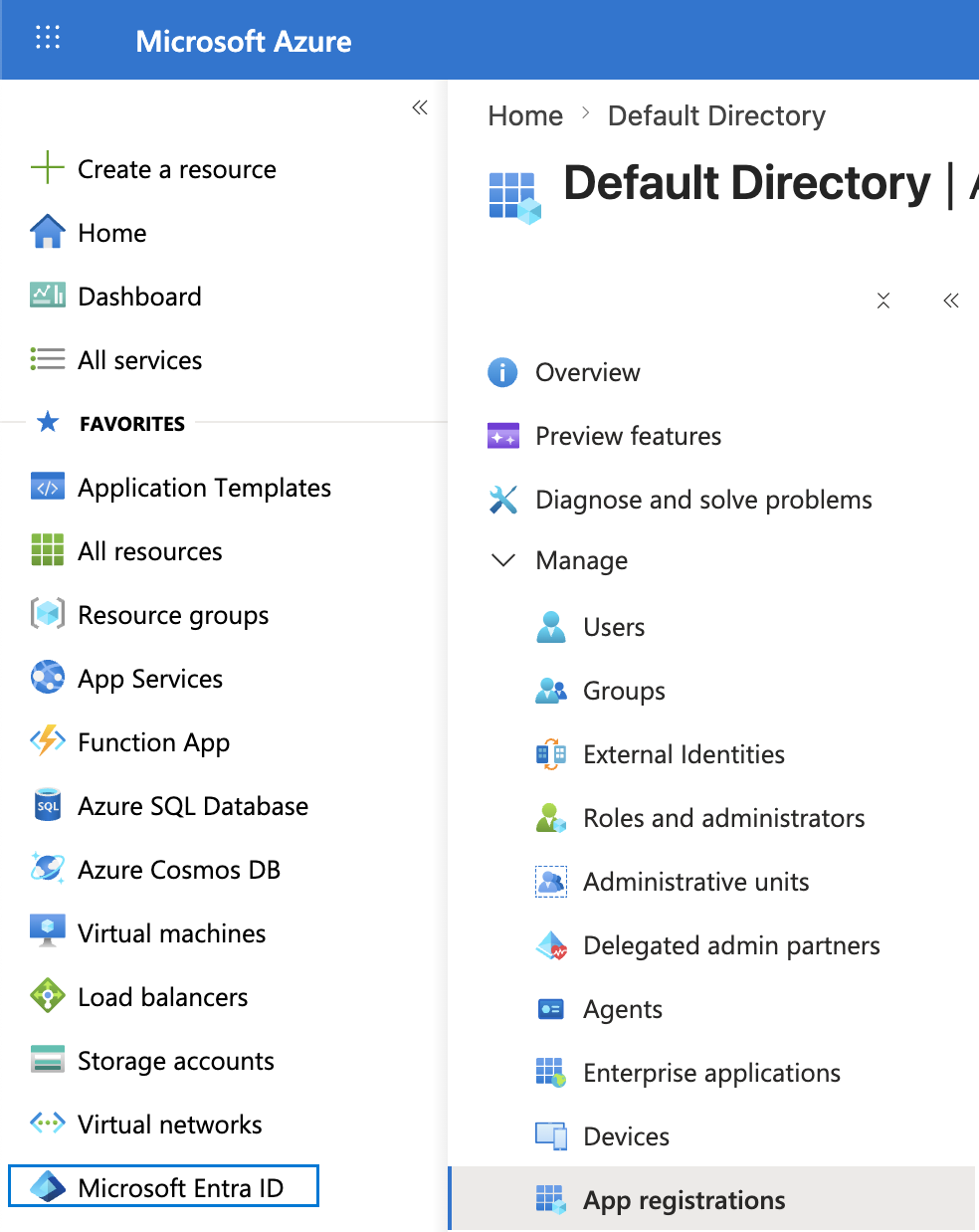
Go to portal.azure.com > Microsoft Entra ID > App registrations. Confirm the directory shown in the account menu is your organization's tenant.
-
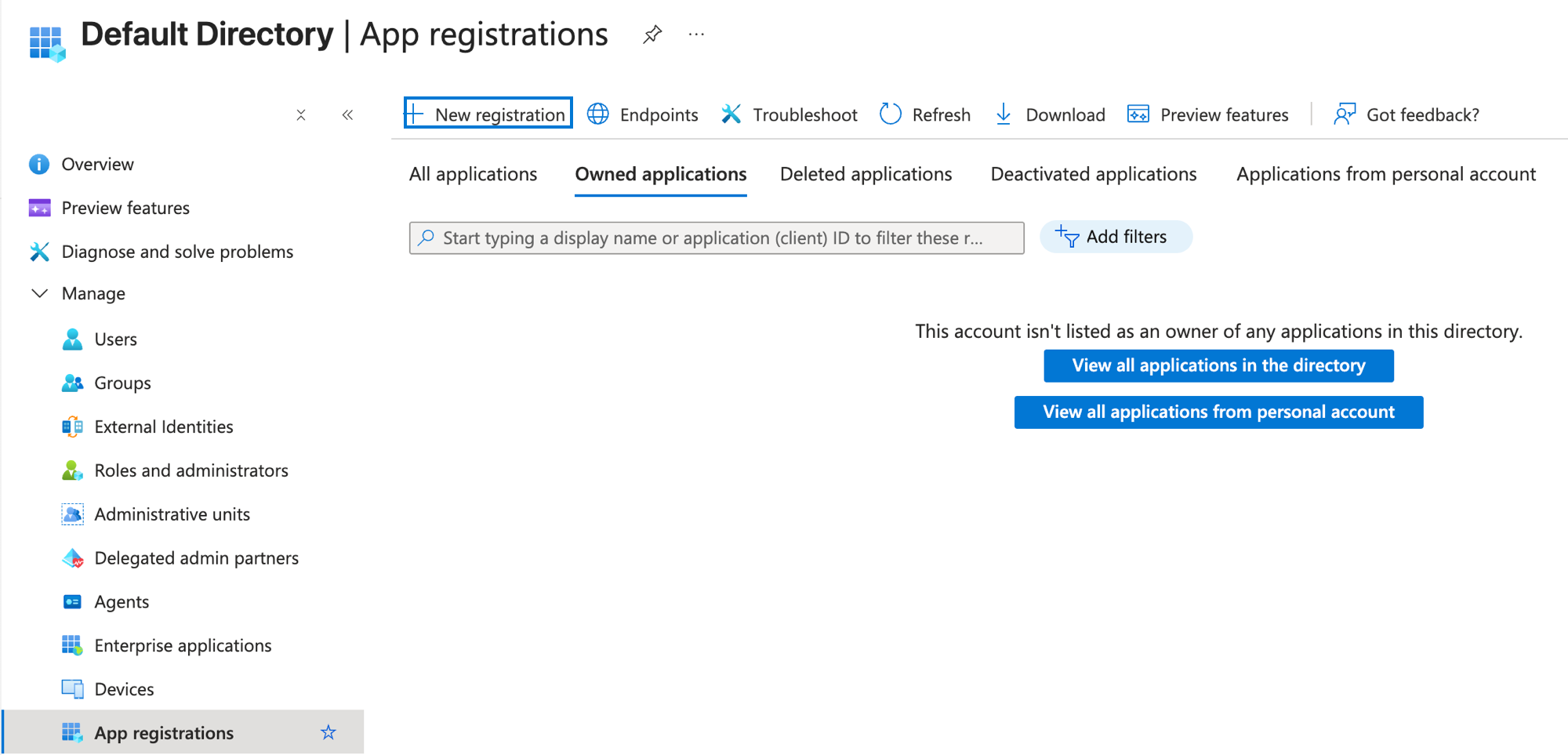
Click New registration.
-
Enter a name, for example Mintive Intune.
-
Under Supported account types, keep the single-tenant option. The current form labels it Single tenant only followed by your directory name; older forms call it Accounts in this organizational directory only.
-
Under Redirect URI, select Web and enter the callback for your Mintive region:
Mintive region Redirect URI US ( app.mintmcp.com)https://app.mintmcp.com/oauth/callbackEU ( eu.mintmcp.com)https://eu.mintmcp.com/oauth/callbackThe install panel in Mintive shows the callback for your organization. Microsoft compares the redirect URI character by character, so copy it from there.
-
Click Register.
-
Go to API permissions > Add a permission > Microsoft Graph > Delegated permissions, and add:
Permission Why DeviceManagementManagedDevices.Read.AllRead managed devices and how policies apply to each device DeviceManagementConfiguration.Read.AllRead compliance policies, configuration profiles, and settings catalog policies DeviceManagementApps.Read.AllRead apps, their assignments, and install status DeviceManagementServiceConfig.Read.AllRead Windows Autopilot devices GroupMember.Read.AllRead groups and their membership, and show group names on policy and app assignments Device.Read.AllRead which groups a device belongs to, and device details in group member lists User.ReadBasic.AllShow user names and sign-in names in group member lists openid,email,profileSign the user in offline_accessLet Mintive refresh the token without asking the user to sign in again Add only delegated permissions. The connector always acts as the signed-in user, so it needs no application permissions.
-
To let users run write tools, also add these permissions. Skip this step for read-only access.
Permission Write tools DeviceManagementManagedDevices.PrivilegedOperations.AllSync, reboot, remote lock, retire, and wipe devices DeviceManagementConfiguration.ReadWrite.AllAdd and remove group assignments and exclusions on compliance policies, configuration profiles, and settings catalog policies DeviceManagementApps.ReadWrite.AllAdd and remove group assignments and exclusions on apps DeviceManagementServiceConfig.ReadWrite.AllSet the group tag on a Windows Autopilot device GroupMember.ReadWrite.AllAdd and remove users and devices in groups Without these permissions, the write tools return an access-denied error that names the missing permission, and the read tools keep working. To add them later, add them here, grant admin consent again, and have users reconnect the connector once.
-
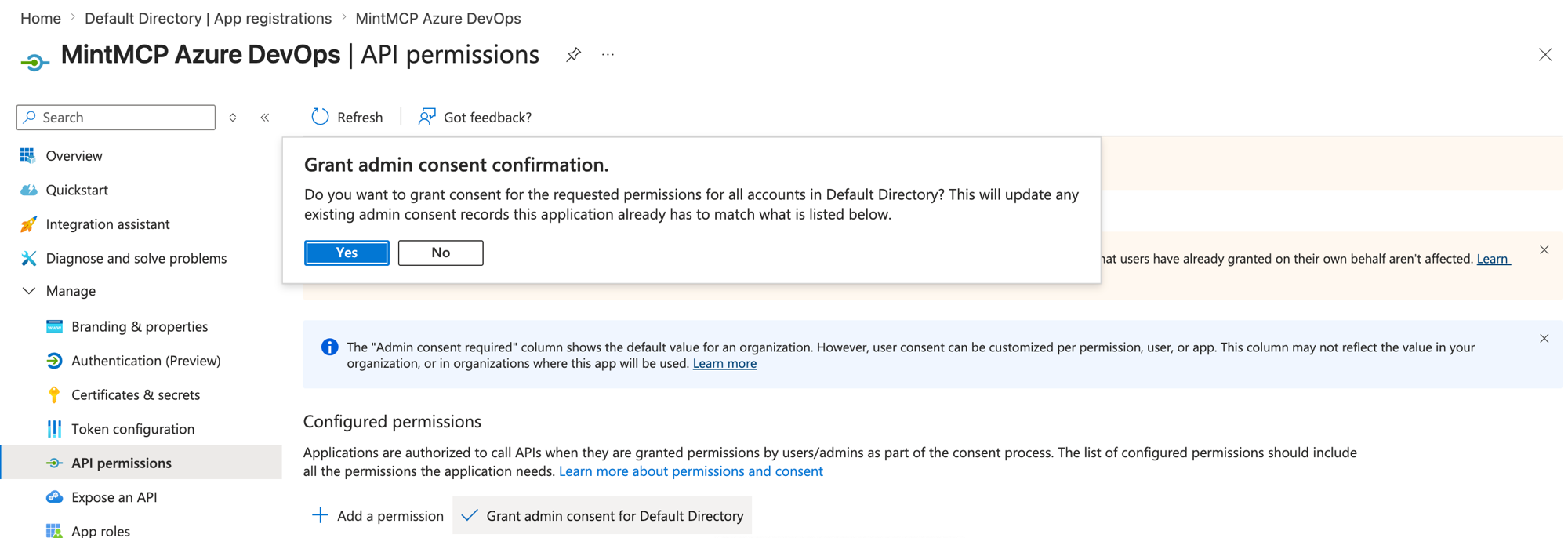
Click Grant admin consent for [your organization] and confirm. Every Intune permission requires admin consent, so users can't connect until an admin grants it. These grants decide what the connector can do.
-
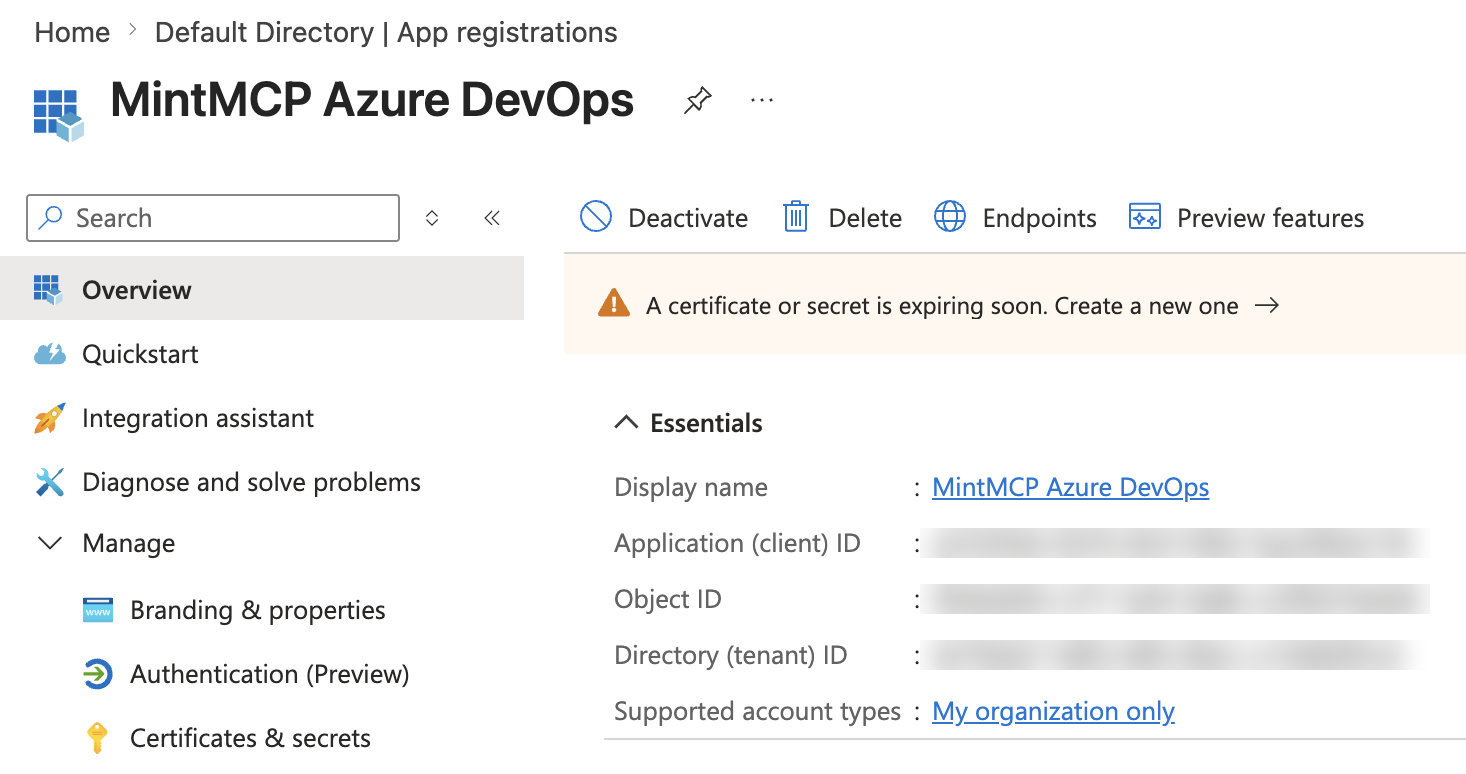
Copy the Application (client) ID and Directory (tenant) ID from the Overview tab. The Object ID is a different value and doesn't work as a client ID.
-
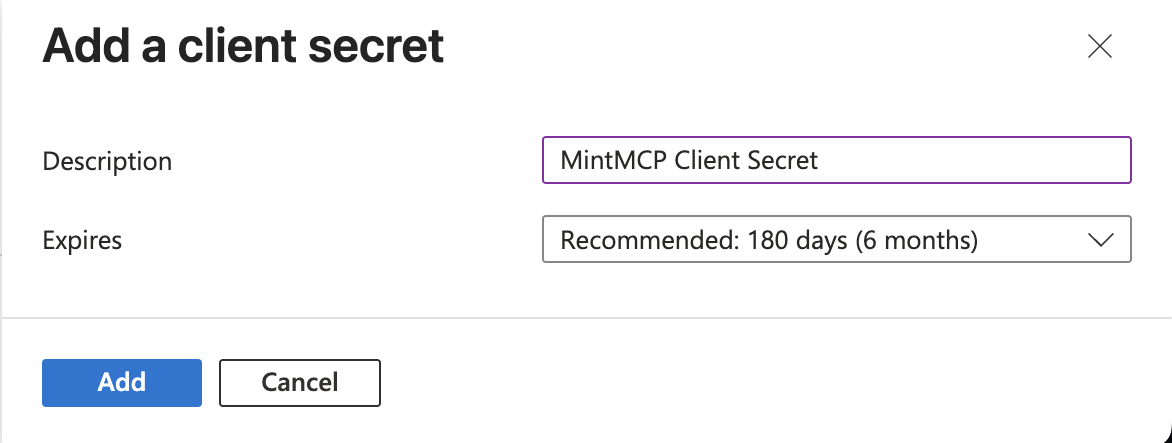
Go to Certificates & secrets > Client secrets > New client secret, enter a description, choose an expiry that matches your credential policy, and click Add.
-
Copy the secret Value immediately. It's shown once, and the Secret ID column next to it isn't the value Mintive needs.

Record the secret's expiry date and owner. When it expires, every user's connection stops refreshing until an admin creates a new secret and updates it in Mintive.
Add Microsoft Intune to Mintive
Microsoft Intune runs as a hosted connector in Mintive, and the catalog pre-fills the Microsoft endpoints, scopes, and token mapping. Microsoft's endpoints are per tenant, so {tenant-id} in the catalog is a placeholder for your Directory (tenant) ID.
The pre-filled scopes are openid, email, profile, offline_access, and https://graph.microsoft.com/.default. Keep them as they are. .default asks Microsoft for every Microsoft Graph permission granted to your app, so the same scopes work with only the read permissions or with the write permissions too.
- In Mintive, go to MCP store > Manage store.
- Find Microsoft Intune in the catalog and click Install, then continue. A setup page appears with the connector configuration.
- Enter the Client ID (the Application (client) ID) and the Client Secret (the secret Value) from the app registration.
- Confirm the Redirect URL shown on the setup page matches the Web redirect URI on the app registration (
https://app.mintmcp.com/oauth/callbackorhttps://eu.mintmcp.com/oauth/callback). Microsoft compares them character by character. - Click Install to finish.
Each user signs in with their Microsoft account on first use. With admin consent granted, they see the Microsoft sign-in page and land back in Mintive without a consent prompt.
To hide write tools from users, turn them off with tool customization.
Intune behavior and limits
The connector reads Intune through each user's own access, so its answers reflect what that user can see in the Intune admin center.
- Roles and scope tags: users only see the devices, policies, and apps their Intune role covers. A user whose role is limited by scope tags gets a smaller set of results than an administrator, and a user without an Intune role can't read any Intune data.
- Microsoft Graph beta: settings catalog policies and their assignments, apps, and the apps detected on a device come from the Microsoft Graph beta API, because Microsoft doesn't offer them on v1.0. Microsoft supports the Intune beta APIs but changes them more often than v1.0.
- Report delays: app install status and the apps detected on a device come from Intune reports, which update after devices check in. A newly assigned app or a newly enrolled device can take some time to appear, so a missing row doesn't mean the app isn't installed.
- Personal devices: on personally owned Android work profiles, Intune only inventories the apps in the work profile.
- Assignments: Intune keeps one assignment per group on a policy, profile, or app. Adding a group that already has an assignment or exclusion is refused, and the other assignments never change.
- Group members: user names need
User.ReadBasic.Alland device details needDevice.Read.All. Without them, Microsoft Graph still lists the members but leaves those fields empty.
Security considerations
- When the app holds only the read permissions, the connector can only read Intune and Entra ID data, because Microsoft rejects every write without a write permission. Use tool customization to turn off write tools users shouldn't have, such as retire and wipe.
- Retire and wipe are irreversible, so the agent must give the device's exact name before either one runs. Write tools are marked as writes for MCP clients, and those that remove or reset something are marked destructive, so clients can ask before running them.
GroupMember.ReadWrite.Allreaches every group the user can manage, including groups that grant app access or exclude users from Conditional Access. Give the group membership tools only to admins who already manage those groups.- The connector never retries a write. If a write times out or fails on Microsoft's side, the tool tells the agent the change may already have been applied, so it checks the current state before trying again.
- Every call runs as the signed-in user through delegated OAuth, so the connector reaches only what that user's Intune role allows, and Microsoft Graph activity logs attribute each request to that user.
- The client secret is stored in Mintive and never reaches the MCP client. Rotate the secret in Entra and update it in Mintive before it expires.
- Users can revoke their own consent at myapps.microsoft.com, and admins can review or remove the app under Enterprise applications in the Entra admin center. To remove write access, open the app under Enterprise applications, go to Security > Permissions > Admin consent, and choose Revoke permission on each write permission. Removing a permission from the app registration's API permissions list doesn't revoke a consent that was already granted.
Troubleshooting
| Symptom | Cause and fix |
|---|---|
Microsoft error about a redirect URI mismatch (AADSTS50011) | The app's Web redirect URI doesn't match Mintive's callback. Compare it with the callback shown in the install panel, including the region (app versus eu) |
Microsoft error that the app isn't multi-tenant or the endpoint is unsupported (AADSTS50194) | The URLs still use organizations, common, or the {tenant-id} placeholder. Replace them with the Directory (tenant) ID |
Invalid client secret (AADSTS7000215) | The Secret ID was pasted instead of the Value, or the secret expired. Create a new secret and update the connector |
| User sees Approval required instead of the sign-in completing | Admin consent wasn't granted. Grant admin consent on the app's API permissions page |
| Tools report that access to Intune data is denied | The user has no Intune role, or the tenant has no active Intune license. Assign at least Read Only Operator in the Intune admin center, then have the user retry |
| Group members are listed without names, or devices without details | The app is missing User.ReadBasic.All or Device.Read.All, or the user signed in before they were added. Add the permission, grant admin consent, and have the user reconnect |
| A write tool reports that access is denied | The user's token lacks the write permission, or the user's role doesn't allow the change. Check the permission and admin consent on the app, confirm the role in the table under Prerequisites, and have the user reconnect |
| Tools report that Microsoft Graph throttled the request or is temporarily unavailable | Intune limits how many requests each app can make. Retry after the wait the tool reports, and for large lists ask for smaller pages |
| A tool says Microsoft Intune is not connected, or the user isn't authenticated | The user's token was revoked or can't be refreshed. Have the user reconnect the connector in Mintive |
Next steps
- Tool customization: control which Intune tools are exposed to users
- MCP gateway administration: manage access and permissions